A page with an image
Claude Code · as a teacher · default settings
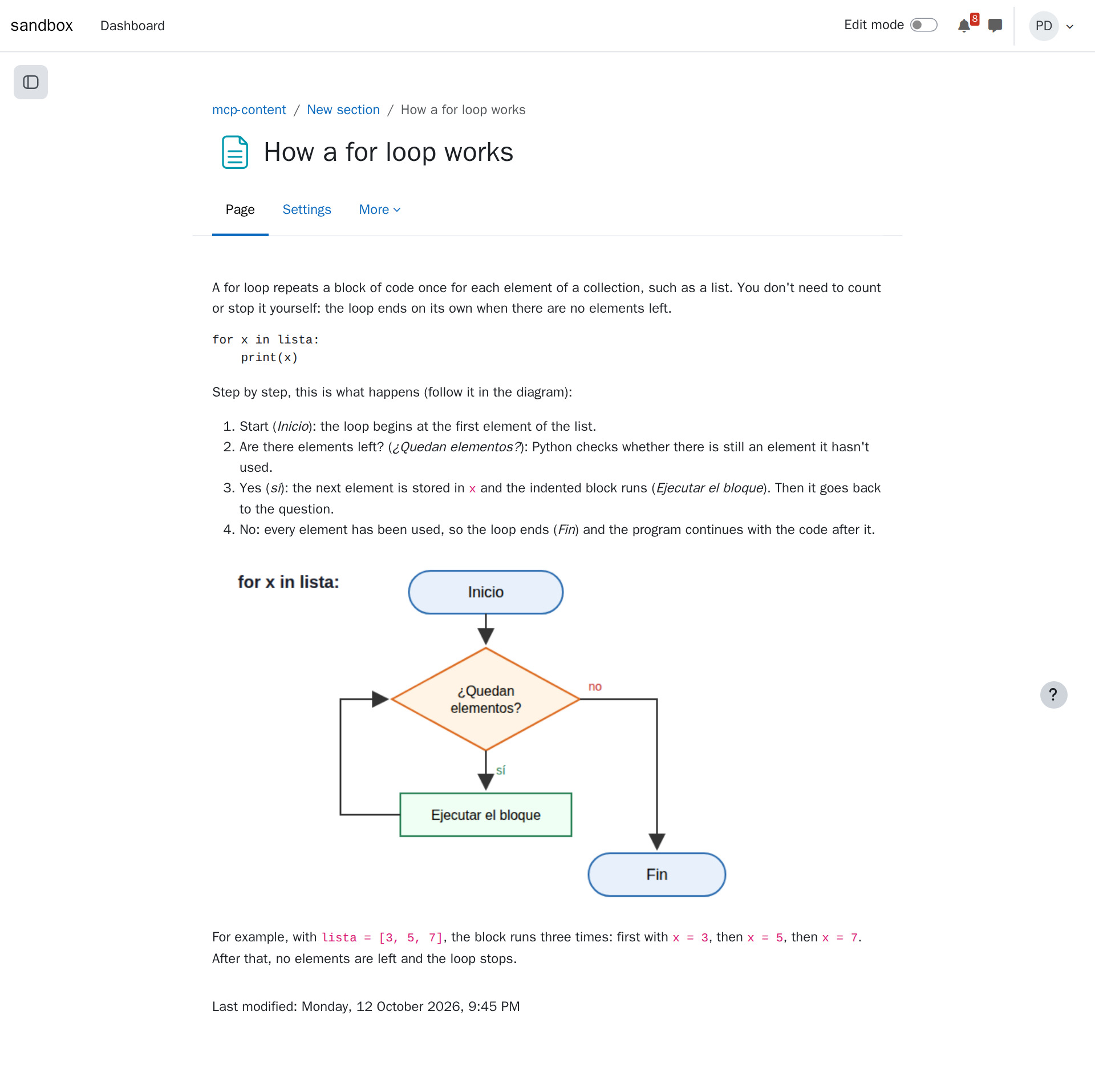
The agent writes a page for your course and uploads a picture from your computer into it, so it's part of the page, not a link.
What you ask
In my Moodle course mcp-content, create a hidden page called "How a for loop works" in the first section, with a short explanation for beginners and this diagram in it: /home/teacher/Pictures/for-loop.png
Give the full path of the image on your computer, such as C:\Users\you\Pictures\diagram.png on Windows.
The session
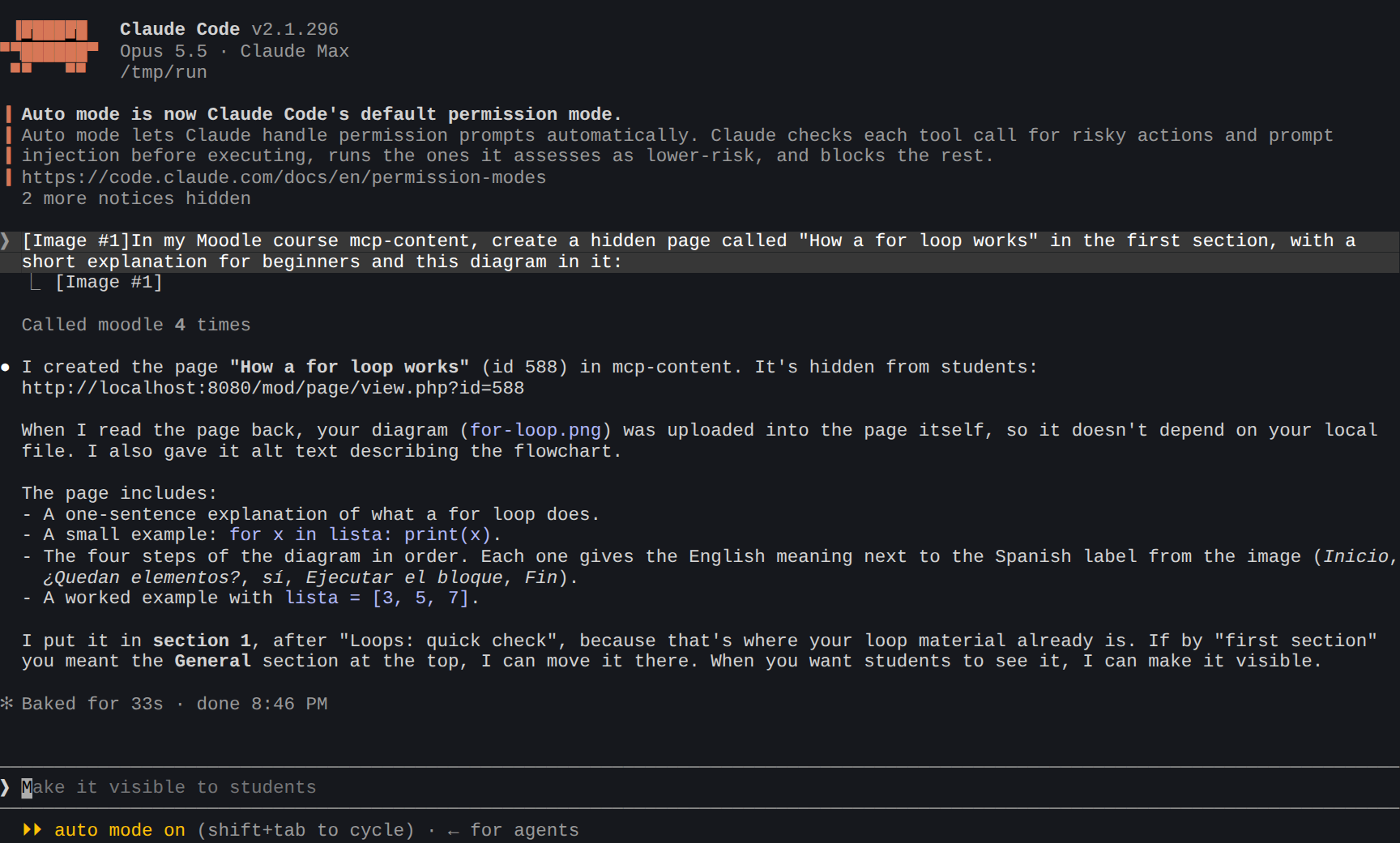
What the agent did:
- Recognized the image. Claude Code turned the file path into an attached image (
[Image #1]), so Claude could also see the diagram and explain it. - Found the course's first section (
get_course_structure). - Created the page with an explanation built around the diagram's steps, and the image uploaded into it (
create_activity). - Checked the result by reading the page back (
get_activity_content), and gave you its link.
The result in Moodle
Tips
- Any resource: labels, links, files, folders with several files, books. "Create a folder with these three PDFs" uploads them.
- Restrictions and completion go in the same request: "visible from Monday", "only after they complete the quiz", "mark as done when viewed".
- Edit it later: "Add a second example to the page How a for loop works" changes the page in place.