Recommended
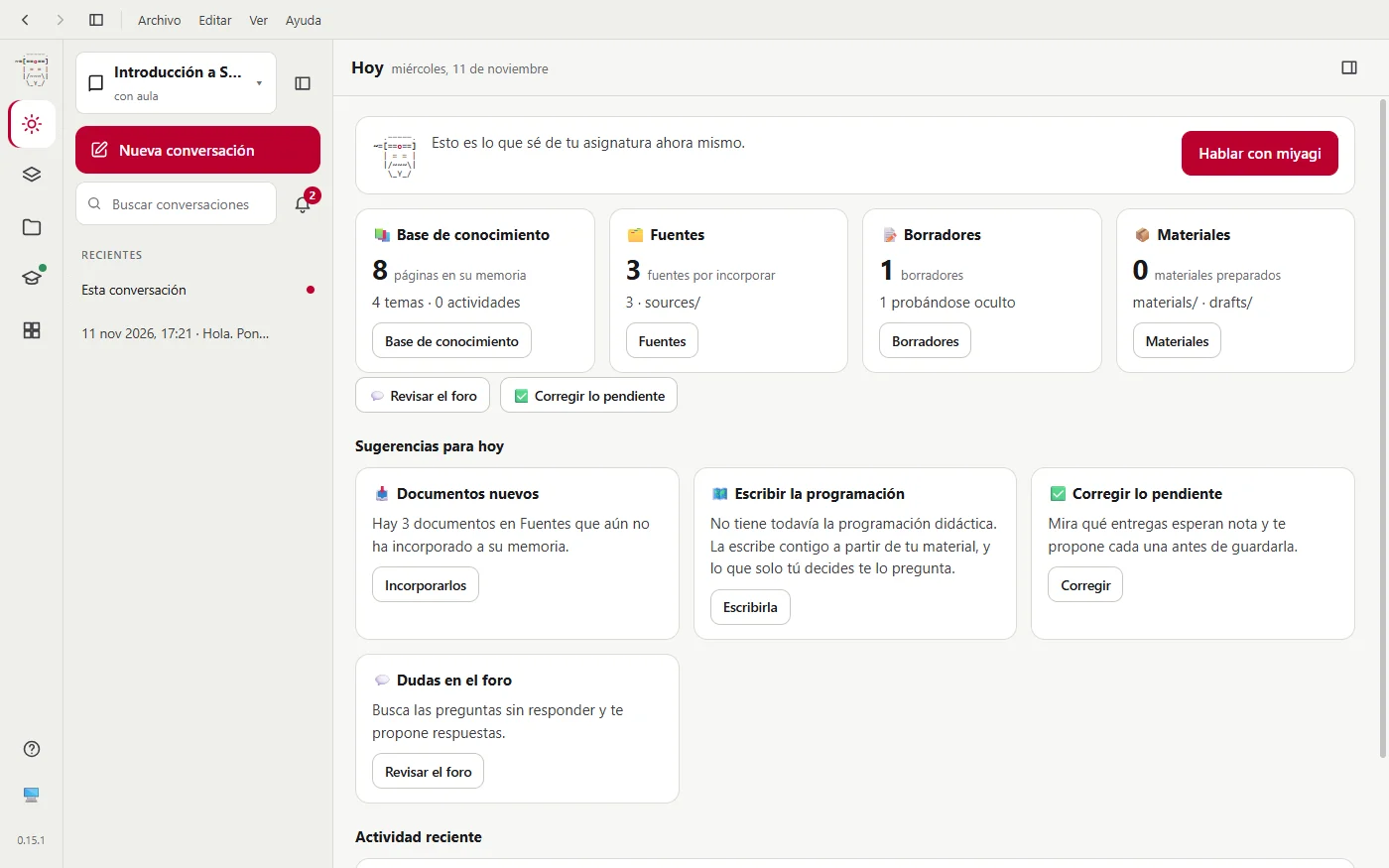
Desktop app
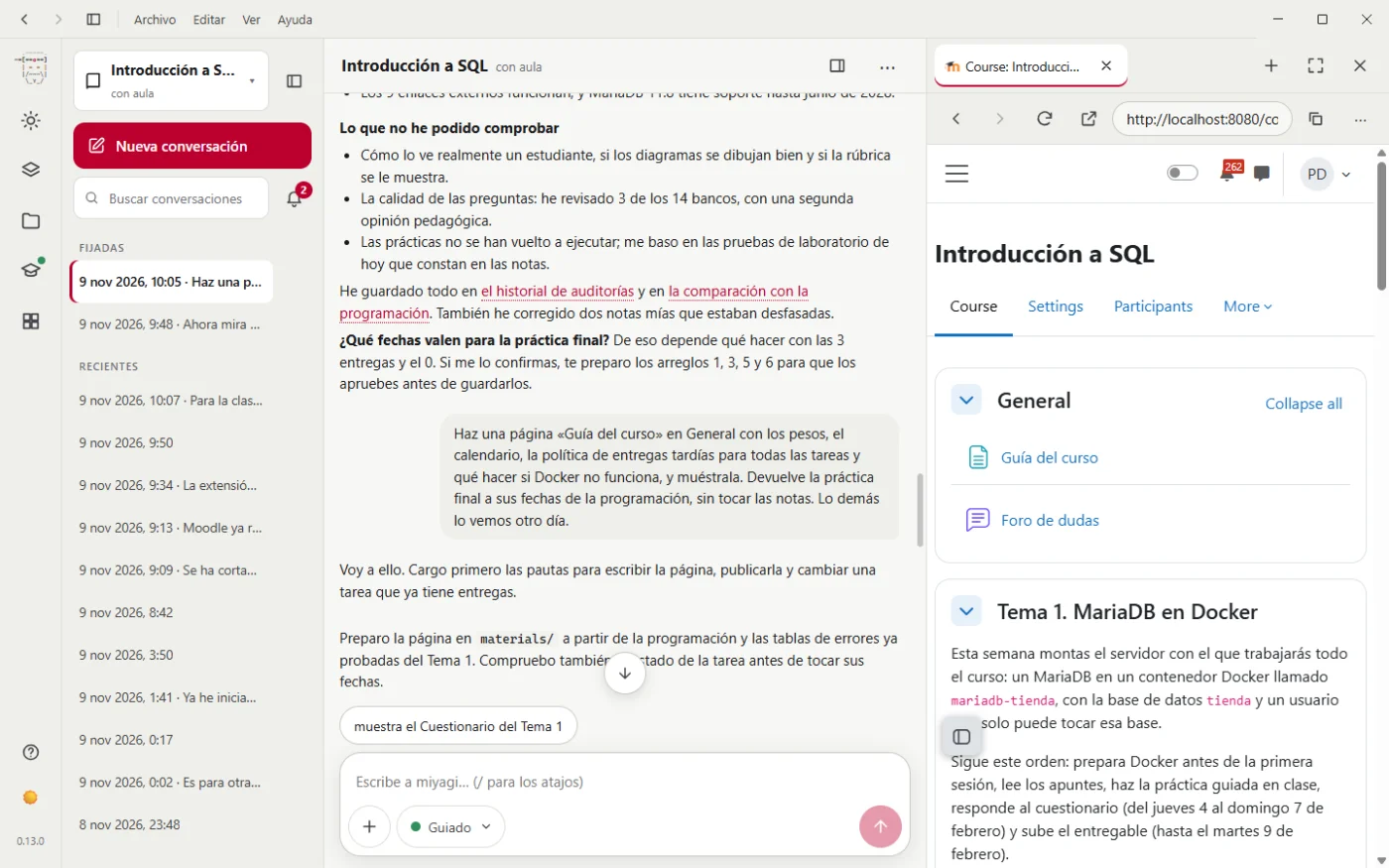
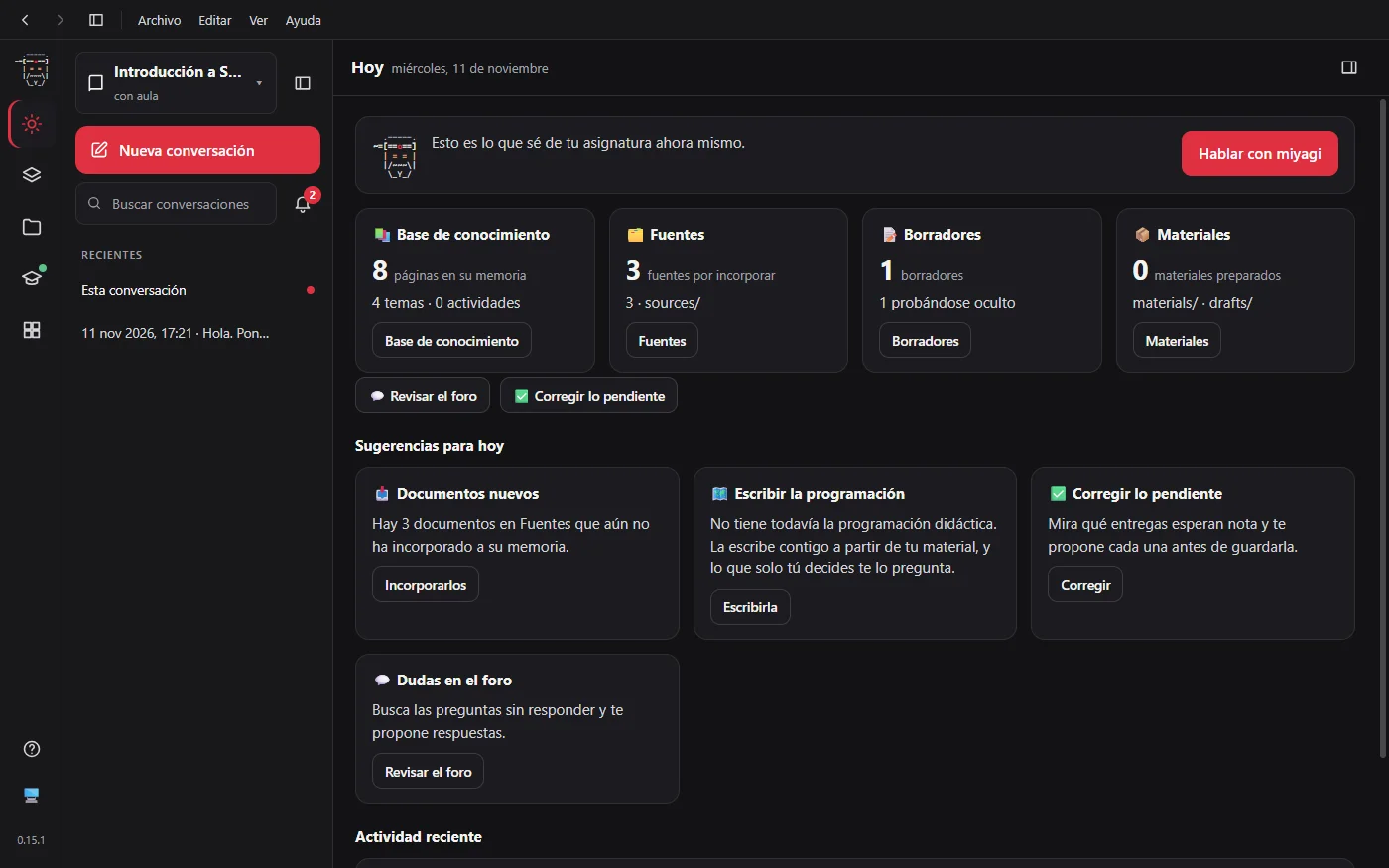
For most teachers, on Windows. It installs with a double click, with no terminal or Node.js. It has its own window bar and a built-in browser to keep Moodle beside the conversation.
AI assistant for teachers
A desktop app that prepares your subject with you and, if you connect your Moodle course, grades with your rubric, looks after the forum, builds units and quizzes and tells you how the class is doing. Nothing reaches your students without your permission.
64-bit Windows. The installer isn't signed yet and Windows will warn you. On Mac or Linux? See the other versions. Free and open source (MIT); it runs on your Claude subscription.
It's necessary work, it comes back every week and it eats your evenings.
miyagi takes care of that part. You, of teaching.
You ask in your own words, as you would a colleague. It does the work in your Moodle, with your teacher session.
You describe the course or the unit and it builds it: first the teaching plan, then each unit with real notes, assignments with their rubric and quizzes, and finally it reviews it as a student would see it.
“Build a four-unit Introduction to SQL course for first-year software development”Writes questions with believable distractors, varied levels and feedback that explains, and imports them in one go. If you have a game or a web simulation, it packages it so the grade reaches the gradebook on its own.
“Create a 10-question quiz on Unit 3”Applies your rubric and your criteria with the same yardstick to the whole class, and writes feedback that says what went wrong and how to improve it. It shows you every grade before saving it.
“Grade Assignment 2 with the unit's rubric”Finds the unanswered questions, decides when to step in and when to let the class help each other, and replies in the tone you chose. If a question keeps coming back, it tells you: the notes are missing something.
“Anything new in the forum?”Writes it with you from your material, asks you what only you decide (hours, calendar, weights) and has a teaching expert review it. Then it checks the classroom matches it: every criterion is assessed, and dates and weights add up.
“Help me with my teaching plan and tell me if the classroom matches it”Tells you how the class is doing, starting with whoever is falling behind, and audits the whole course with recommendations ordered by priority.
“Which students are falling behind?”Nothing to install on your school's server: it works in your Moodle with the moodle-teacher extension and your teacher session.
On Windows, a double click on the installer. Open the app and connect your Claude account.
Create a subject: name, tone and language and, if you like, your Moodle course's address. You log in to Moodle once, in its window, and miyagi never sees your password. Leave your teaching plan, your rubrics or your criteria in Sources and it will take them into account.
Talk to it in your own words. When something is about to reach your students, it shows it to you and waits for your yes.
The same subjects, the same memory of the course and the same permissions before publishing. We recommend the desktop app.
Recommended
For most teachers, on Windows. It installs with a double click, with no terminal or Node.js. It has its own window bar and a built-in browser to keep Moodle beside the conversation.
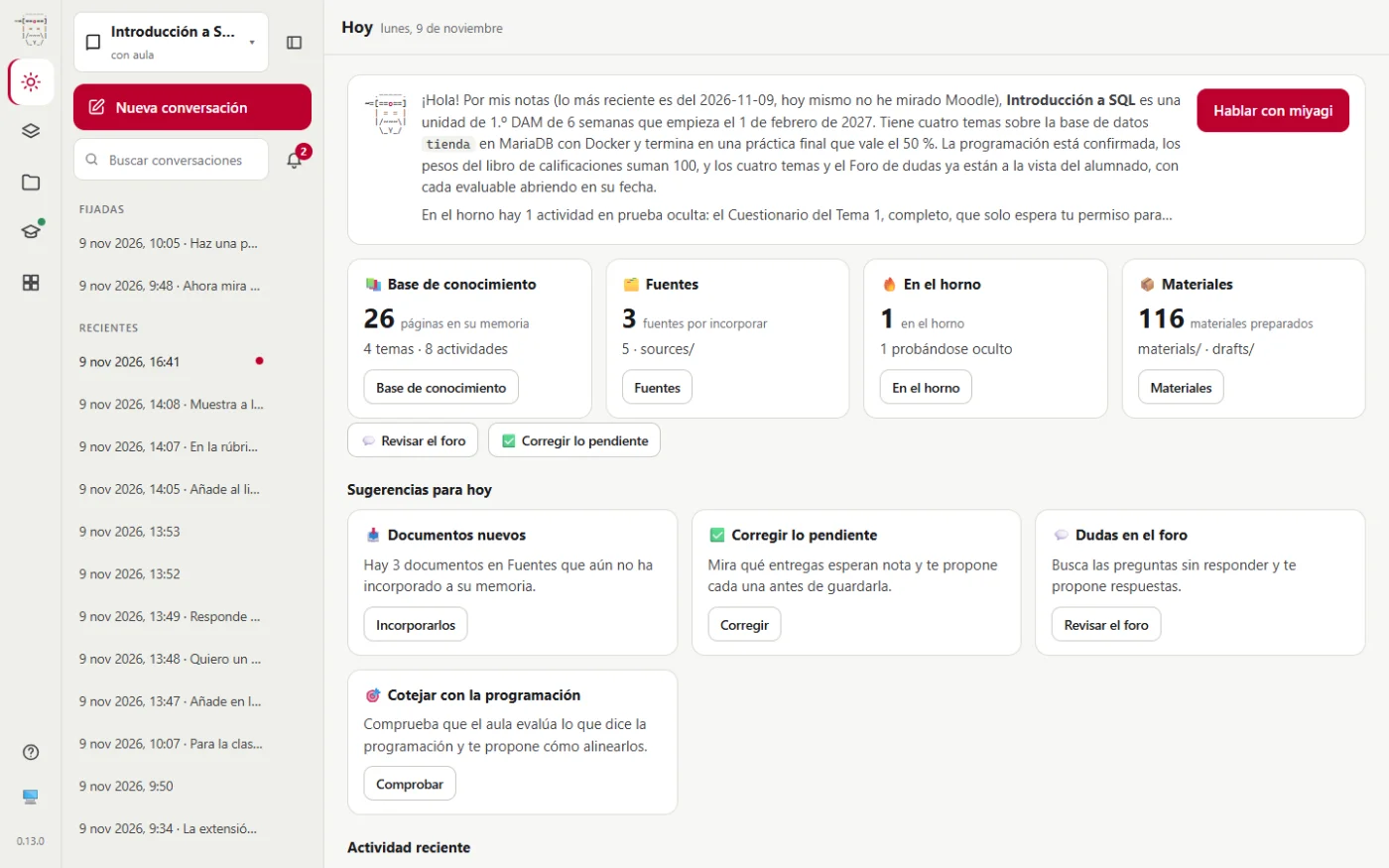
The same page, in a tab of your browser, on Windows, Mac or Linux. It opens with miyagi web and only works on your computer. It needs Node.js.
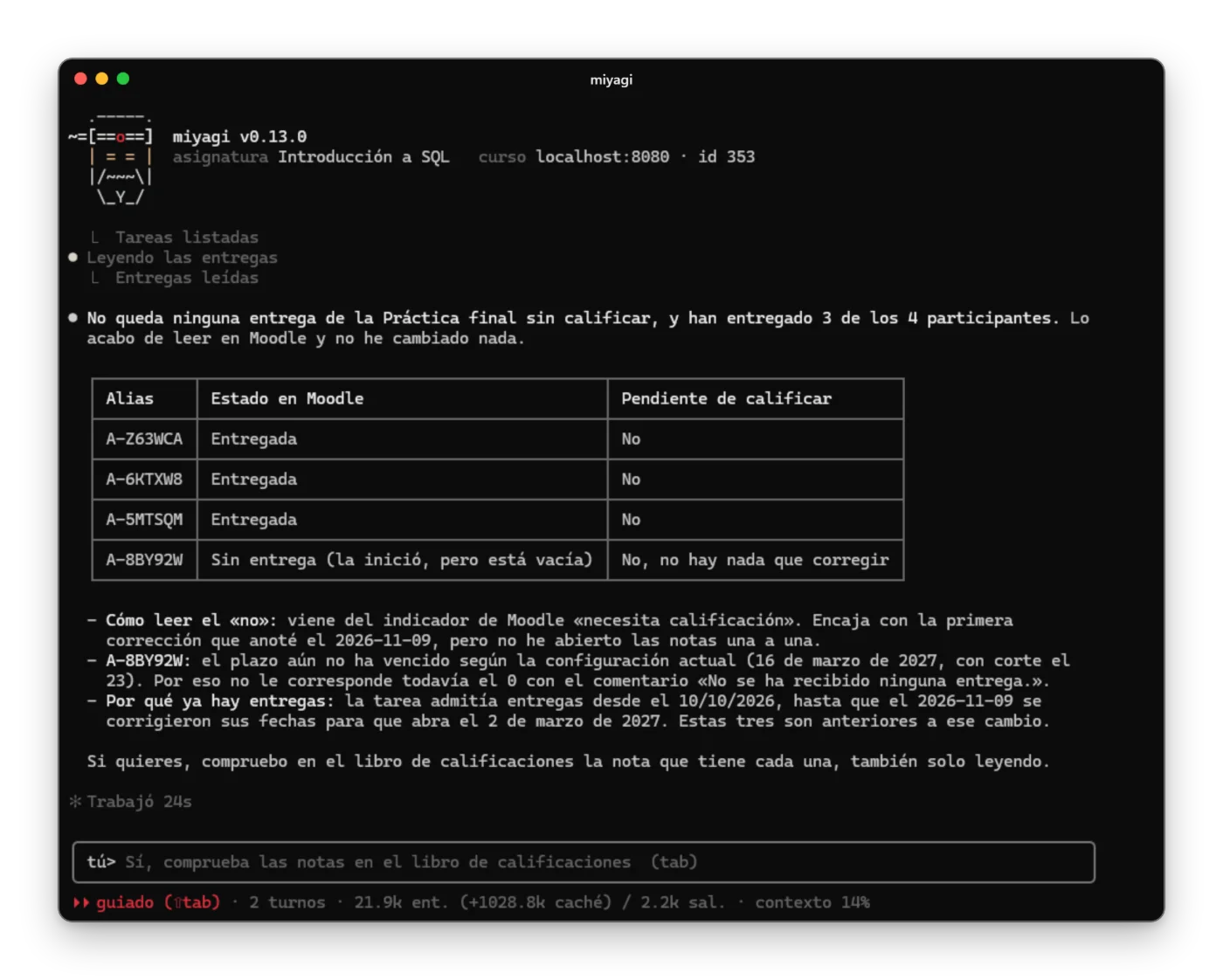
For anyone who prefers the keyboard or wants one-command jobs: miyagi chat, miyagi run, miyagi ingest. It needs Node.js.
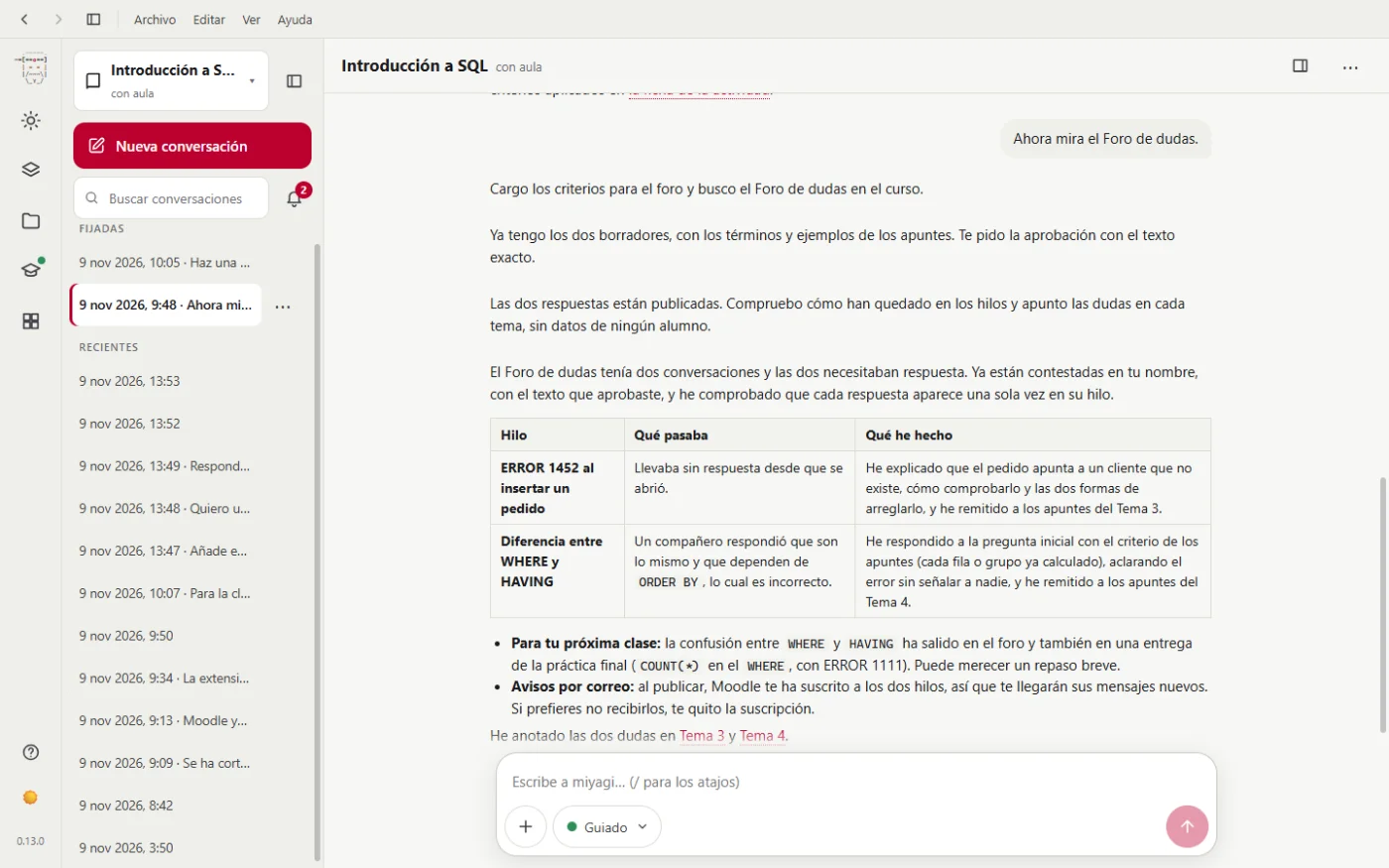
An “Introduction to SQL” classroom built from scratch with miyagi, step by step and with real screenshots: from the teaching plan to the grading. Its screenshots are in Spanish, the language it was built in.
You tell it how you want to run the unit and it builds it with pieces Moodle really has: peer-assessment workshops, branching lessons, badges, groups, restrictions. Then a pedagogy reviewer goes over it.
It takes notes as it works: your grading criteria, the rubrics, the teaching plan, the questions that keep coming back, how the class is doing. In the next session it starts from there and only opens Moodle when it needs to.
If you leave it documents (the subject's syllabus, rubrics, solutions), it reads them and adds them to its notes. They're text files in your course's folder: you can open and correct them with any editor. How it works inside.
my-course/
├─ sources/         your documents: teaching plan, rubrics
├─ knowledge/       its notes on the course
│  ├─ teaching-plan.md
│  ├─ progress.md
│  └─ drafts.md
├─ drafts/          what it prepares before uploading
└─ instructions.md what it must always keep in mindFor some tasks it relies on specialists that hand it back a report. None of them can publish anything in Moodle.
Searches the internet, reads the official sources first, checks them against each other and keeps what it finds with its links. So your notes are up to date.
“Find out what changed in MariaDB 11”Reviews a teaching plan or an activity: coherence between objectives, activities and assessment, methodology, workload and attention to diversity.
Optional, for computing courses: follows the practice step by step in Docker containers before it's published, because a practice that doesn't work costs the whole class an afternoon.
Formal, warm or motivating: you choose how it speaks to your students in the forum and in feedback.
It talks to you in Spanish, English, French or German. What it publishes always follows your course's language.
A conversation you can pick up another day, with search across all the earlier ones. Press Esc and it stops whatever it's doing.
Instructions it always follows (“grade out of 10”), skills and shortcuts of your own. All in text files, without programming.
It works with your session in your real course, so it checks with you before anything your students would see.
Before saving a grade, replying in the forum or publishing something, it shows you what it's going to do and waits for your yes. On top of that, the program watches every change it's about to make in Moodle and stops what you haven't approved.
It prepares it in drafts, uploads it hidden, tests it as a student would see it and shows it when you say yes. Whatever is left half-done, it reminds you of when you close.
It doesn't delete content without asking you, doesn't touch enrolments or the site's settings, doesn't leave your course, doesn't see your password and keeps no records of students.
No plans and no fees. What powers the assistant is your Claude subscription.
You can read what it does and how, and propose improvements on GitHub.
Every change to how it works is tested on a test Moodle with students, submissions and questions, and the report is published with its screenshots.
You don't need to know how to program. You need a Claude Pro or Max subscription and, to work in your classroom, a Moodle course where you have the teacher role.
64-bit Windows, with no terminal or Node.js. Download the installer and open it. Since it isn't signed yet, Windows will warn you: click More info and then Run anyway.
Install Node.js (the LTS version, 20 or later). Open a terminal, paste this line and press Enter:
npm install -g https://github.com/falkenslab/miyagi/releases/latest/download/miyagi.tgzThen miyagi web opens the web version and miyagi init sets up your subject in the terminal.
The first steps guide explains everything with examples, and you can compare the three versions.
miyagi is free and open source. What powers the assistant is your Claude subscription (Pro or Max).
A chat gives you a text and you do the rest in Moodle. miyagi goes into your course and does the work there: it saves the grade with its feedback, replies in the forum, creates the assignment with its rubric. It also remembers your course from one session to the next and asks your permission before your students see anything.
It works with the Moodle you already use, through the moodle-teacher extension and your teacher session: you log in to Moodle once, in its window, and nothing has to be installed on the server. It's made for Moodle 4 and 5, and tested on Moodle 5.2.
The desktop app, the main version, only on 64-bit Windows. The web version and the terminal also work on Mac and Linux, with Node.js.
No. On Windows you install it with a double click, and then you use it by talking to it. The guide walks you through it, and the example classroom shows it step by step with real screenshots.
In the chat, before saving a grade, replying in the forum or publishing content, it asks your permission with a summary of what it's about to publish. If it tries to publish without having asked, it's stopped and you're asked.
You see every grade, every reply and every resource before it reaches your students, and you can say no or ask it to change it. Anything new is tested hidden before it's shown. If you don't like something about how it works, correct its notes or write it in instructions.md.
It reads what you would see in Moodle to do its work, but its notes keep no records of individual students, only how the class is doing. By default, students reach it under an alias (“A-7KQ2XM”), never by name. It never sees your Moodle password: you log in yourself, in the extension's window.
Yes. Write in an instructions.md file in the course folder whatever you want it to always keep in mind: “grade out of 10”, “be brief in the forum”, “spelling counts 10 %”. And if you want to go further, you can teach it skills of your own.
More answers in the guide's FAQ.
You keep what matters, which is teaching.