Choose your version
miyagi is the same assistant in all three versions: the same subjects, the same permissions before publishing, the same course memory. What changes is how you open it and what you have around it.
If you have Windows, use the desktop app. It's the main version: the easiest to install and the most complete.
Desktop app
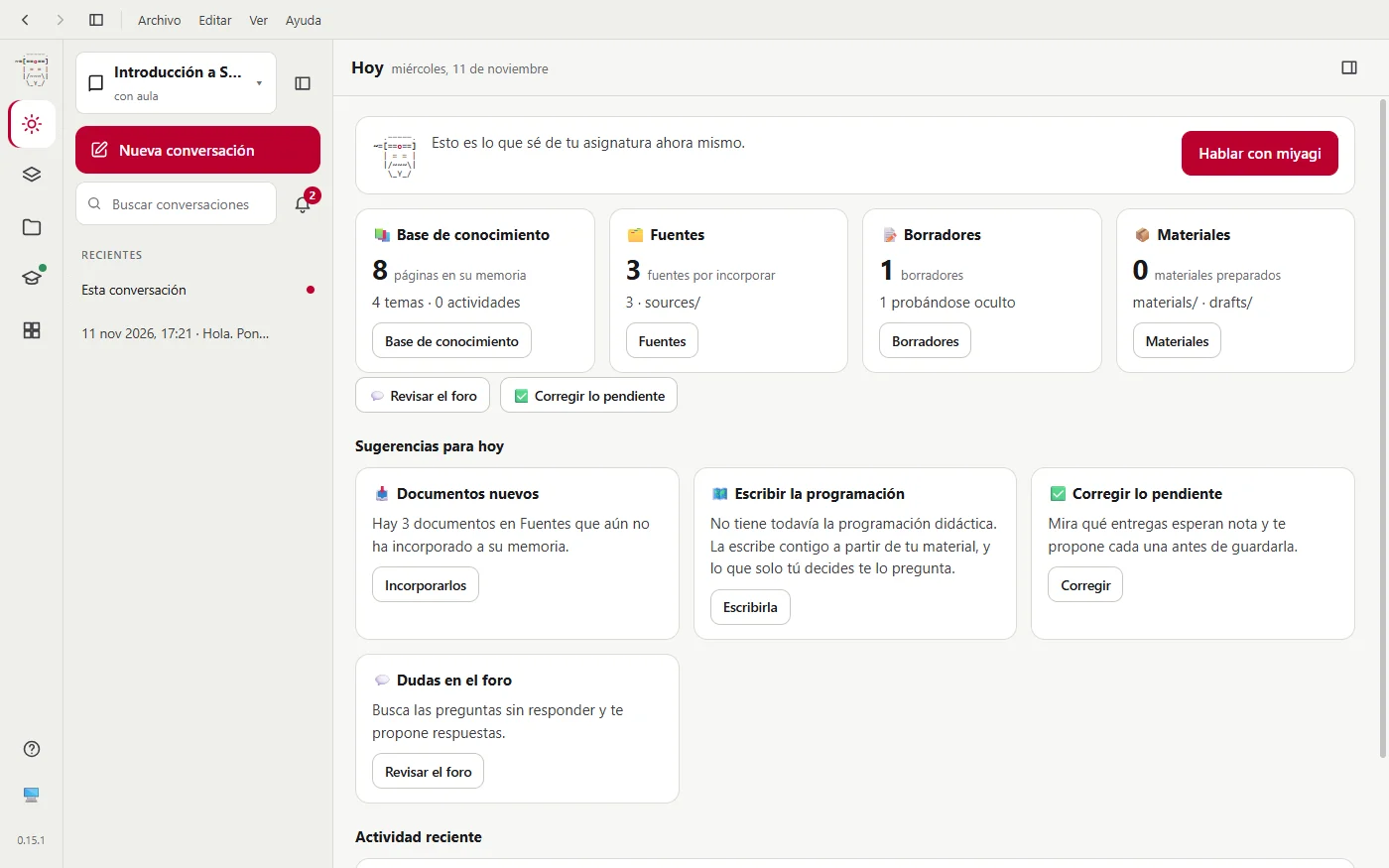
- Who it's for. Most teachers. You don't need to touch the terminal or install Node.js.
- Where. 64-bit Windows only.
- What it has on top. Its own window bar with the File, Edit, View and Help menus, and a web browser built into the side panel, with tabs, so you can have Moodle next to the conversation.
- How to install it. With an installer: it's in Install. It isn't signed yet, so Windows will warn you the first time.
- Guide: The desktop app.
Web version
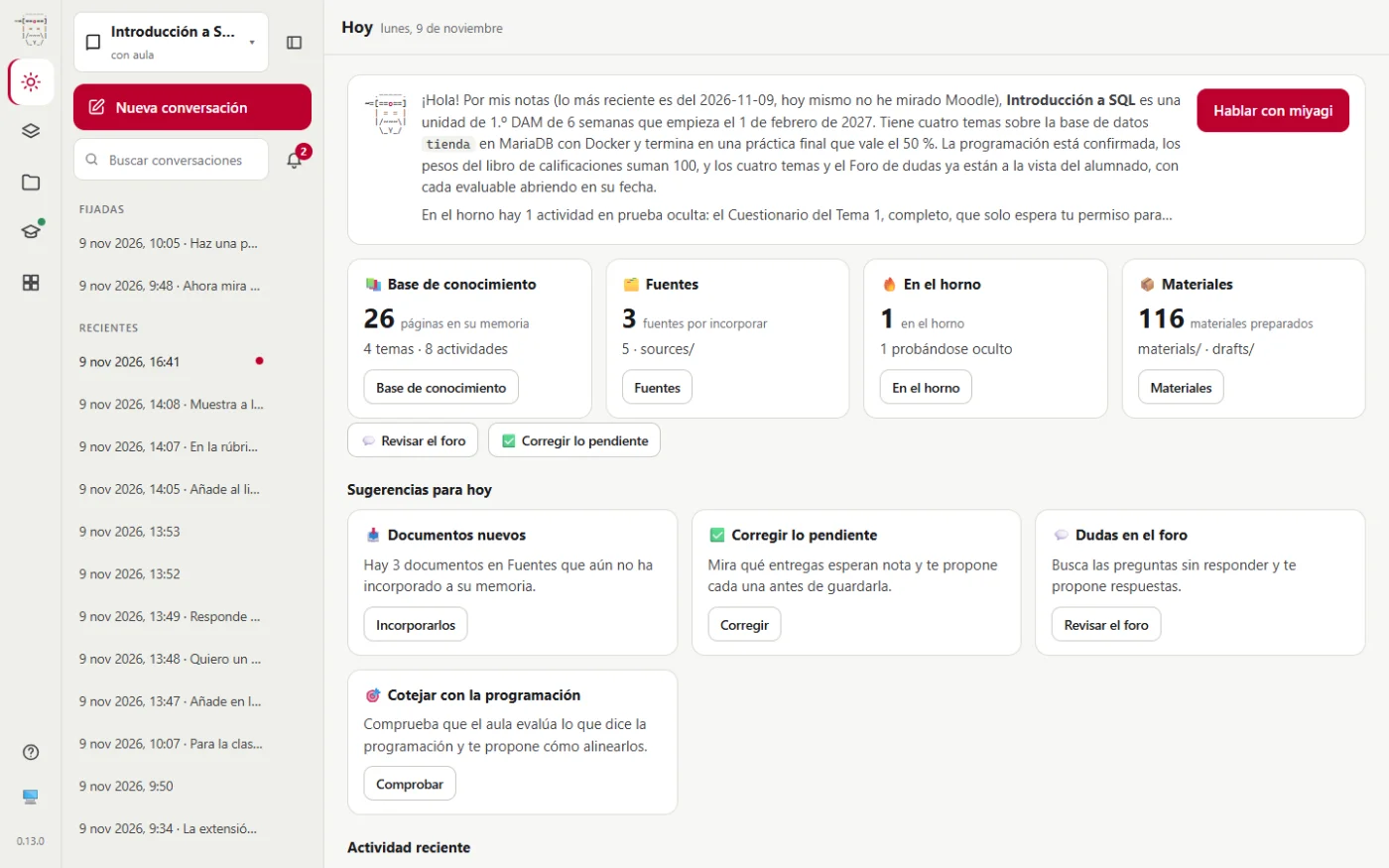
- Who it's for. If you use Mac or Linux, or if you'd rather not install the app.
- Where. Windows, Mac and Linux. You open it from a terminal and it works only on your computer.
- What it doesn't have. Neither its own window bar nor the built-in browser: links open in your browser.
- How to install it. With Node.js and one line in the terminal, and you open it with
miyagi web. - Guide: The web version.
Terminal
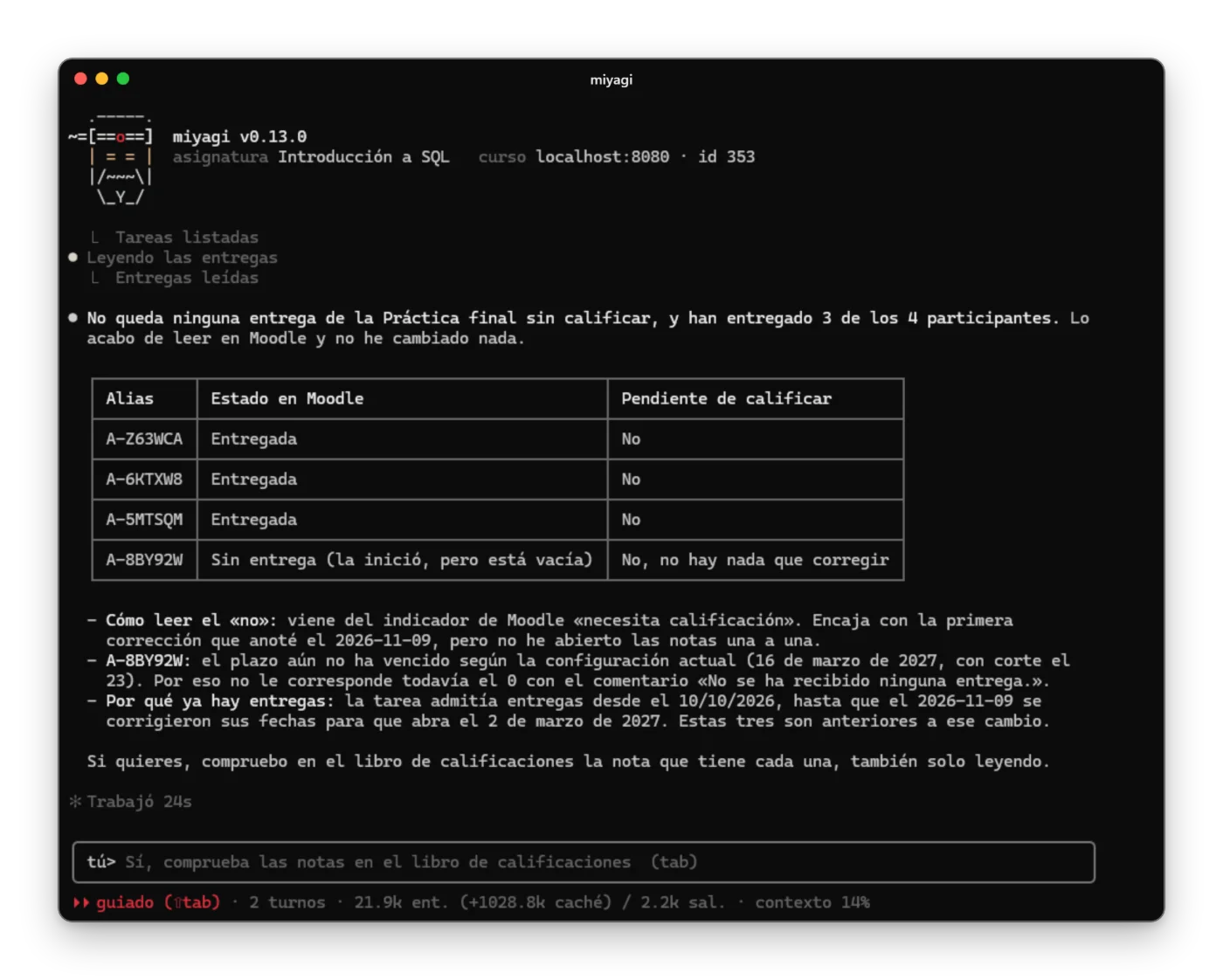
- Who it's for. Those who are at home in the terminal, or who want single-command tasks (
miyagi run). - Where. Windows, Mac and Linux, with Node.js.
- What it has on top. The
init,run,ingest,explore,skillsandextensioncommands, and the chat's keyboard shortcuts. - Guide: The terminal.
At a glance
| What | App | Web | Terminal |
|---|---|---|---|
| System | 64-bit Windows | Windows, Mac, Linux | Windows, Mac, Linux |
| Needs Node.js | No | Yes (20 or later) | Yes (20 or later) |
| How you open it | The miyagi icon | miyagi web and the address it gives you | miyagi chat |
| Which subject it opens | The last one you used | The last one, or the one given with -w or --dir | The one given with -w or --dir, or the current folder |
| Window menus | Yes | No | No |
| Built-in browser | Yes | No | No |
| Guided tour and tips | Yes | Yes | No |
| Links in the conversation | Open in the side panel | Open in your browser | Shown as text; you open them from the terminal |
You can switch whenever you want: all three work with the same folders (~/.miyagi, on Windows C:\Users\<your-user>\.miyagi), so a subject created in the app also opens from the terminal, and vice versa. What you shouldn't do is have two versions open at the same time on the same subject.
What if I don't have Windows?
The app only installs on Windows. On Mac or Linux, install with Node.js and use the web version: you'll see the same thing, without the window menus or the built-in browser.