What is miyagi?
miyagi is an assistant for teachers. It helps you prepare your subject (teaching plan, units, materials, rubrics, quizzes) and, if you connect your Moodle course, it also helps you run it: it grades submissions, answers in the forum, creates or reviews content and sums up how the class is going. In Moodle it works with your own teacher session, through the moodle-teacher extension.
You talk to it in your own words, as you would with a colleague. And nothing your students see is published without your permission: before it saves a grade, replies in the forum or publishes a resource, it shows you what it's about to do and waits for your yes.
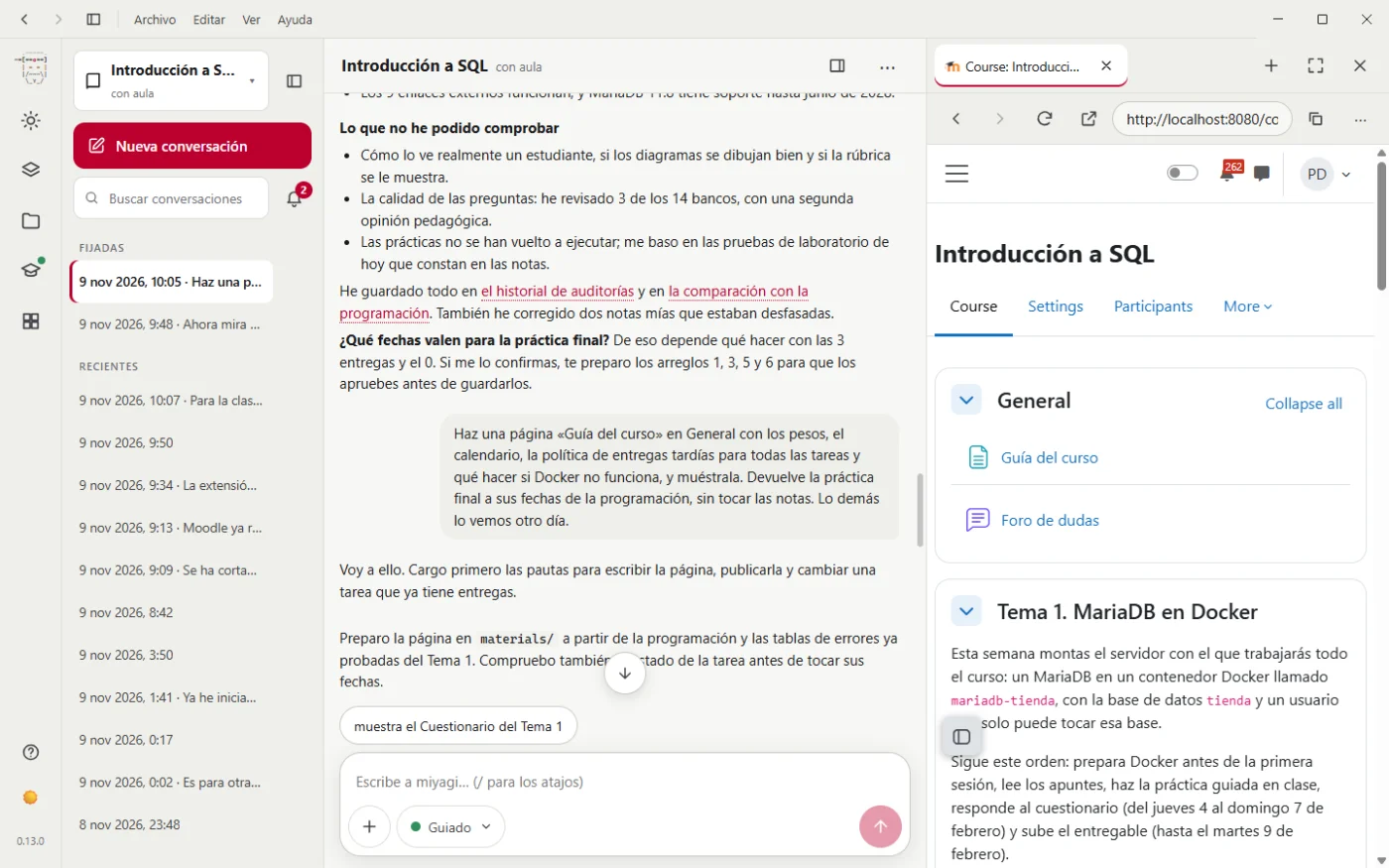
Three versions, one way of working
There are three ways to use miyagi. They all open the same subjects and ask your permission in the same way:
- The desktop app is the main version and the one we recommend. It installs on Windows with a double click, with no terminal and no Node.js, and it's the most complete: it has its own window bar and a built-in browser so you can have Moodle next to the conversation.
- The web version is the same page, opened in a tab of your browser with
miyagi web. It works on Windows, Mac and Linux. - The terminal is the classic one:
miyagi chatand single-command tasks, for those who prefer the keyboard.
Not sure which? We'll help you choose your version. If you have Windows, start with the desktop app.
What it does for you
- Grades with your rubric. It applies your criteria the same way to everyone and writes useful feedback. It shows you each grade before saving it. Text submissions reach it directly; those that are a file, with the default data protection, don't: we explain it in the tutorial.
- Looks after the forum. It finds unanswered questions, decides when to step in and replies in the tone you chose. It notes the questions that keep coming up.
- Creates content. Notes, assignments with their rubric, quizzes, glossaries, peer-assessment workshops, whole units and even a complete course.
- Helps you with the teaching plan. It writes it with you and checks that the Moodle classroom matches it.
- Keeps track of the class. It tells you who is falling behind and audits the course with recommendations ordered by priority.
- Remembers your course. It takes notes while it works (your criteria, the rubrics, the forum questions, how the class is evolving) and starts from there in the next conversation.
Who it's for
For teachers who run a course in Moodle and want to get rid of the repetitive work without losing control of what their students see. You don't need to know how to program: on Windows you install it with a double click, and after that you use it by talking to it.
The classroom is optional. Without connecting Moodle, miyagi still helps you with the teaching plan, the units and the materials.
What you need
- A Claude Pro or Max subscription, or an API key. miyagi is free and open source (MIT license); what powers the assistant is Claude.
- The Windows app (64-bit Windows) or, for the web version and the terminal, Node.js 20 or later.
- A browser such as Chrome or Edge, to log in to Moodle.
- A Moodle course where you have the teacher role, if you want it to work in your classroom. There's nothing to install on your school's server: it works with your session, like you do.
How it works, in three steps
- You install it. On Windows, an installer. On Mac and Linux, one line in the terminal. See Install.
- You create your subject. You give it a name, the tone and the language and, if you want, the address of your Moodle course (never your password: you log in yourself in a browser window). If you give it your teaching plan, your rubrics or your criteria, it takes them into account. See Getting started.
- You ask, and you approve. You talk to it or give it a task. When something is about to reach your students, it shows it to you and waits for your yes.
Where to go next
- Choose your version: desktop, web or terminal, and what each one needs.
- The desktop app: from installing it to the last part of the window.
- Install: the requirements and the installation step by step.
- An Introduction to SQL course, step by step: a complete walkthrough with real screenshots, from the empty subject to grading and looking after the forum.
- What to ask it: ideas for using it, from the simplest to the most ambitious.
- Frequently asked questions.