The terminal
The terminal is the version of miyagi for those who prefer the keyboard or want single-command tasks. It does the same as the desktop app, with the same permissions before publishing and the same subjects. You need to install it from the terminal.
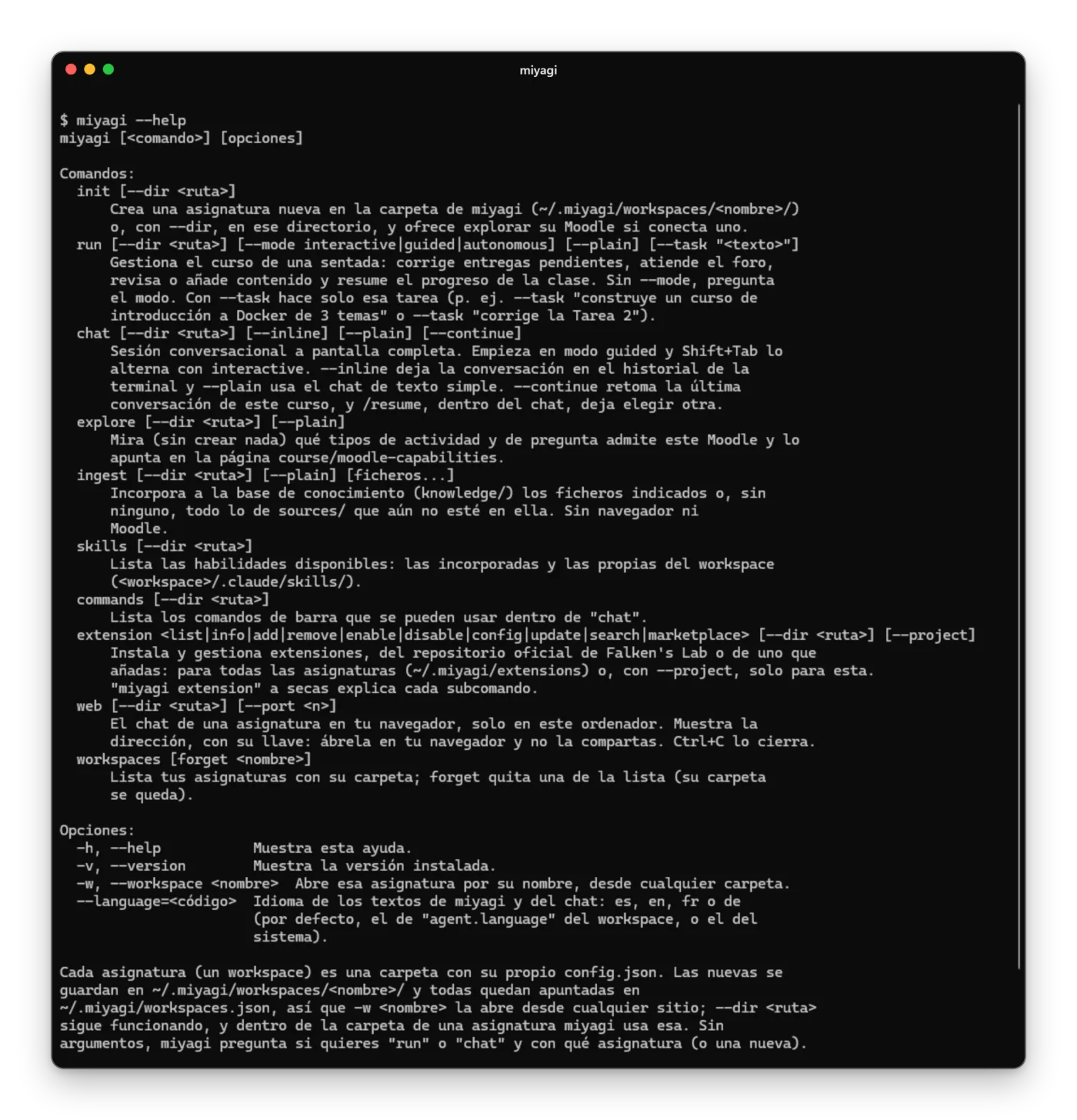
miyagi --help.Creating a subject: miyagi init
$ miyagi init
It asks you for the name, the description, the tone and the language, whether you want to create instructions.md and whether you're connecting a Moodle classroom now.
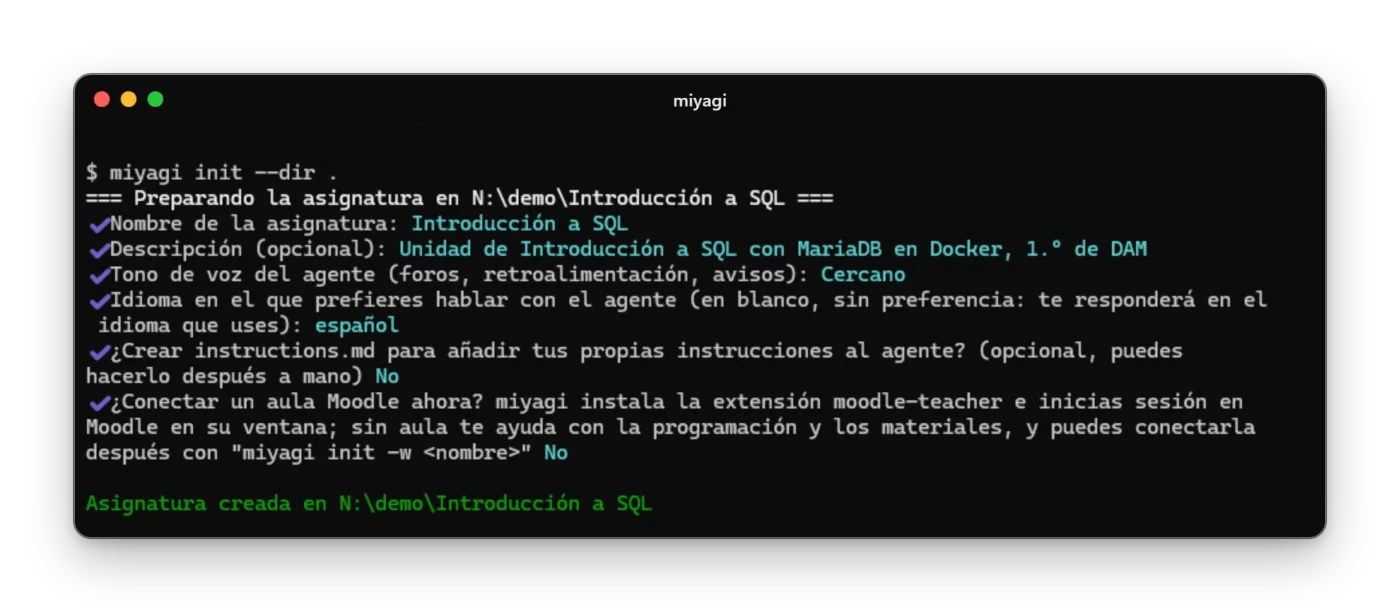
miyagi init, without connecting a classroom.The subject is saved in ~/.miyagi/workspaces/<name>/ and you open it from anywhere by its name, for example miyagi chat -w bases-de-datos. miyagi workspaces shows you which ones you have. The details are in Getting started.
Talking to it: miyagi chat
$ miyagi chat -w bases-de-datos
The chat fills the whole terminal window. It greets you with what it already knows about the course, and you ask for things in your own words.
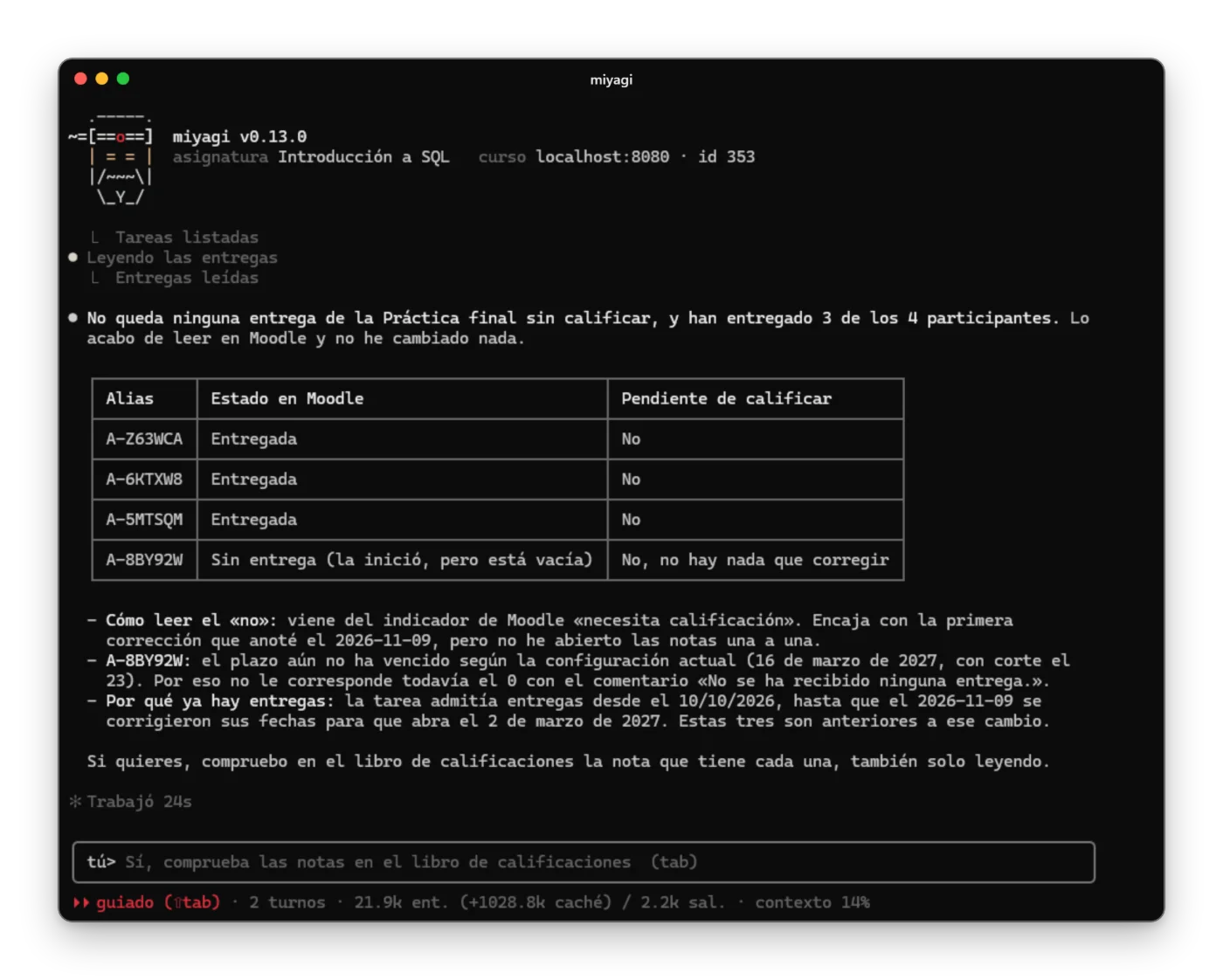
Before publishing, it asks your permission with a panel: Yes (Enter, 1 or y), No (2 or n) or Stop (3).
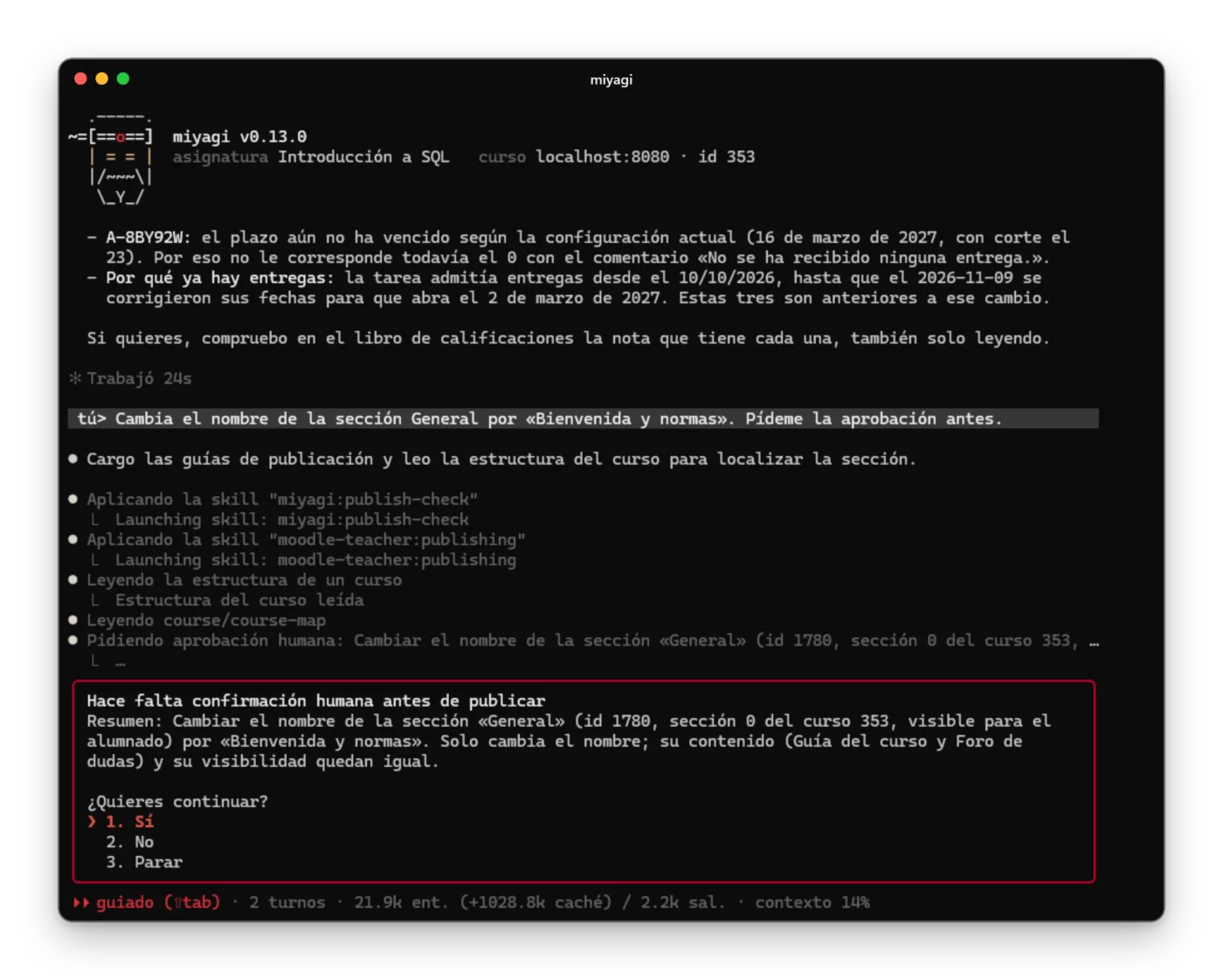
Shortcuts are typed with /, and miyagi commands lists them:
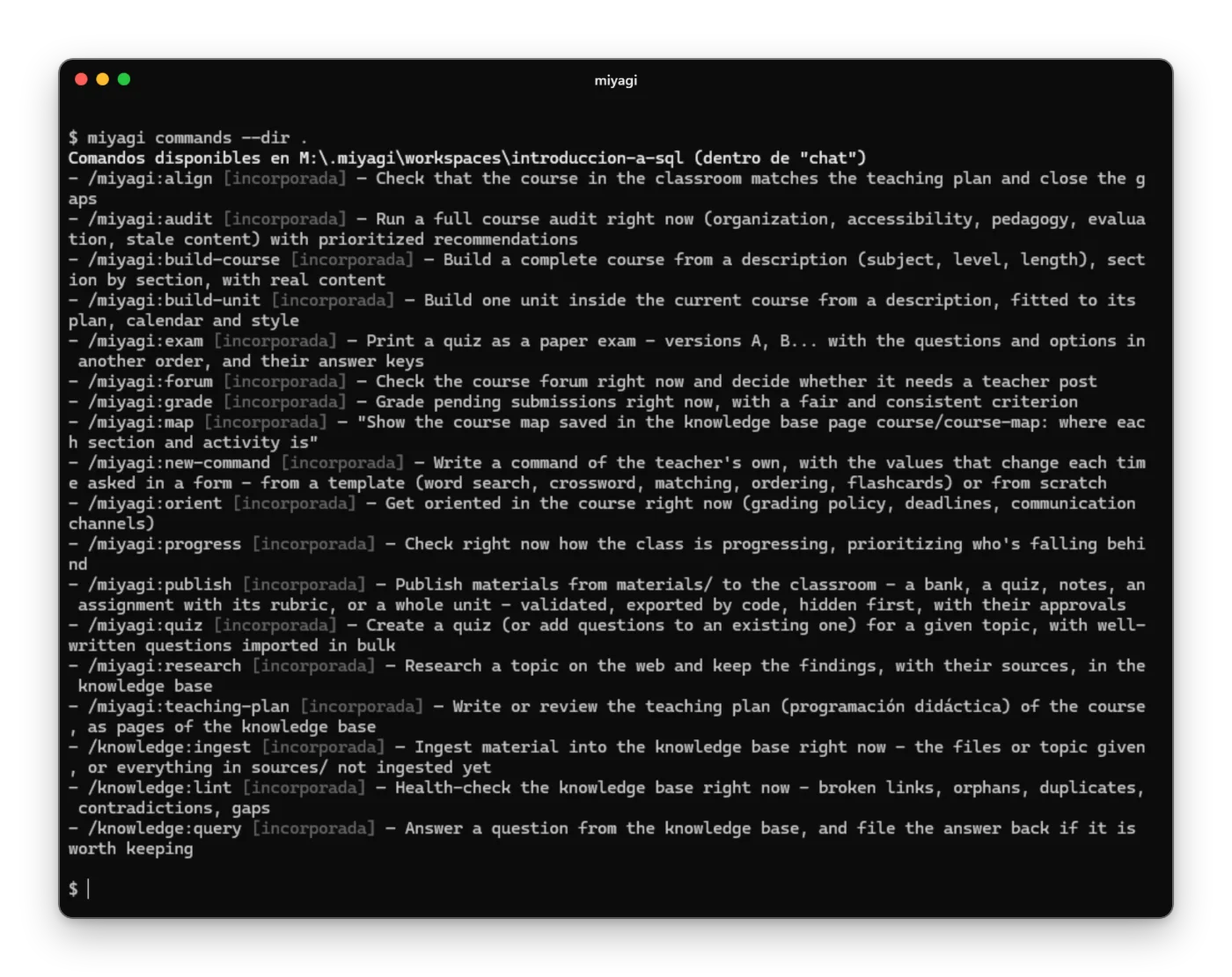
All the keys and the modes are in The conversation.
Single-command tasks: miyagi run
If you already know what you want, give it the task in one go:
$ miyagi run --task "Which submissions do I have left to grade?"
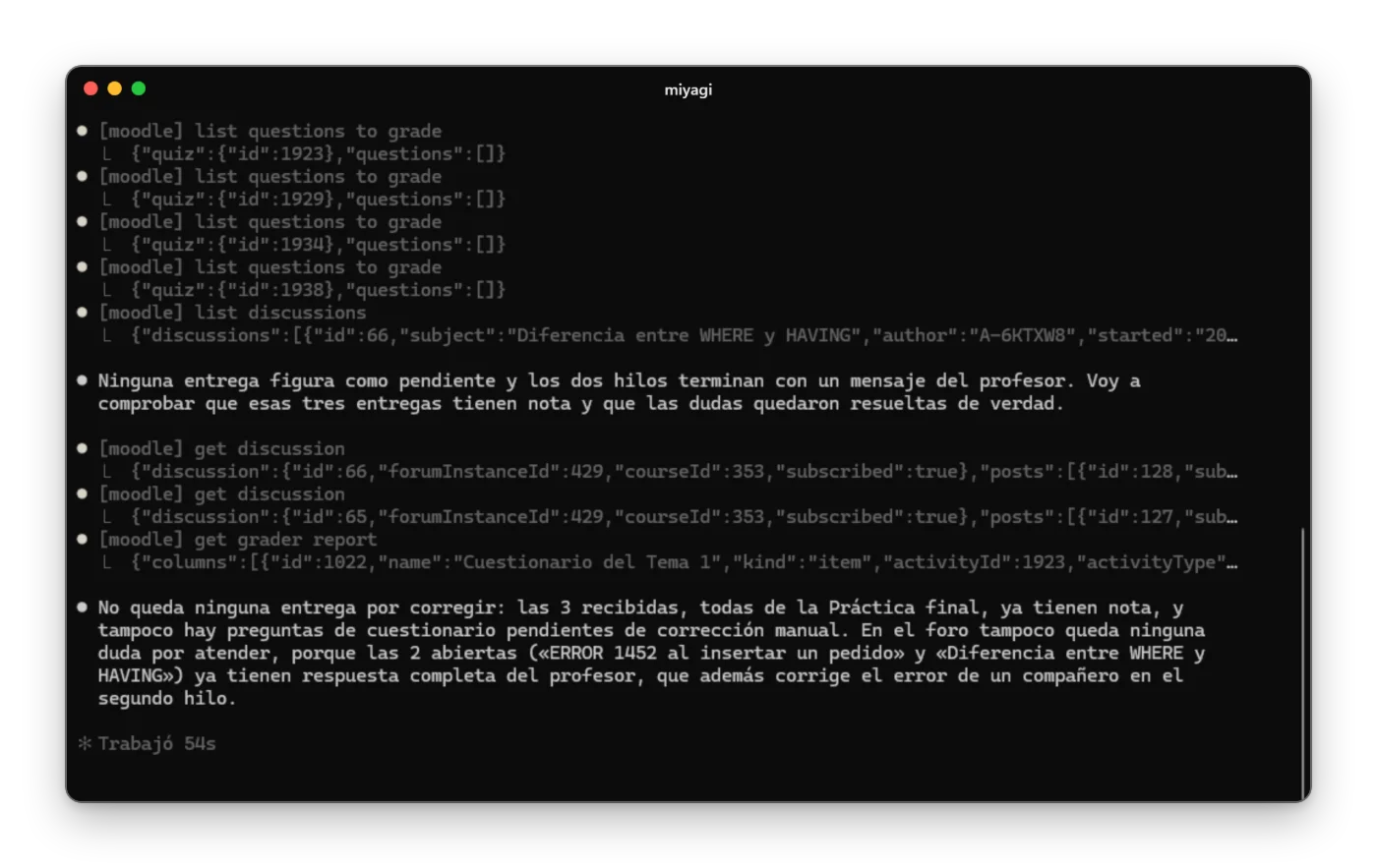
miyagi run --task.It's explained in Single-command tasks.
Give it your material: miyagi ingest
Copy your documents into the subject's sources folder and:
$ miyagi ingest -w bases-de-datos
It doesn't open Moodle: it reads each document and turns it into pages of its course memory, linked to each other.
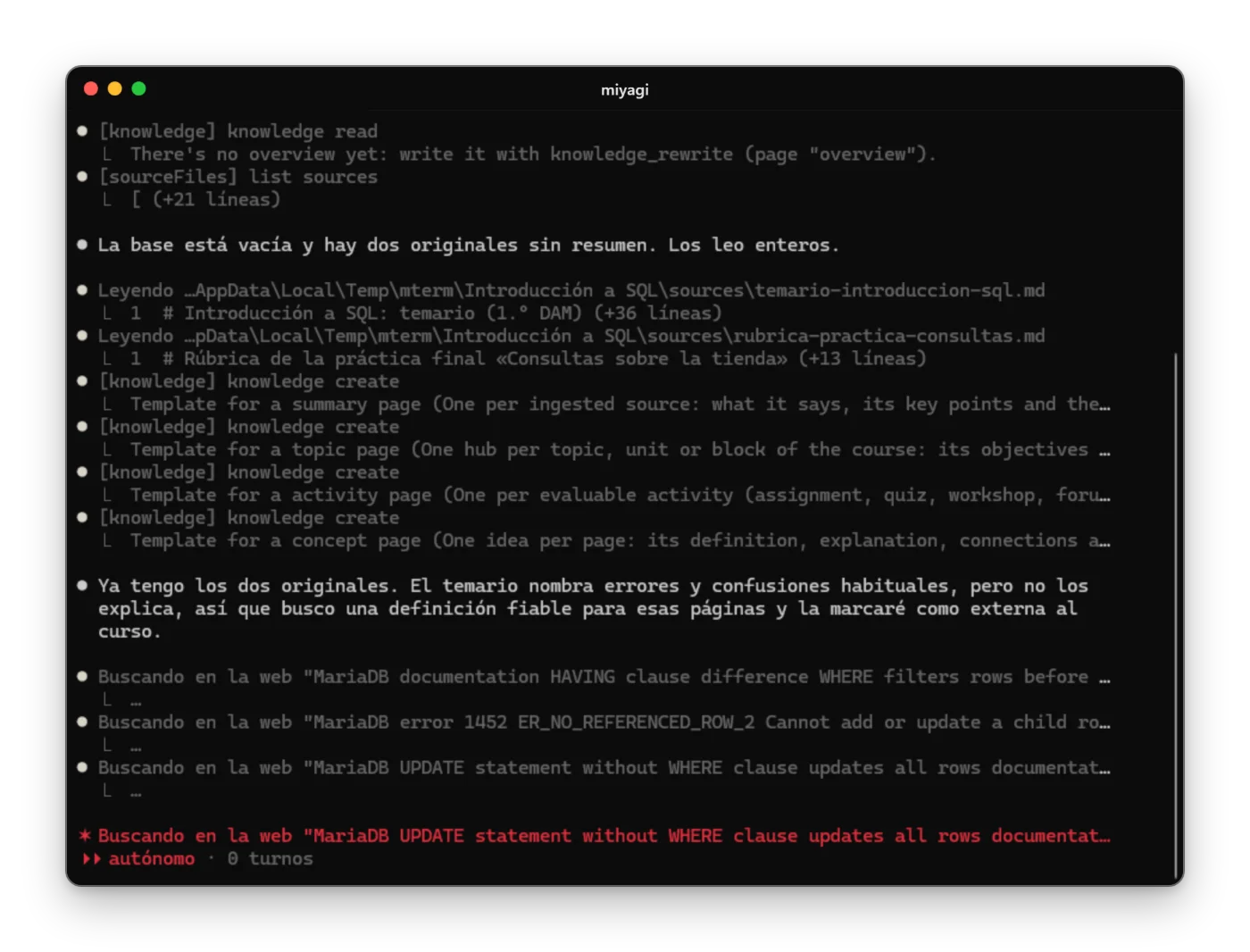
miyagi ingest at work.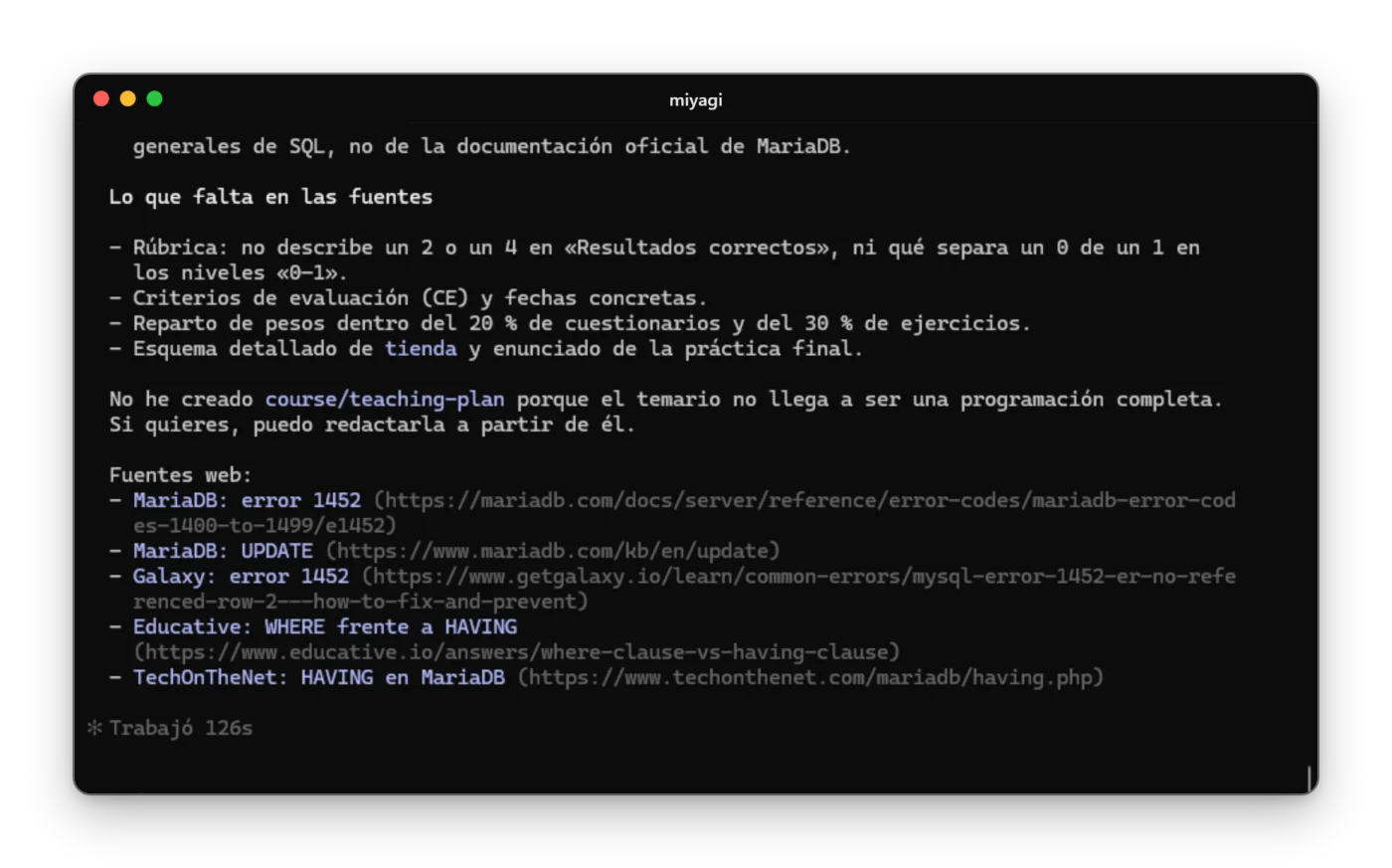
Looking at your Moodle: miyagi explore
With the classroom connected, miyagi explore looks, without changing anything, at which activity and question types it sees in your course and how grades are calculated, and notes it down in course/moodle-capabilities.
$ miyagi explore -w bases-de-datos
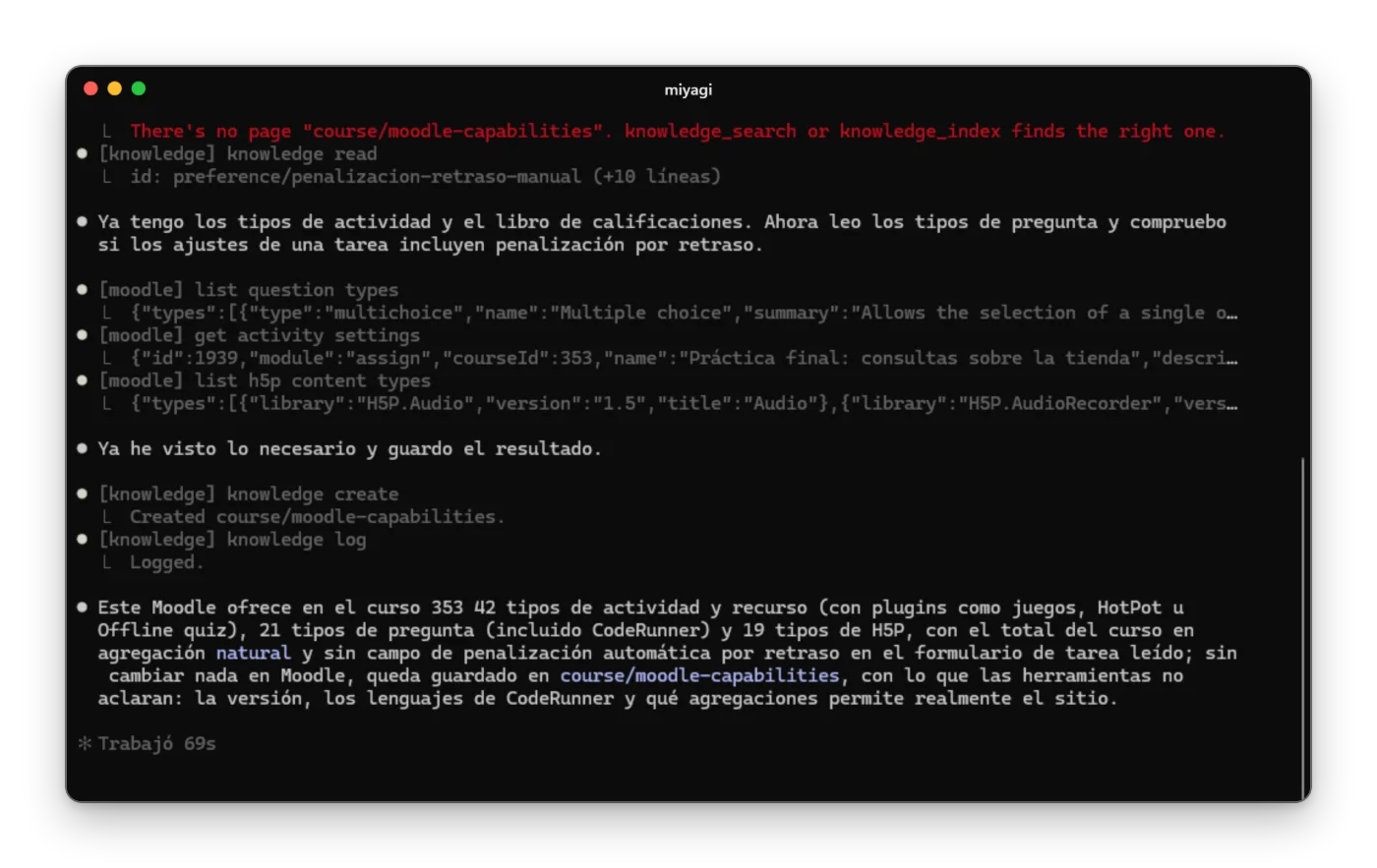
miyagi explore.Extensions: miyagi extension
$ miyagi extension list$ miyagi extension add docker-lab
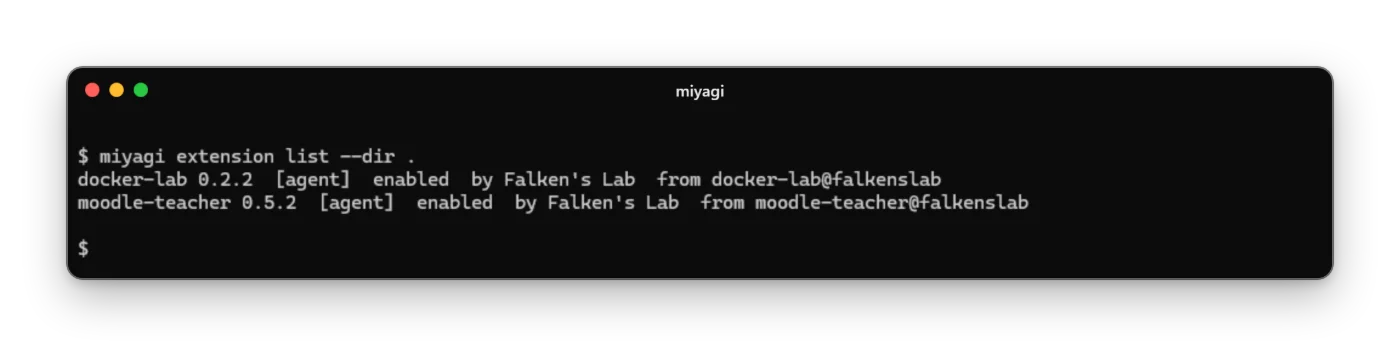
miyagi extension list.All the commands are in Extensions. Inside the chat, /extensions shows which ones the session works with.
Its skills: miyagi skills
$ miyagi skills
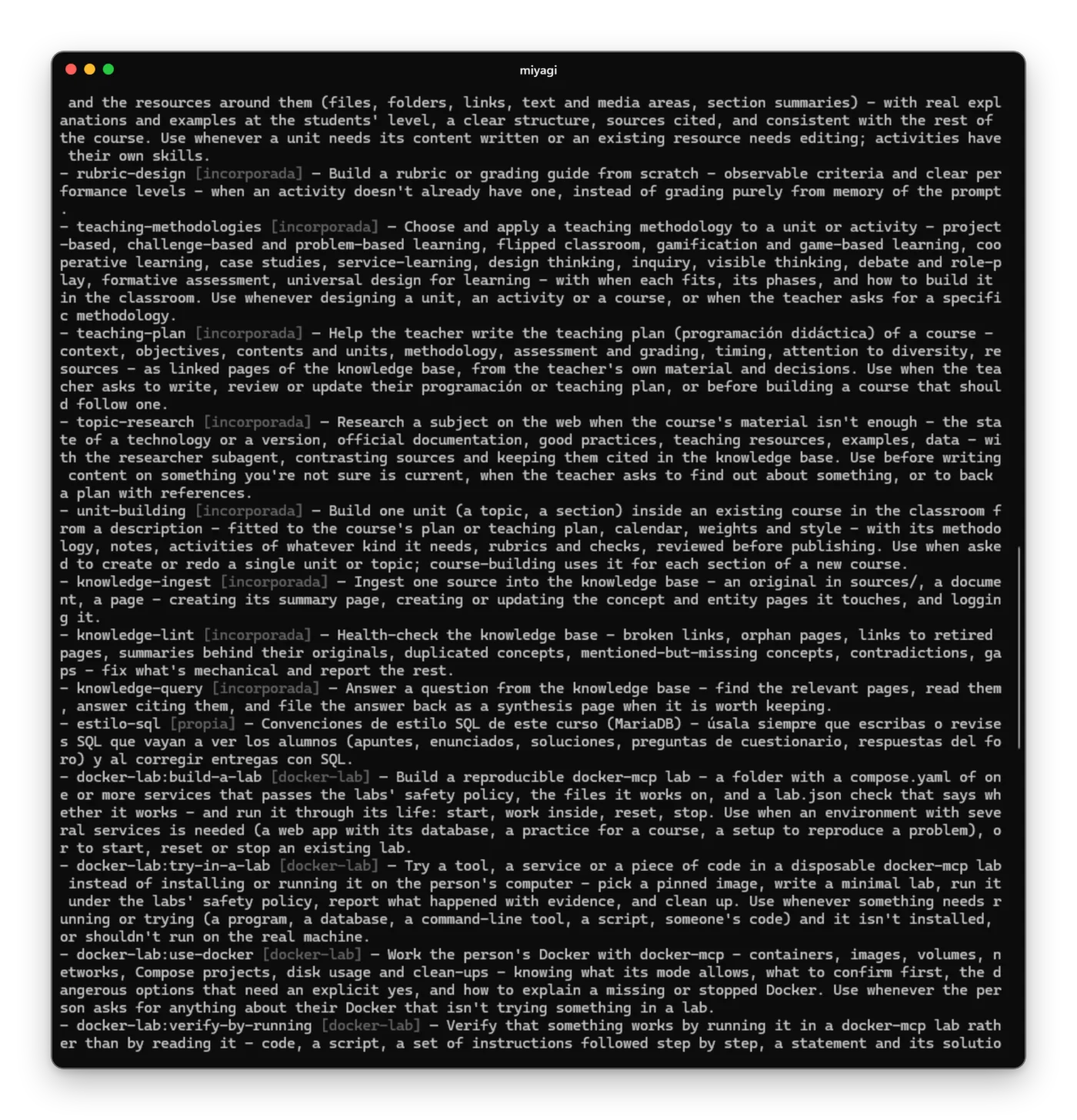
miyagi skills, with a skill of your own at the end.You can see it in real tasks in Use cases in the terminal. All the commands and options are in the Reference.