The conversation
You ask for things in your own words and it shows you what it's doing as it goes. The conversation works the same in all three versions: in the desktop app and in the web version you have it on the page, and in the terminal with miyagi chat. This page covers the app first; the terminal's keys are at the end.
Asking it for something
Type in the box and press Enter. Shift+Enter starts a new line. With + you add a file to your sources or choose an action from the catalog, and with / you see the shortcuts.
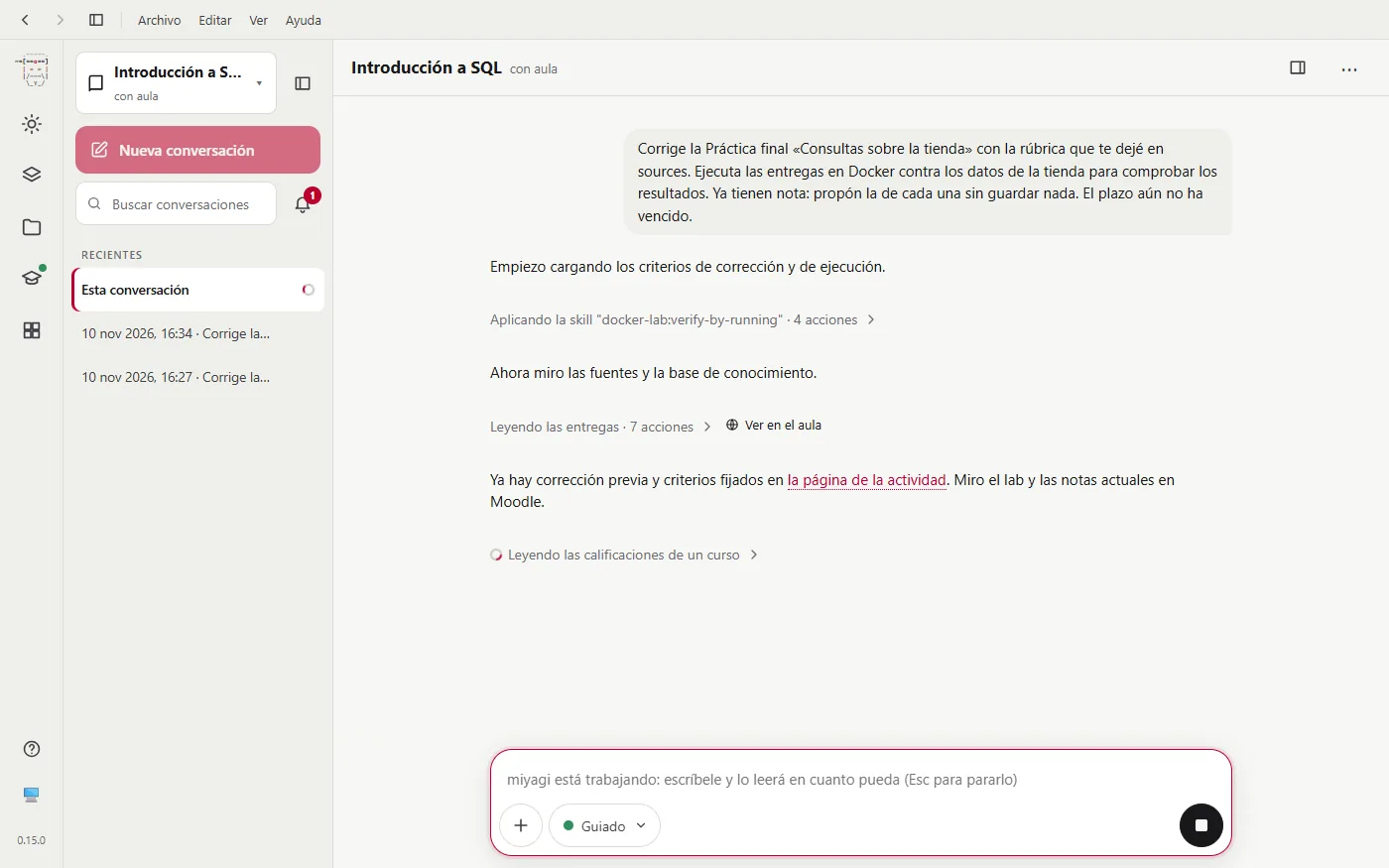
While it works, you see what it's doing at each moment and its tasks above the box. The Activity tab of the side panel tells it step by step.
In the app and on the web you can write to it while it works: a question, a correction or "not that, do this instead". Your message shows as queued until it reads it, as soon as the action in progress ends, and it takes it into account without stopping what it was doing. If it's waiting for a subagent, it reads it when the subagent is done. Commands (/…) wait for it to finish. To make it change course right away, stop it with Esc or the ■ button. In the terminal you have to wait for it to finish or stop it.
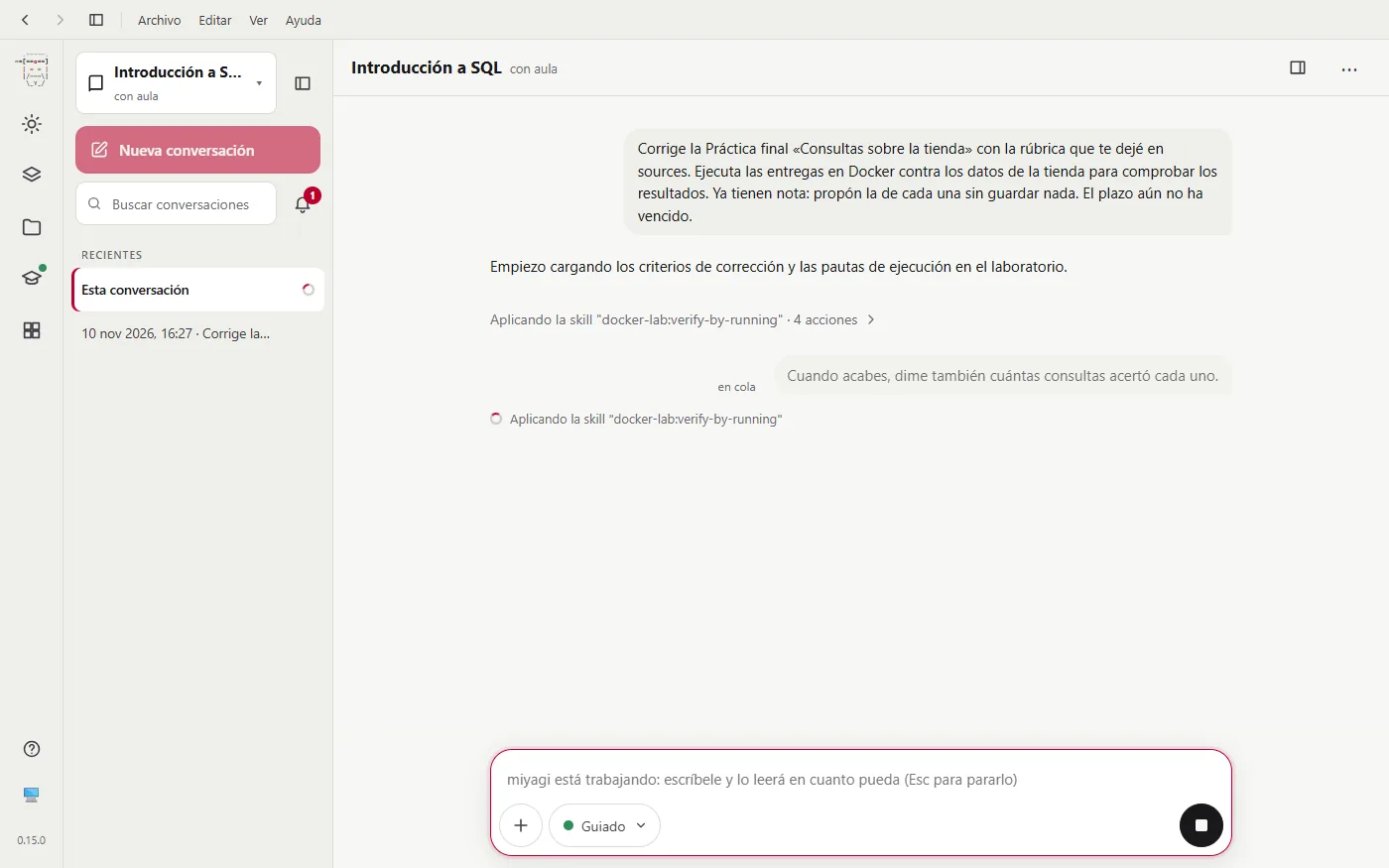
Under each thing it does in Moodle there's View in the classroom, which opens that same page of the course: in the app, in a tab of the built-in browser; on the web, in a new tab of your browser. You open it with your own Moodle session, and miyagi gets nothing from that link.
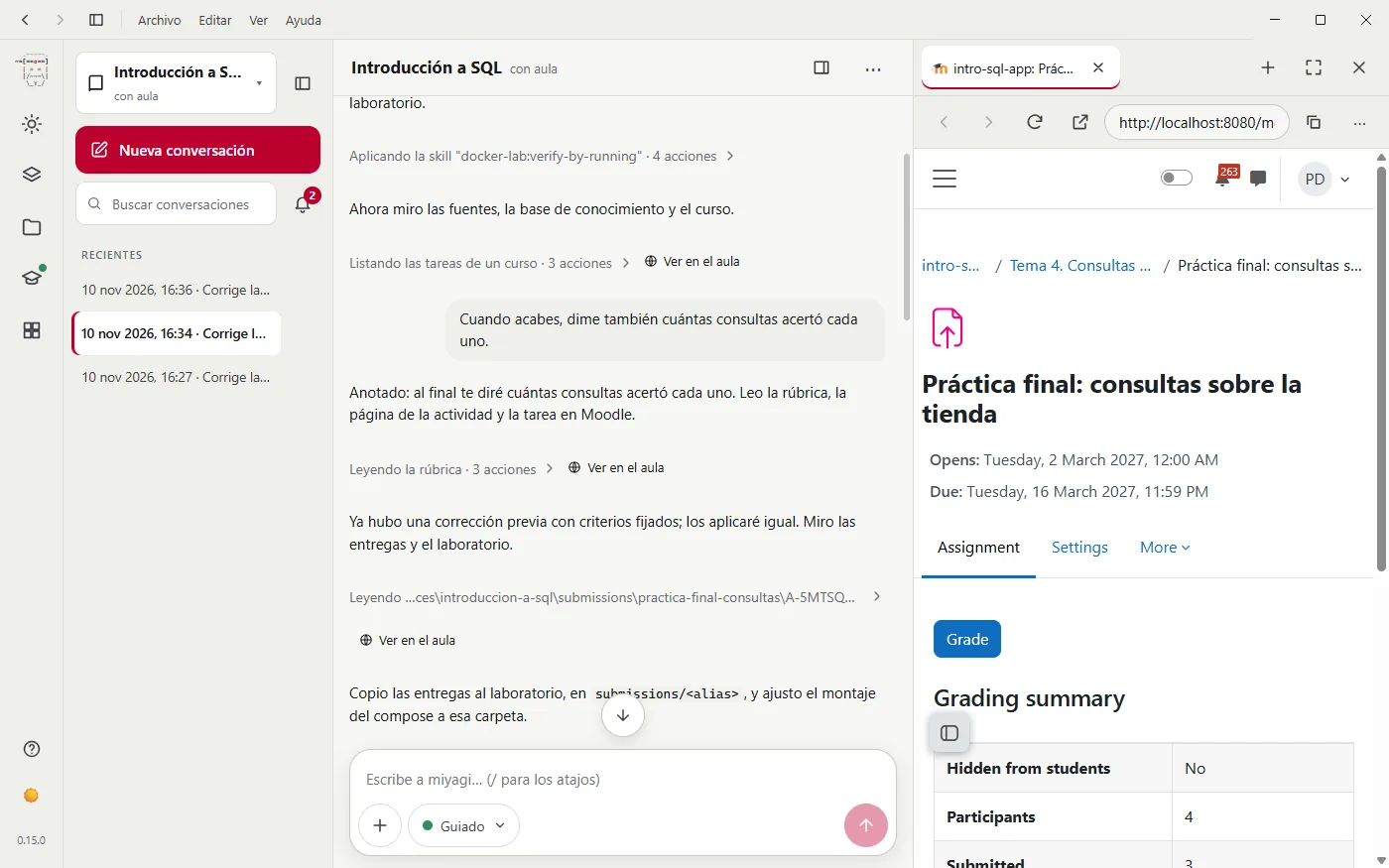
How it asks for permission
Before saving a grade, replying in the forum, publishing content or changing an activity's settings, the approval takes the place of the writing box, with a summary of what it's going to publish and three buttons: Approve, Reject and Stop all.
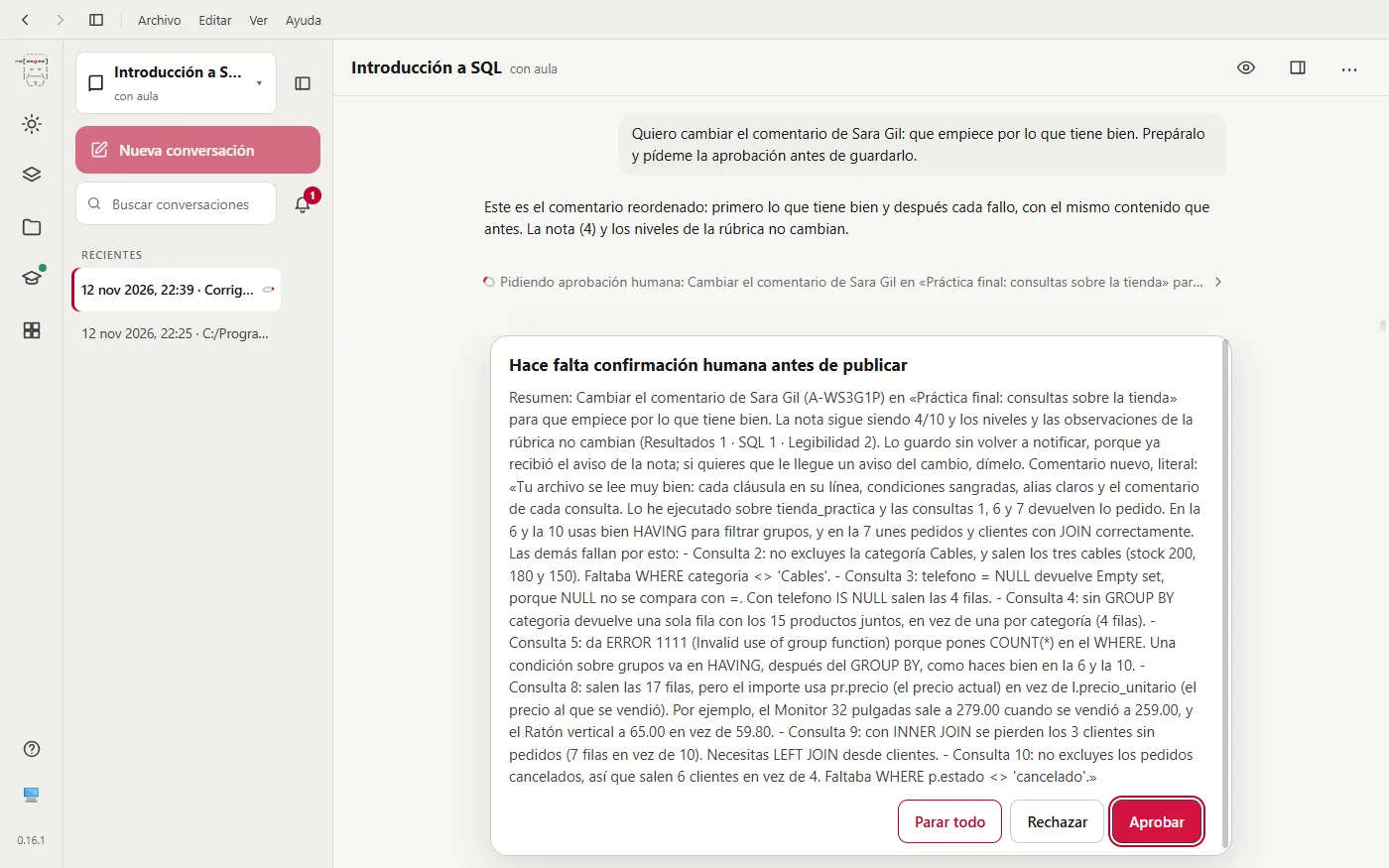
- Approve: it publishes it.
- Reject: it doesn't publish it. Explain why in your next message; it takes it into account, for example, for the rest of the grades for the same assignment.
- Stop all: it halts what it was doing.
A single approval can cover a batch (for example, six grades), but only if the summary lists each one with what is going to be published.
And it doesn't depend only on it remembering to ask: if it tries to change something in Moodle without having asked you, the program itself stops it and asks you. To delete, remove or restore something it always asks you again. It's explained in depth in Approvals and drafts.
Three ways to work with it
The mode selector is next to the writing box, and you can also change it with Shift+Tab.
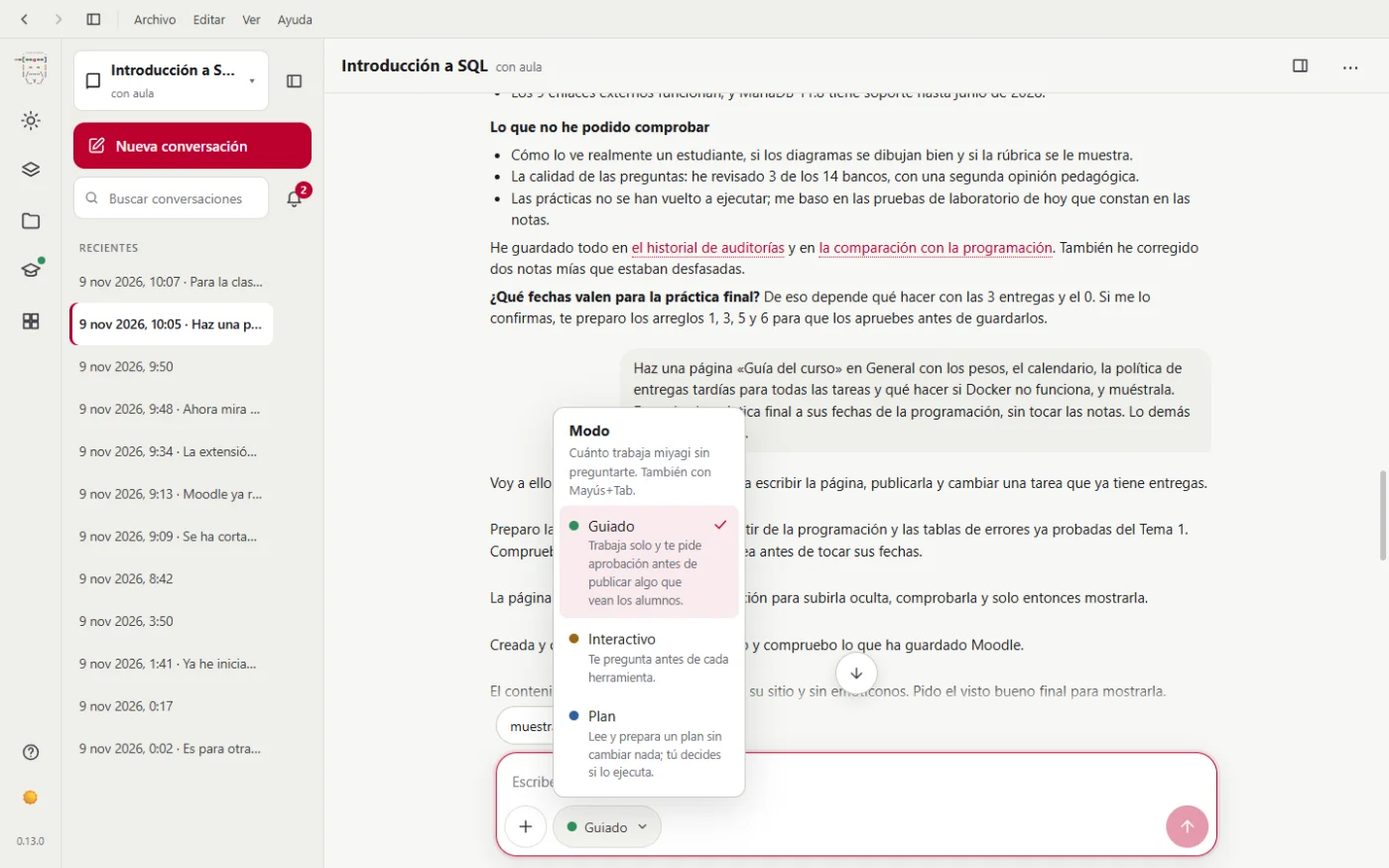
- Guided: it works on its own and asks your permission only before publishing something your students will see. It's the mode it always starts in.
- Interactive: it checks with you before every action, even if it's only reading something in Moodle.
- Plan: it reads your documents and its notes, searches online if needed and prepares a plan for you, without changing anything and without opening Moodle. When it has it, it shows it to you and you choose to run it, keep planning or cancel. It's useful before a big job, such as building a whole unit.
What you'll see while it works
- Its task list. In a long job, the list of what it's going to do appears above the box.
- Questions with options. When it needs you to decide something (how many sessions to give a unit, which approach to take), it shows you the options in place of the box. The last one, “Another answer”, lets you type your own answer.
- Correct dates. The dates it notes and the deadlines it works out come from your computer's clock, not from what the model thinks today is.
Interrupting and picking up again
Escor the ■ button cuts short what it's doing without closing the conversation. Then tell it what to do instead.- To leave, there's nothing to save: everything is written as it goes. If it has left something hidden in Moodle without showing it to students, it stays in Drafts, and the bell reminds you.
- In the app and on the web, any earlier conversation is in the conversations column, and Search conversations finds them by a word.
Even if you start a new conversation, the assistant doesn't start from scratch: it reads its course notes when it starts.
If a conversation doesn't start within five minutes, it reopens by itself and lets you know.
Shortcuts
They're ready-made instructions. Type them with whatever you need after them, in any of the versions. In the app and on the web, type / in the empty box.
| Shortcut | What for |
|---|---|
/miyagi:orient | Get to know the classroom: assessment, deadlines and communication channels |
/miyagi:grade | Grade pending submissions with fair, consistent criteria |
/miyagi:forum | Review the forum and decide whether the teacher needs to step in |
/miyagi:progress | See how the class is doing and who is falling behind |
/miyagi:quiz <unit> | Create a quiz on that topic, or add questions to it |
/miyagi:exam <quiz> | Print a quiz as a paper exam, in several versions |
/miyagi:publish <material or unit> | Publish materials or a whole unit from materials/ to the classroom |
/miyagi:build-unit <description> | Build a unit inside the course |
/miyagi:build-course <description> | Build a complete course |
/miyagi:teaching-plan | Write or review the teaching plan |
/miyagi:align | Check that the classroom follows the teaching plan and fix what doesn't |
/miyagi:audit | Audit the classroom and suggest improvements by priority |
/miyagi:research <unit> | Research a topic online and save what it finds with its sources |
/miyagi:map | See where each section and activity of the course is: its number and its link |
/miyagi:new-command <what it should make> | Make a command of your own with a form |
/knowledge:ingest | Add the new documents in sources to its notes |
/knowledge:query <question> | Answer from its notes, without opening Moodle |
/knowledge:lint | Check that its notes are complete and well linked |
Shortcuts are just a convenience: “grade what's pending” works the same as /miyagi:grade. To see them from the terminal, miyagi commands. You can also create your own shortcuts.
In the terminal
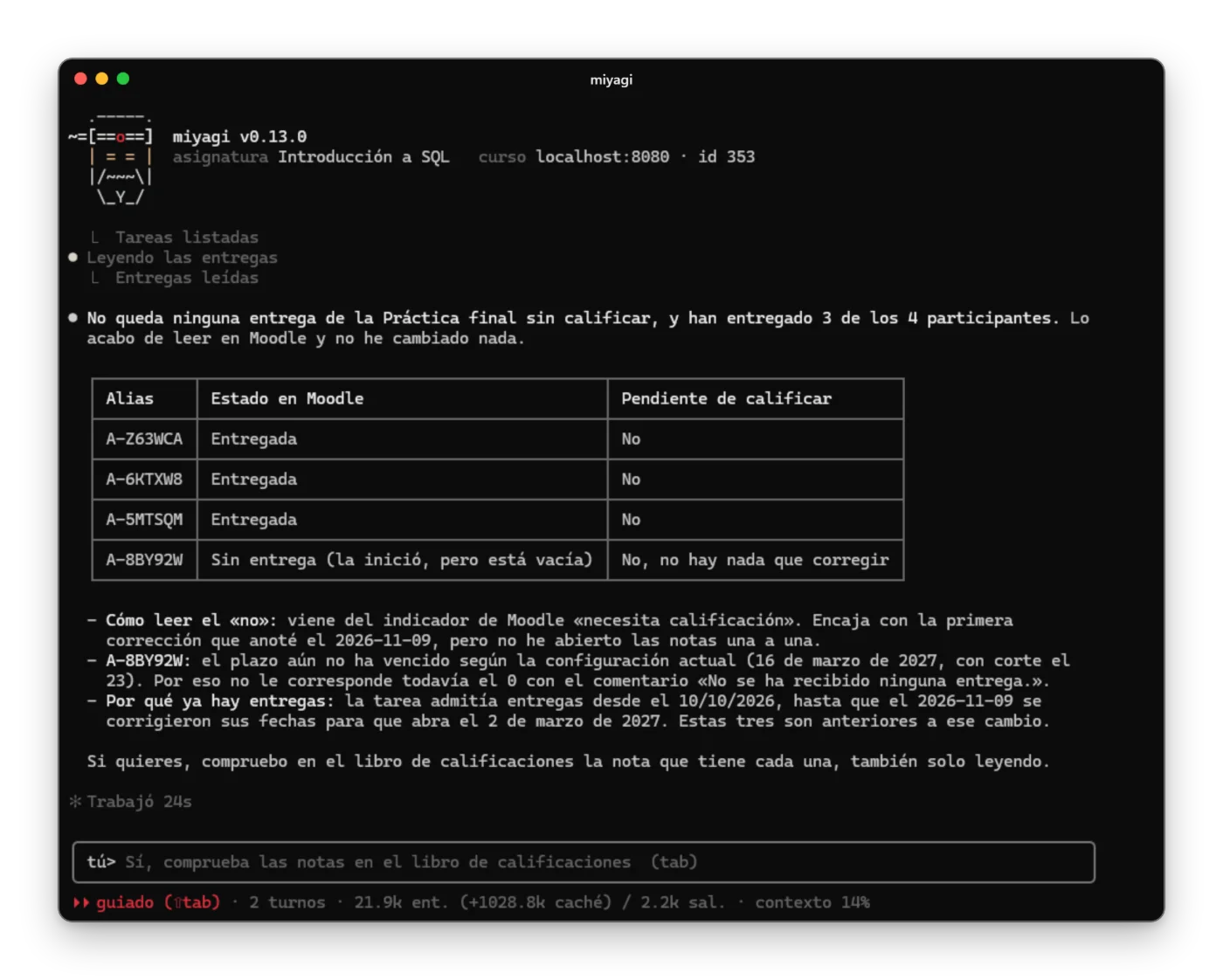
The terminal's chat is miyagi chat. Open it with your subject's name, miyagi chat -w <name>, from anywhere (or without -w, inside its folder).
| What you want | What you do |
|---|---|
| Ask it for something | Type it in your own words and press Enter |
| Write on several lines | \ then Enter, or Ctrl+J |
| Approve what it's about to publish | Enter, 1 or y |
| Reject it | 2 or n, and tell it what to change |
| Stop everything at an approval | 3 (Stop) |
| Cut short what it's doing without leaving | Esc |
| Have it check with you at every step, not just what it publishes | Shift+Tab (switches from guided to interactive) |
| Have it suggest a plan first, without changing anything | /plan, or Shift+Tab until you reach plan |
| See what has scrolled off the screen | Mouse wheel or PgUp/PgDn |
| Copy text | Drag over it with the mouse and right-click |
| Copy its last reply | /copy |
| Sum up the tools it used in one line, or see them one by one again | Ctrl+O |
| Mention a file in the course folder | @ and the file name |
| Bring back a message you already wrote | Up and down arrows, or Ctrl+R to search |
| See all the keyboard shortcuts | ? with an empty message |
| Exit | /exit (everything saves itself) |
| Continue the last conversation | miyagi chat --continue |
| Choose an earlier conversation | /resume inside the chat |
In the terminal the permission panel says Yes (Enter, 1 or y), No (2 or n) and Stop (3), and the modes are guided, interactive and plan: Shift+Tab moves from one to the next.
/exit closes the session. When you exit it tells you where the conversation and its notes are kept and, if it has left something hidden in Moodle without showing it to students, it reminds you.
If you don't want full screen:
miyagi chat --inlineleaves the conversation in the terminal's normal history, instead of taking up the whole window.miyagi chat --plainuses a simple text chat, without panels.