The desktop app
This is the main version of miyagi. On this page you'll see all of it, from the first launch to the last part of the window. It only installs on 64-bit Windows; if you have another system, see the web version.
If you'd rather see it in action, follow the tutorial An Introduction to SQL course: it's done in this same app, from start to finish.
Installing it
-
Download the installer:
Download for Windowsmiyagi-setup.exe · 64-bit · about 225 MB
-
Open it. Windows will warn you that it doesn't recognise the app, because the installer isn't signed yet: click More info and then Run anyway.
-
Follow the steps. When it finishes miyagi opens, and you'll have a shortcut on the desktop and in the Start menu.
The app doesn't need Node.js or a terminal. To update it, download the installer again and run it; to uninstall it, go to Settings > Apps. Your subjects aren't deleted when you uninstall.
The first time
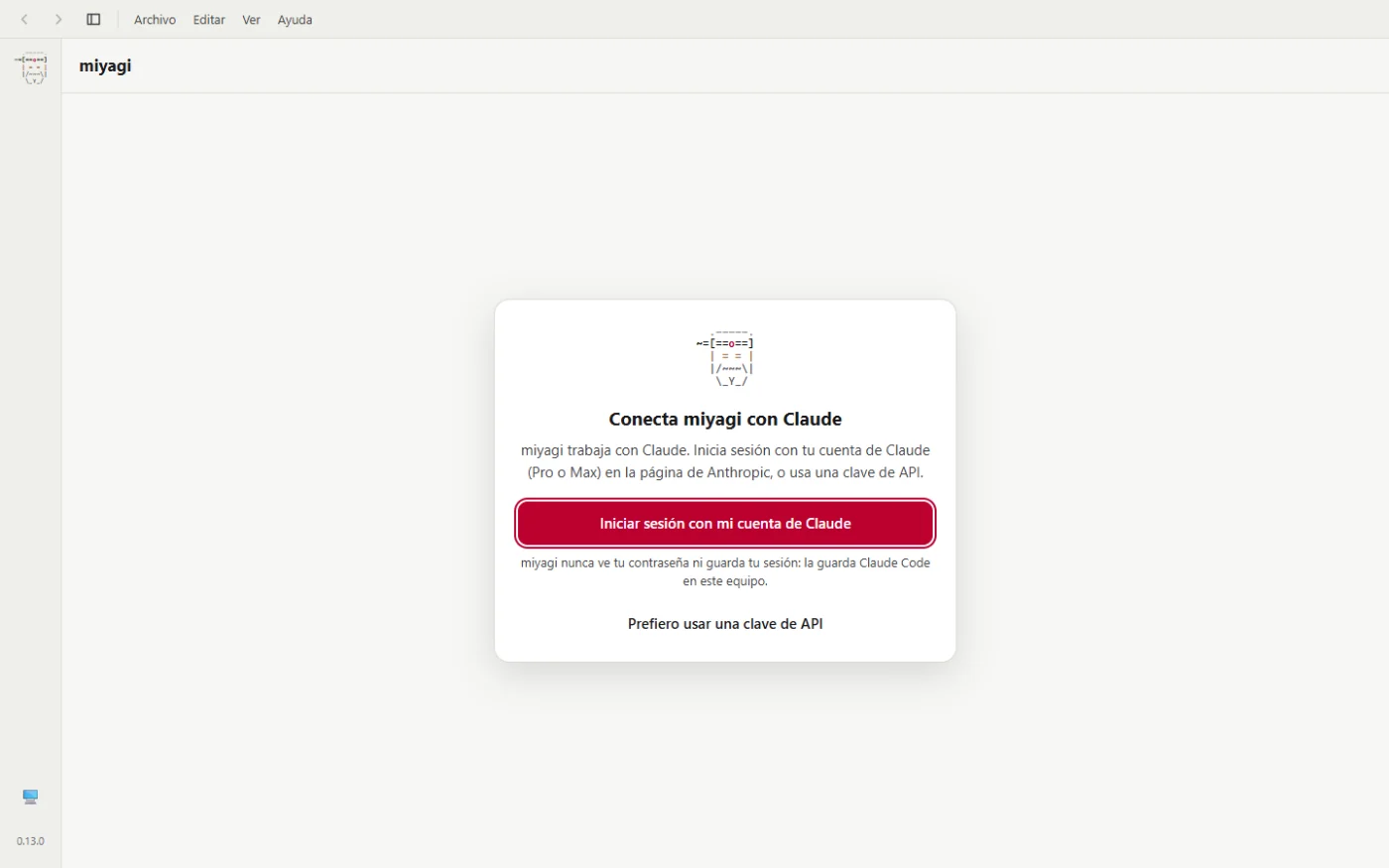
The first thing is to connect your Claude account. You can sign in with your Pro or Max subscription on Anthropic's page, or use an API key. miyagi never sees your password.
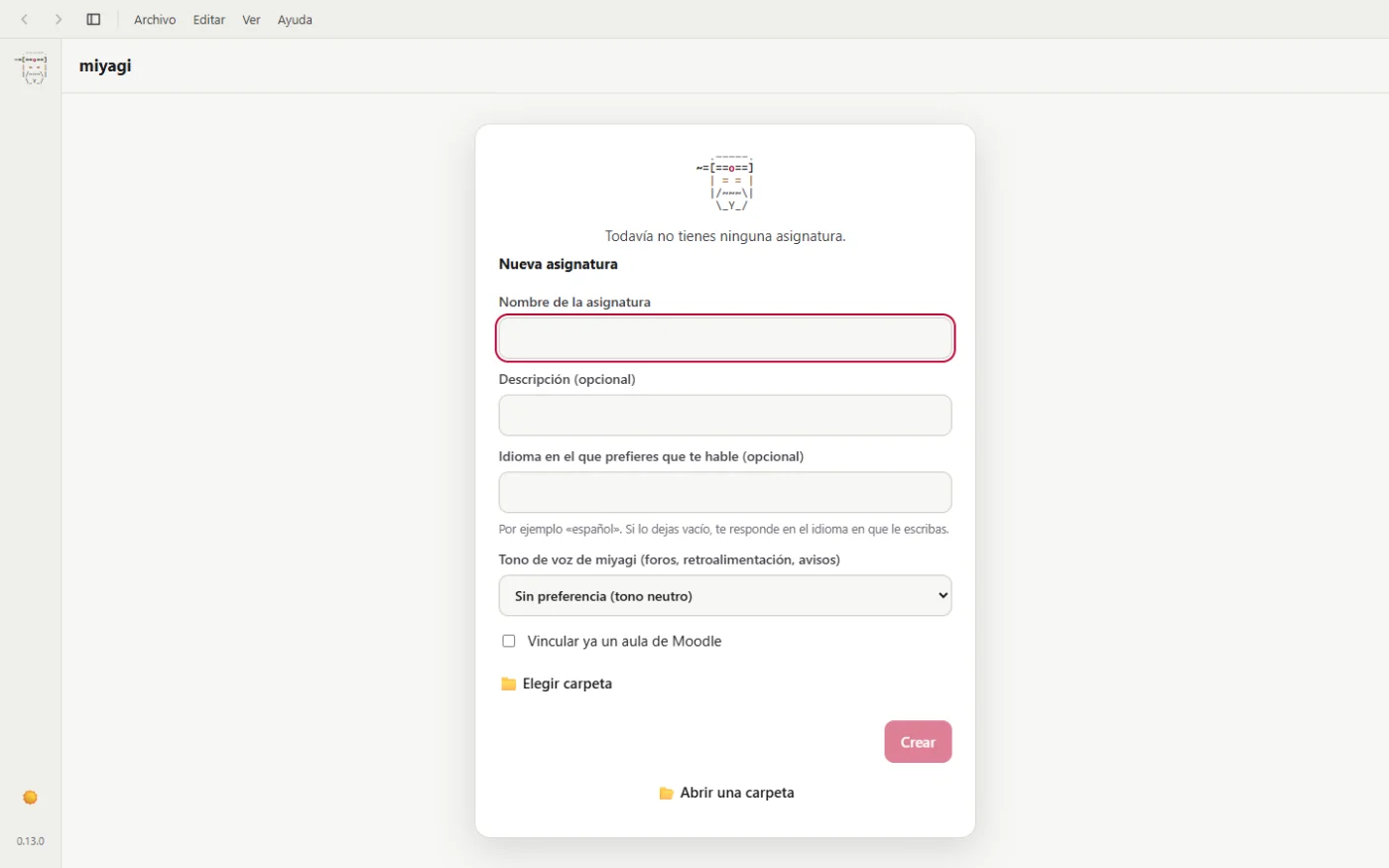
Then, with no subject yet, you go straight to the form for creating the first one.
The guided tour and the tips
The first time you open a subject, a 19-step guided tour shows you the window part by part. You can skip it and open it again whenever you want with the ? icon in the icon column, under Guided tour.
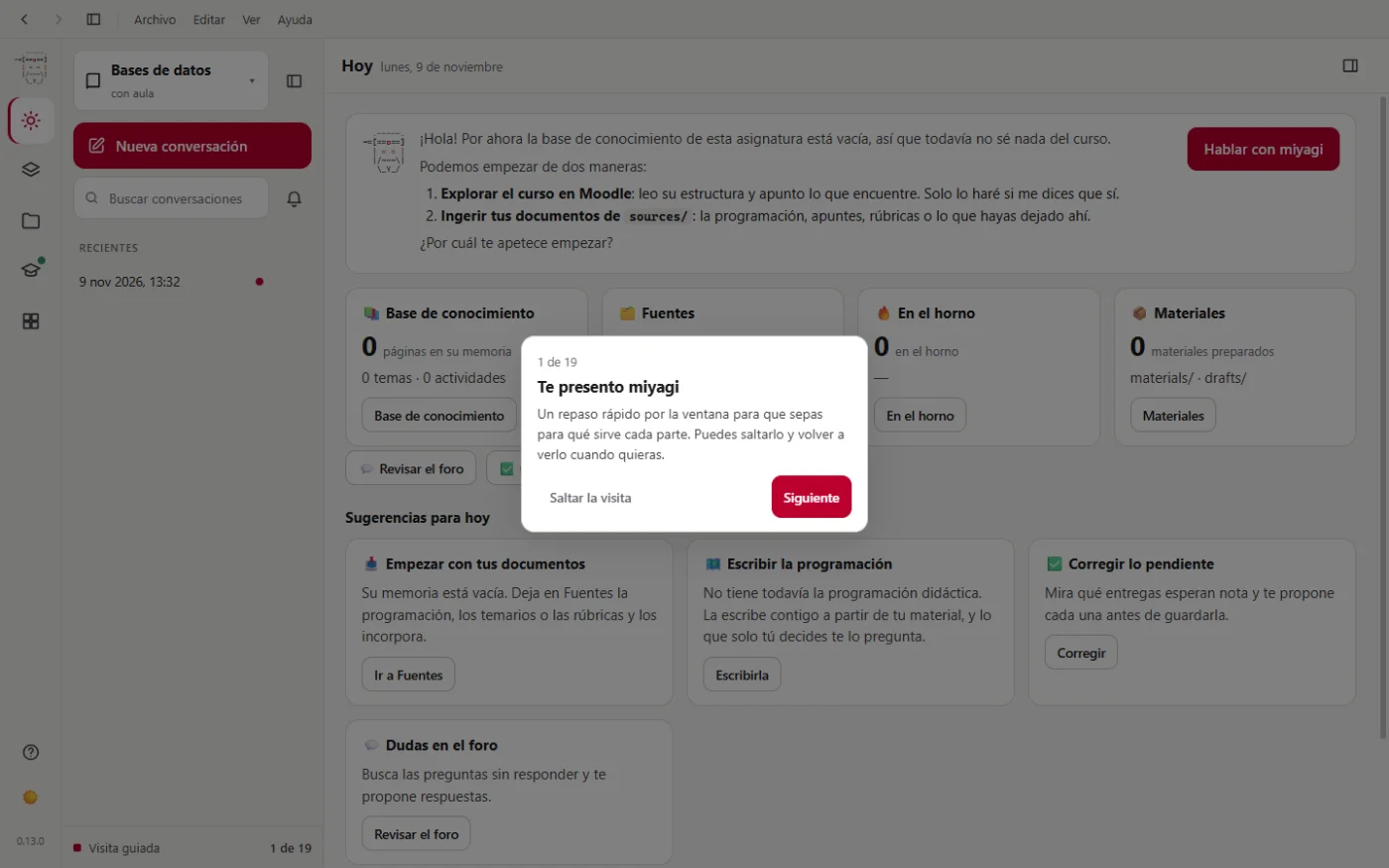
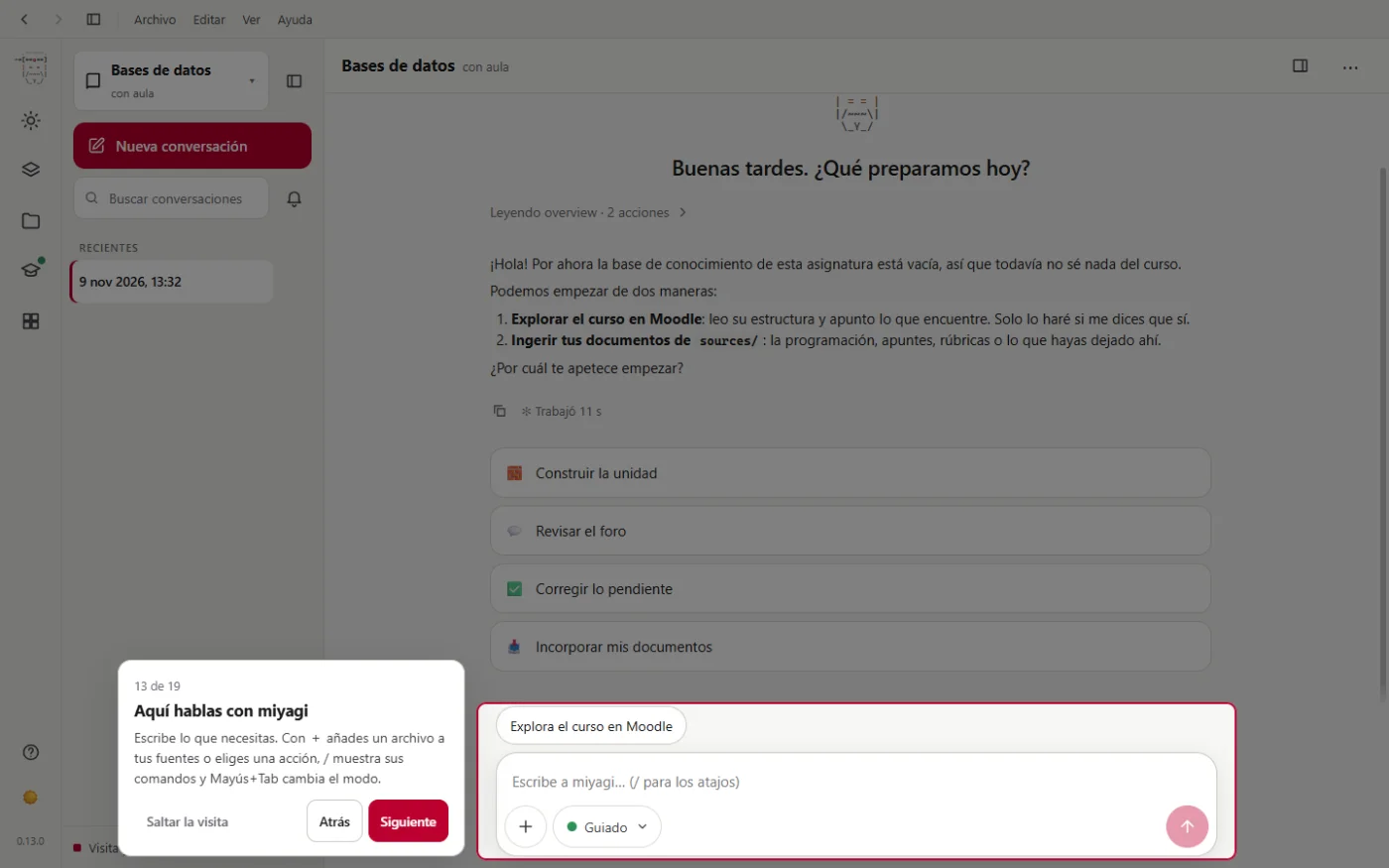
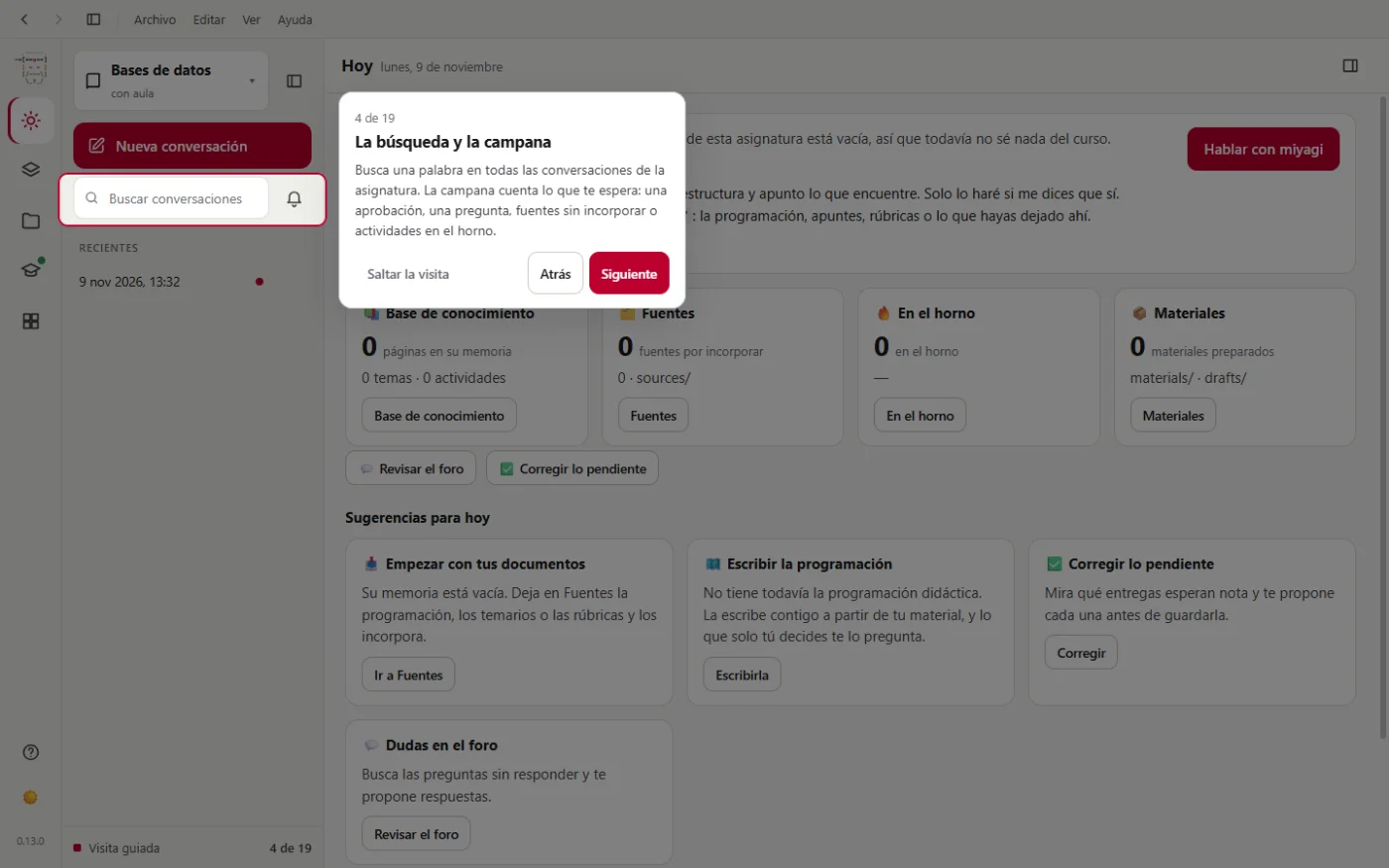
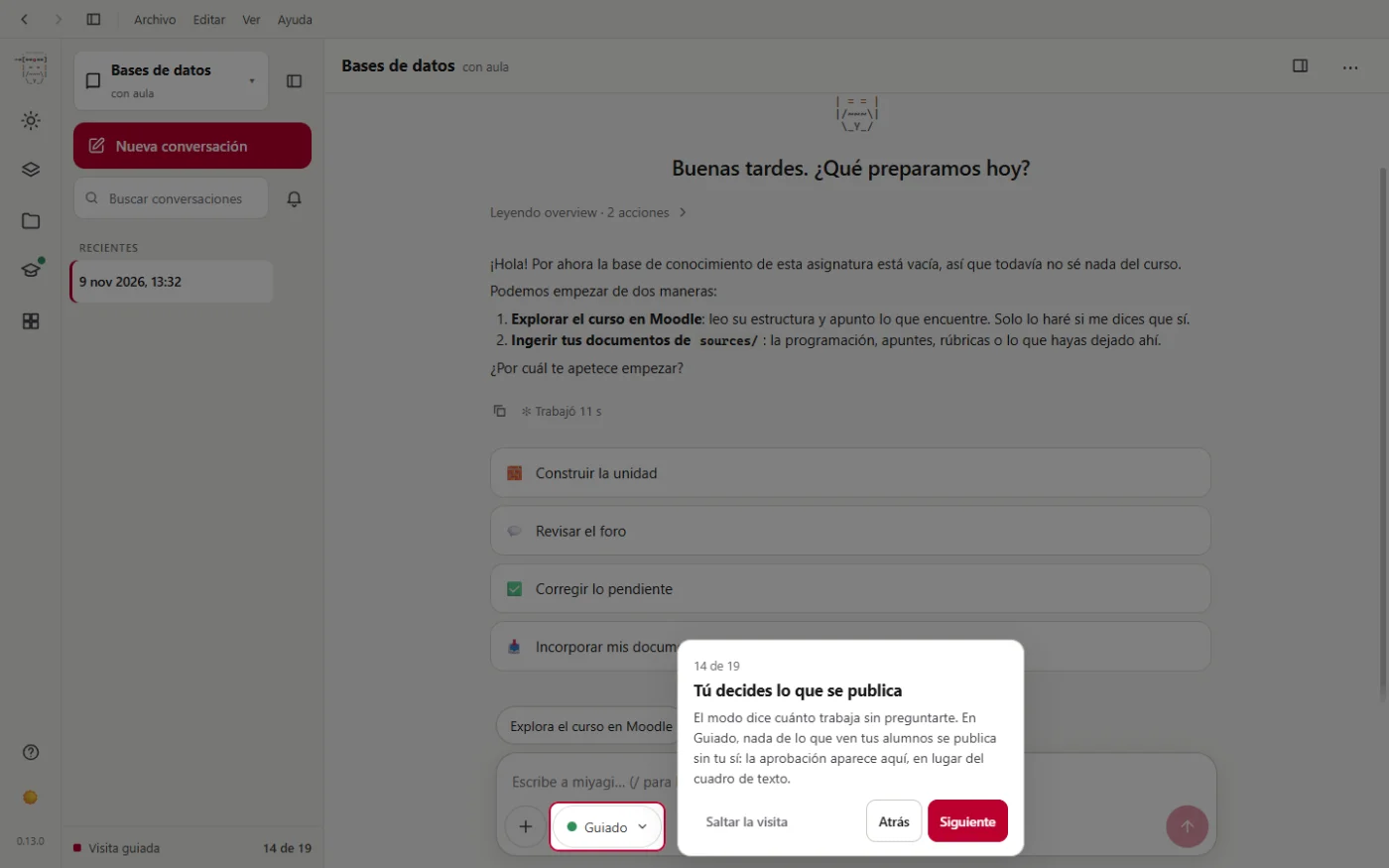
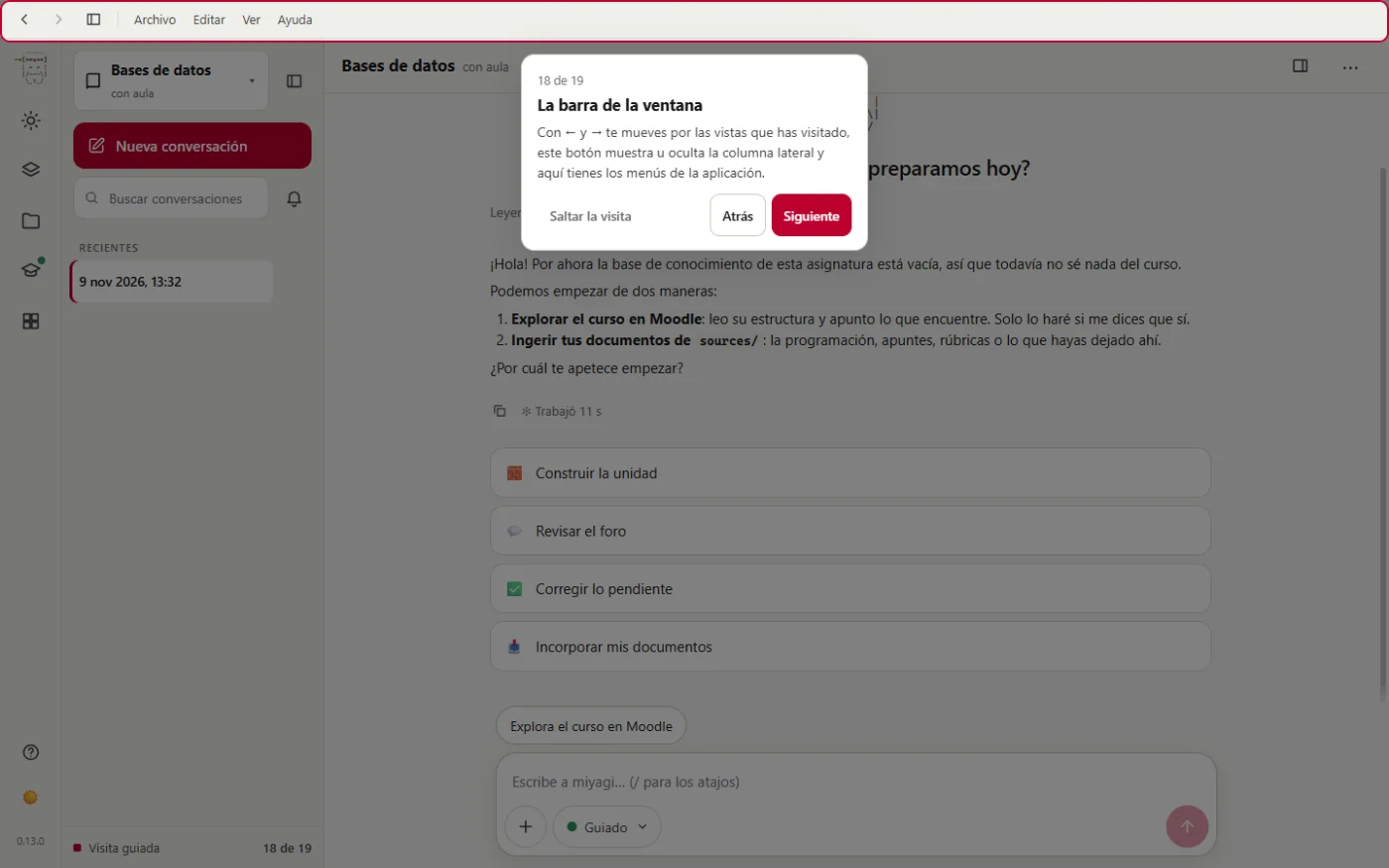
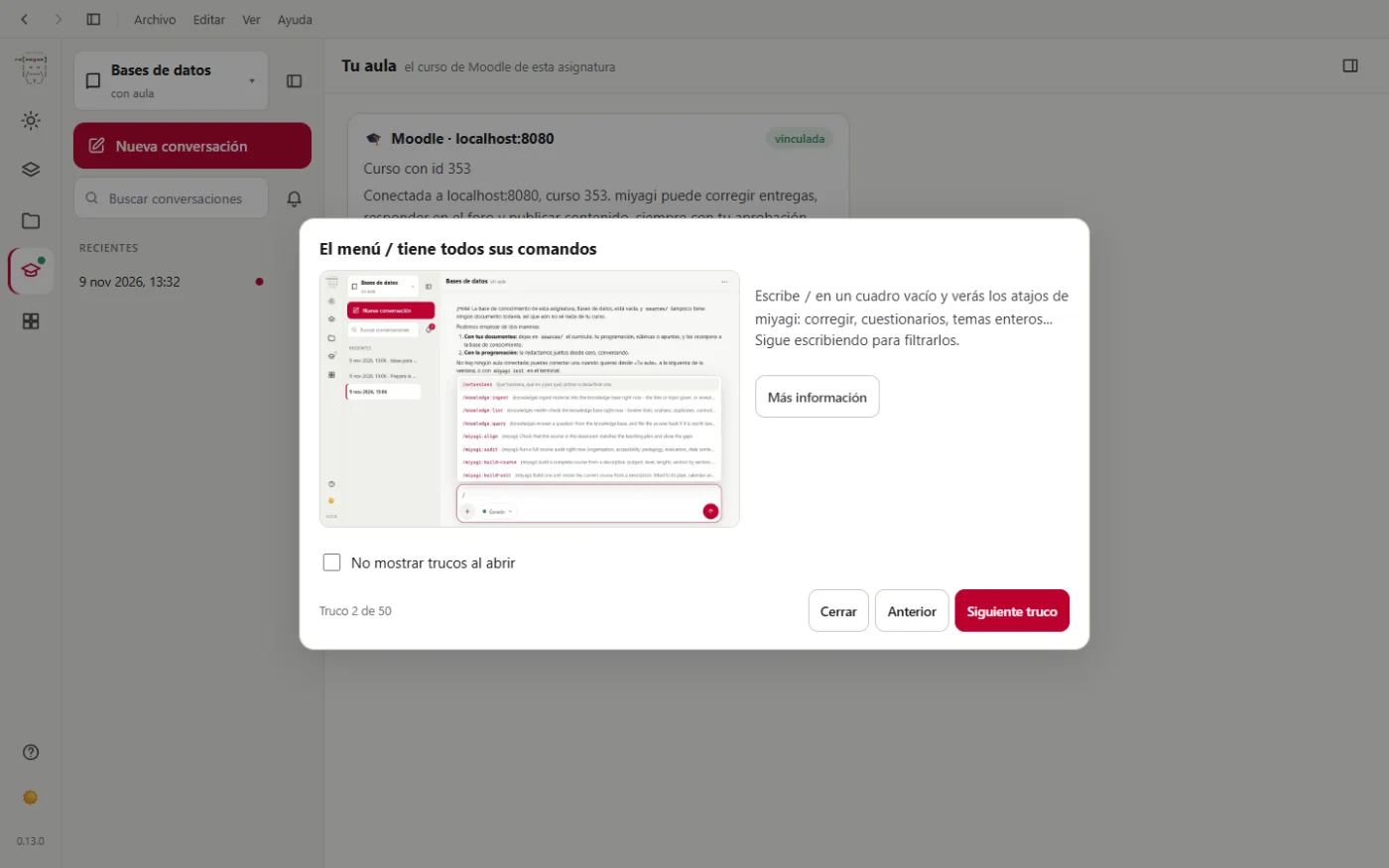
When you open a subject you also get a tip, one each time, with its picture. The buttons move you between them, and if you tick Don't show tips on startup they don't appear again.
Creating a subject
Fill in the New subject form: the name, an optional description, the language you'd like it to talk to you in, and the tone it will use when writing to your students in the forum, in feedback and in announcements. Tick Link a Moodle classroom now if you want to connect your course at that moment. It's saved in ~/.miyagi/workspaces/, unless you choose another folder with Choose a folder.
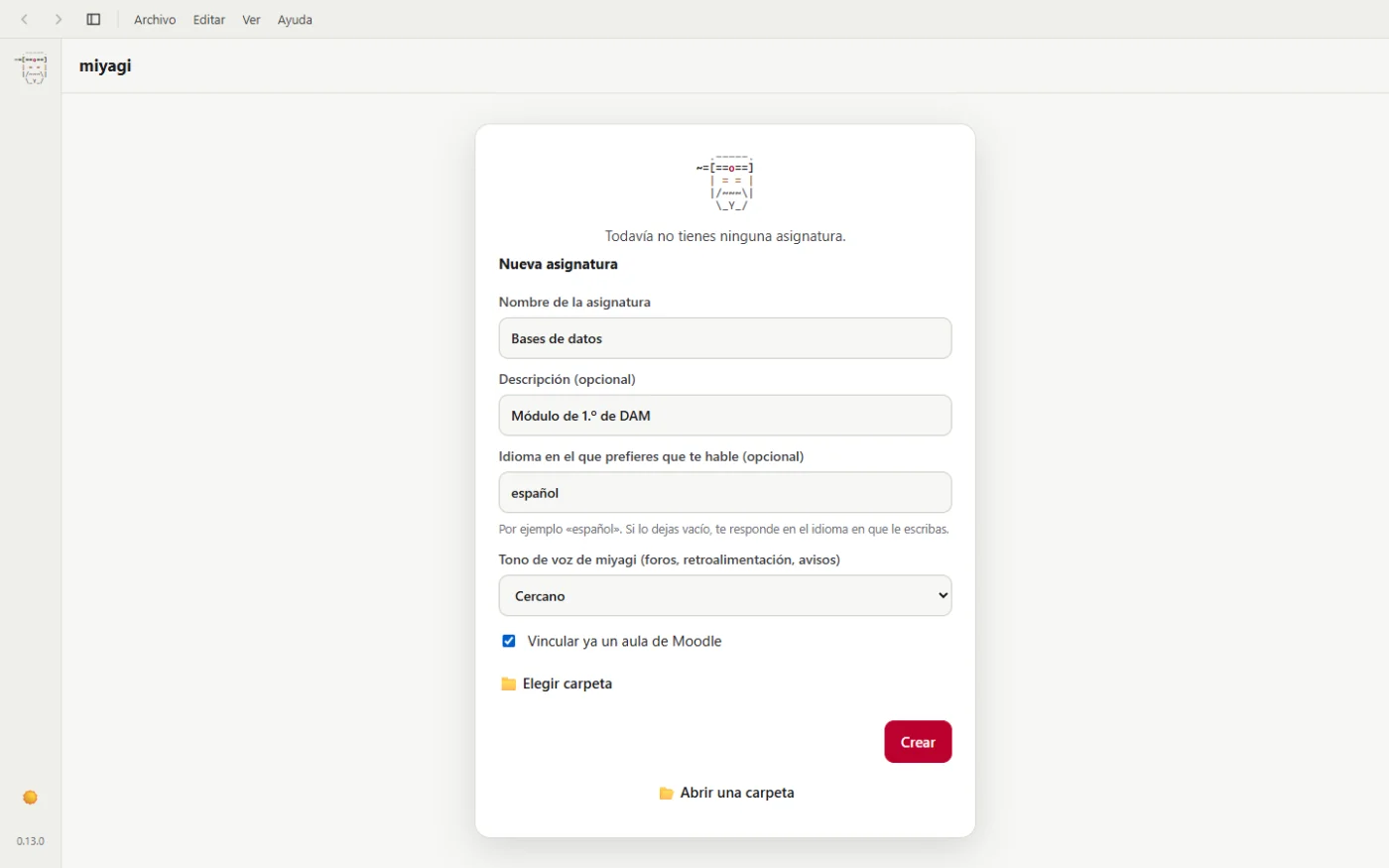
You switch subject or create another one from the selector at the top of the conversations column.
Without a classroom, miyagi still helps you with the teaching plan, the units and the materials. You can link it later from Your classroom.
Linking your Moodle classroom
In the Your classroom view, click Link a classroom. There are three steps:
- You paste your course's address, the one you see in the browser with
course/view.php?id=…. - miyagi tells you what it's going to do: install the classroom extension (moodle-teacher) if you don't have it and give it your campus and this course, so that it can only go into your linked courses.
- It's linked.
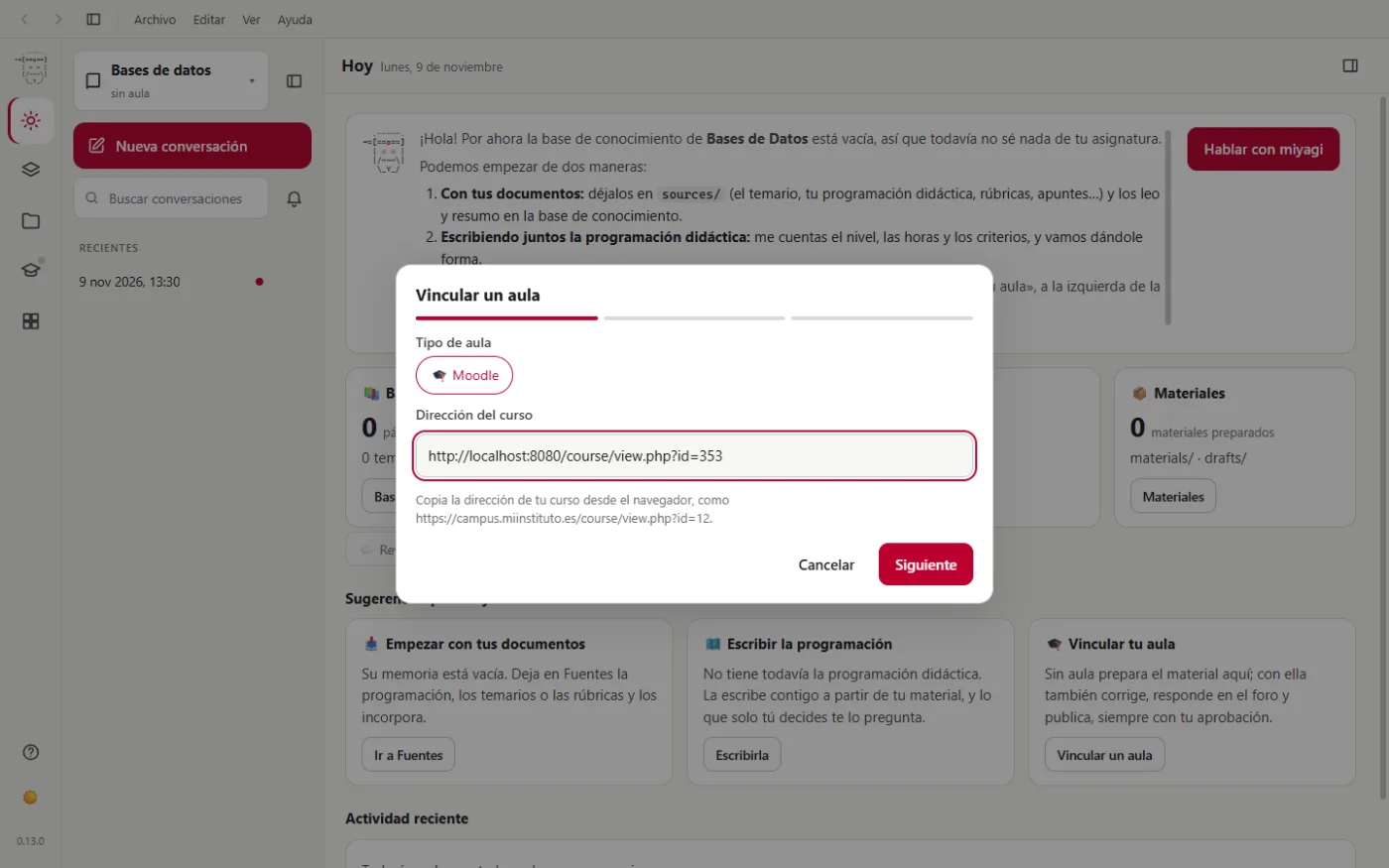
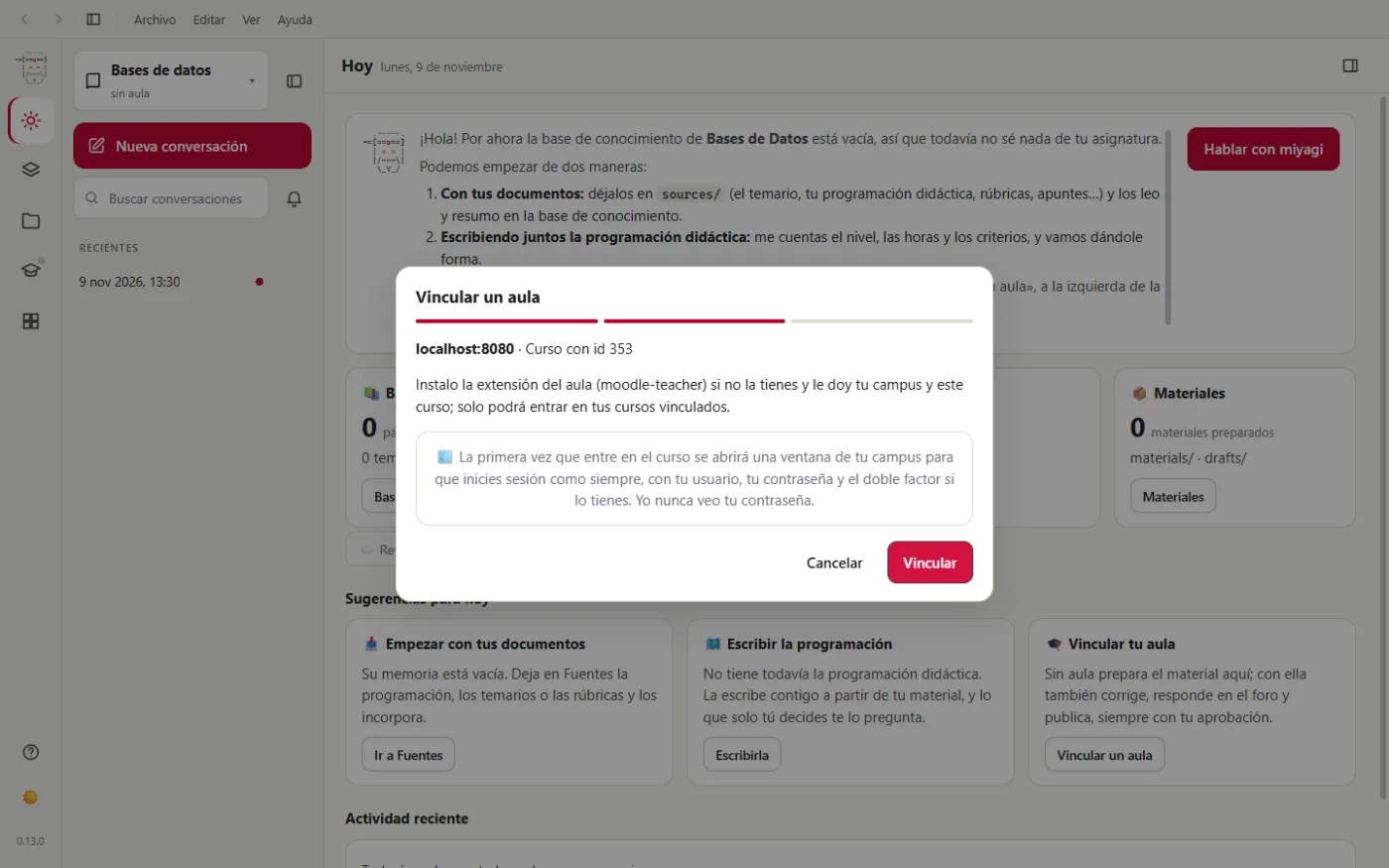
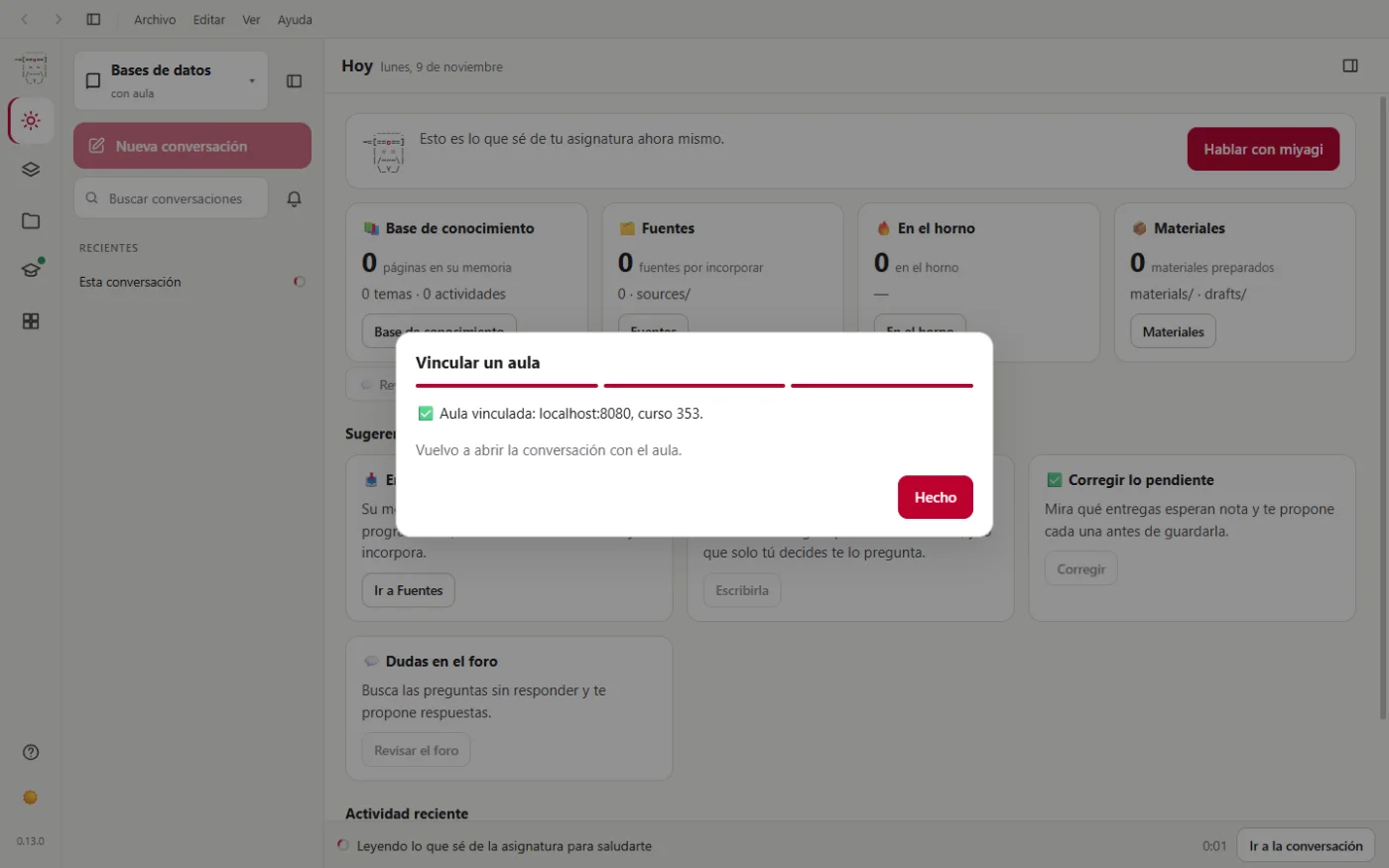
Your password doesn't go through miyagi: the first time it goes into the course, a window of your campus opens for you to log in yourself, with your username, your password and two-factor authentication if you have it.
The window, part by part
The title bar
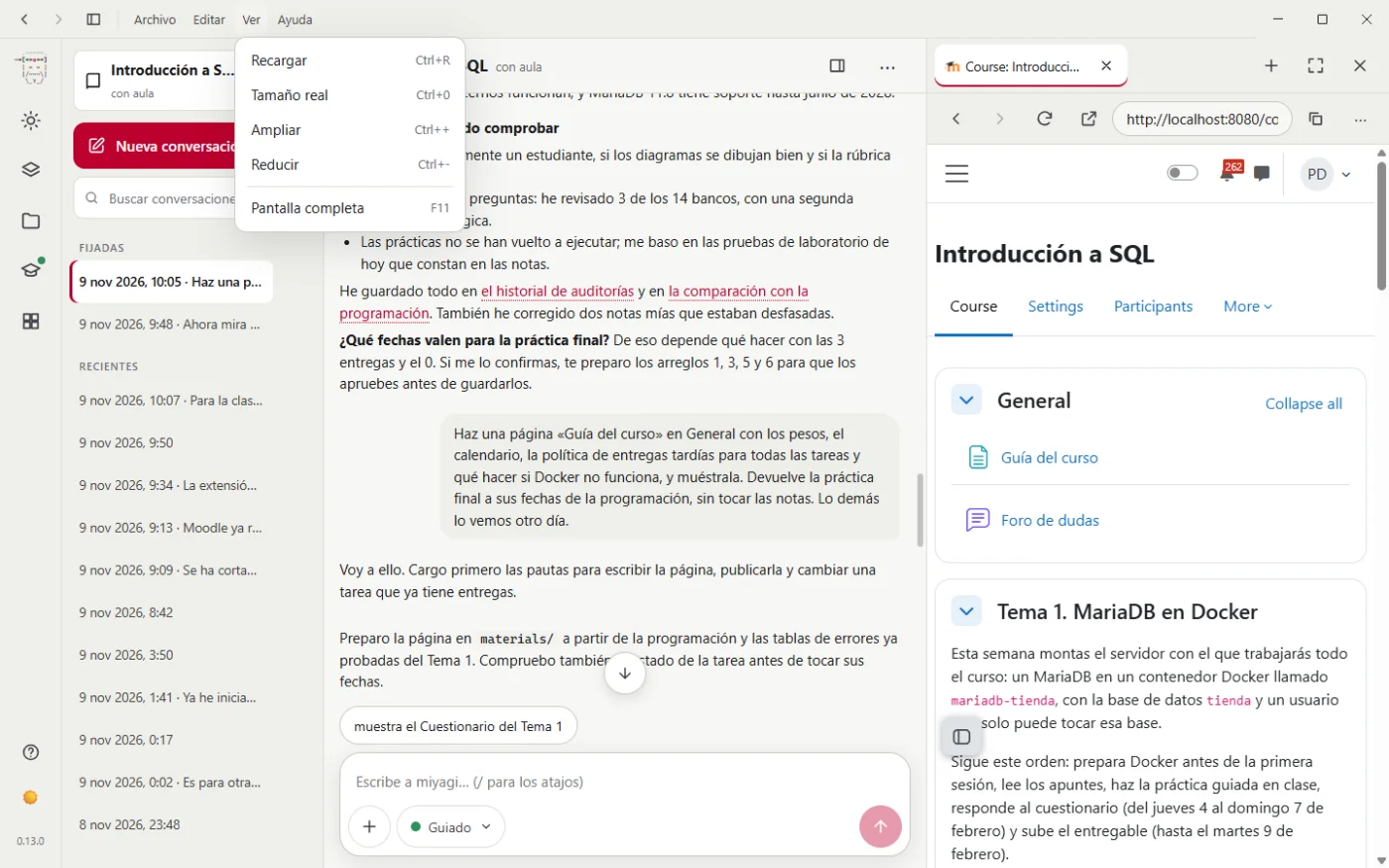
It's part of the window. It has the arrows to go back to the views you've visited, the button that shows or hides the conversations column and the File, Edit, View and Help menus. View has reload, zoom and full screen; Help, this documentation.
The icon column
On the far left, five icons:
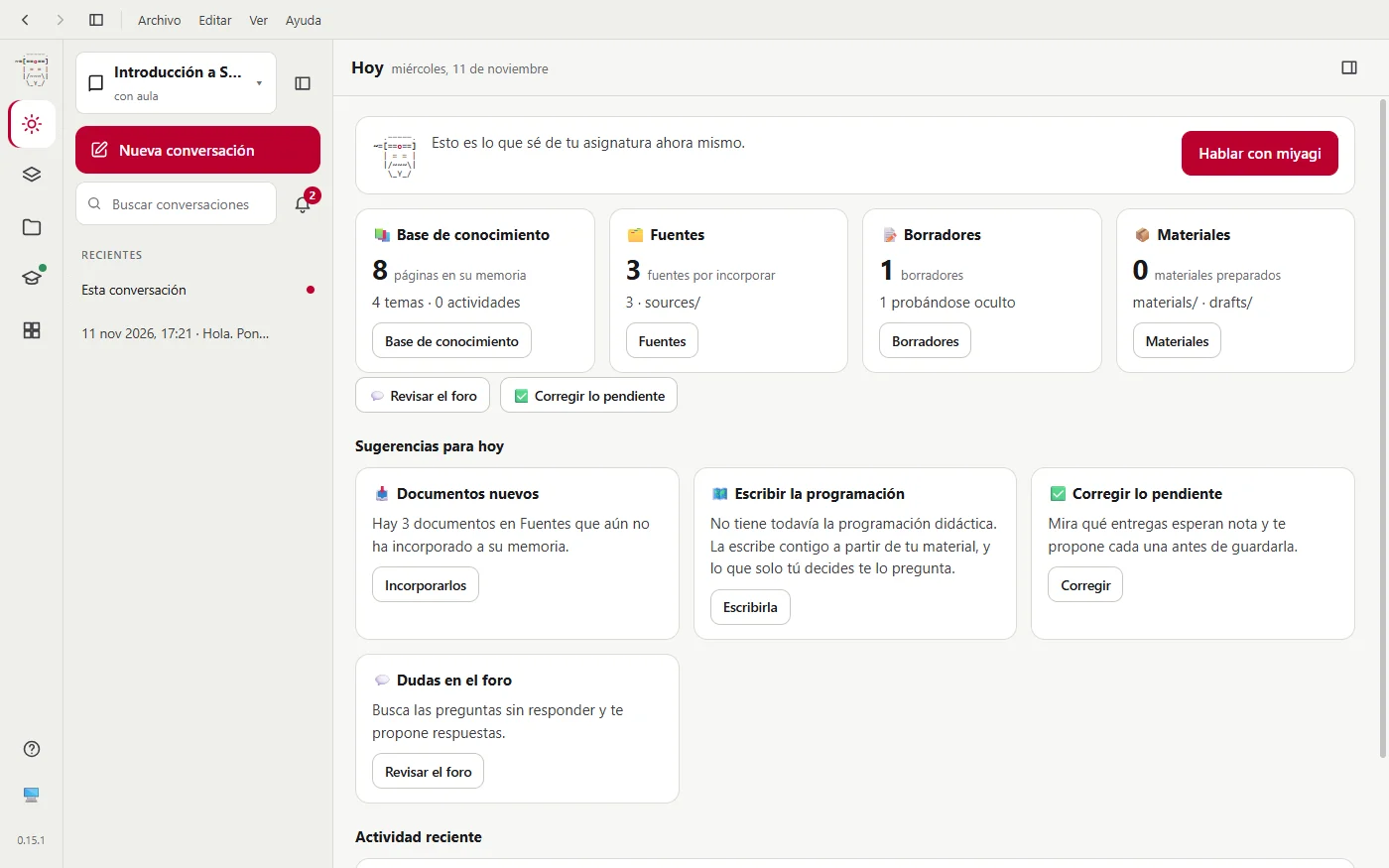
- Today. The first thing you see: what miyagi told you when it greeted you, the summary cards and the suggestions.
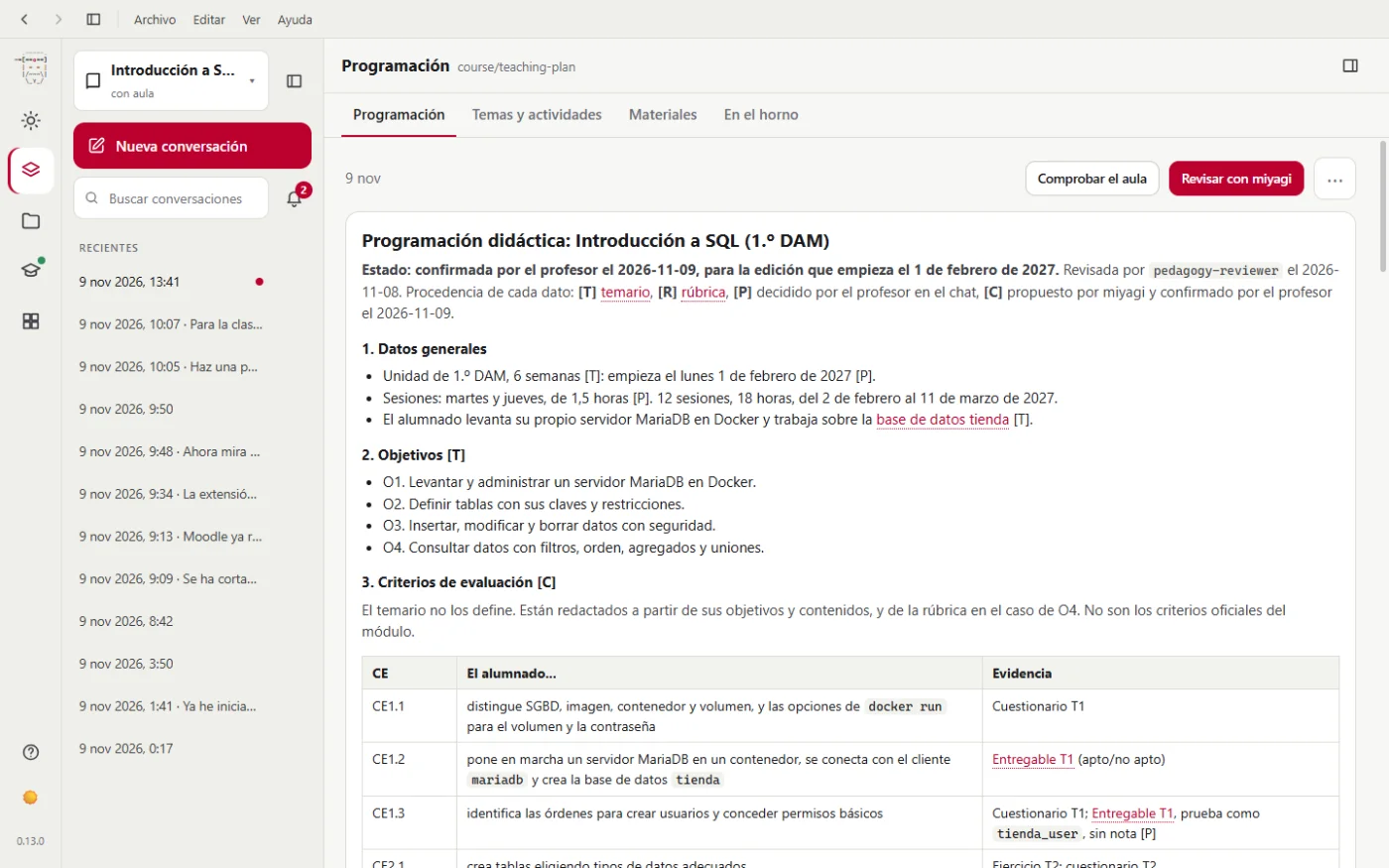
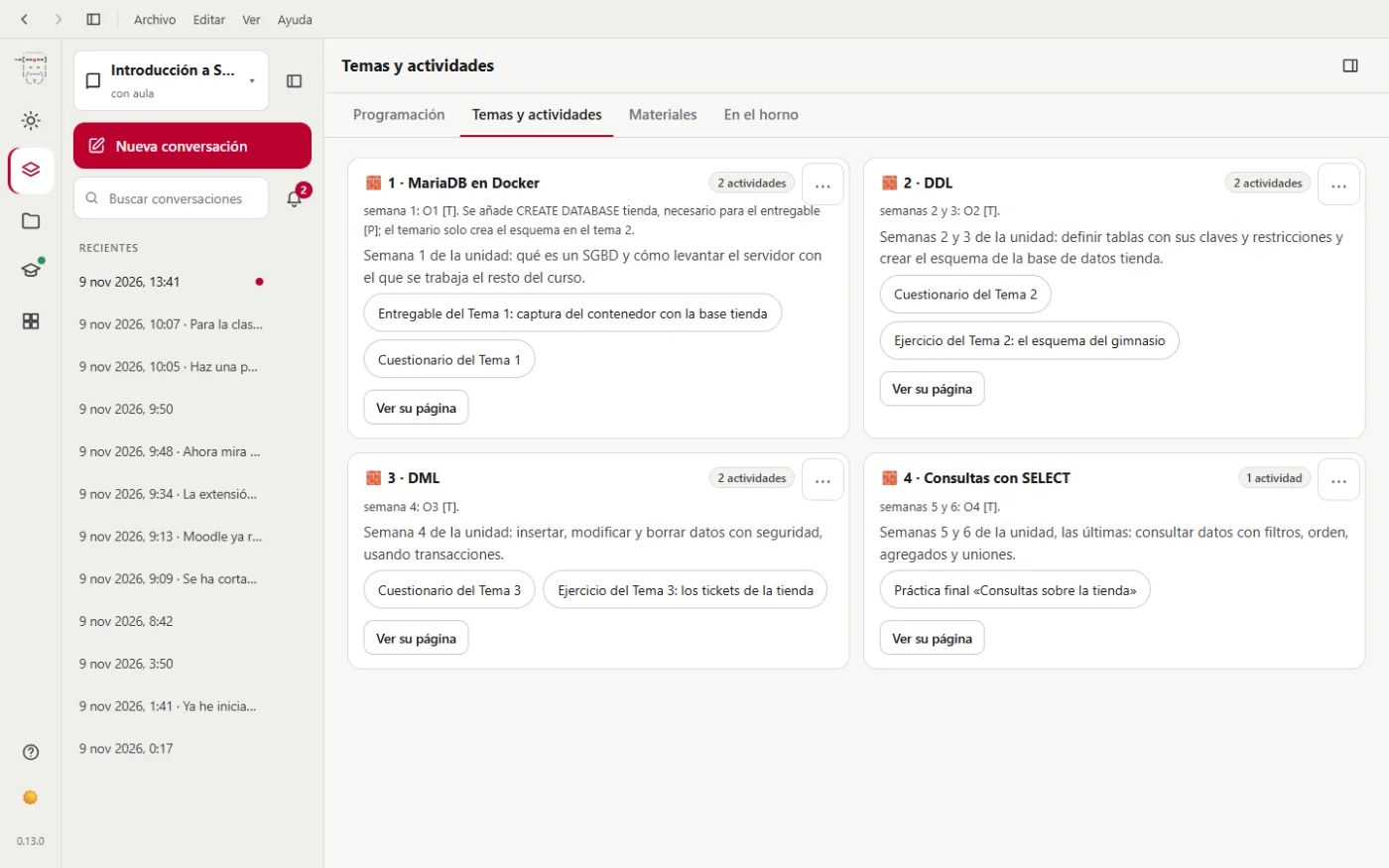
- Subject. With tabs: Teaching plan, Topics and activities, Materials and Drafts.
- Memory. With tabs: Knowledge base and Sources.
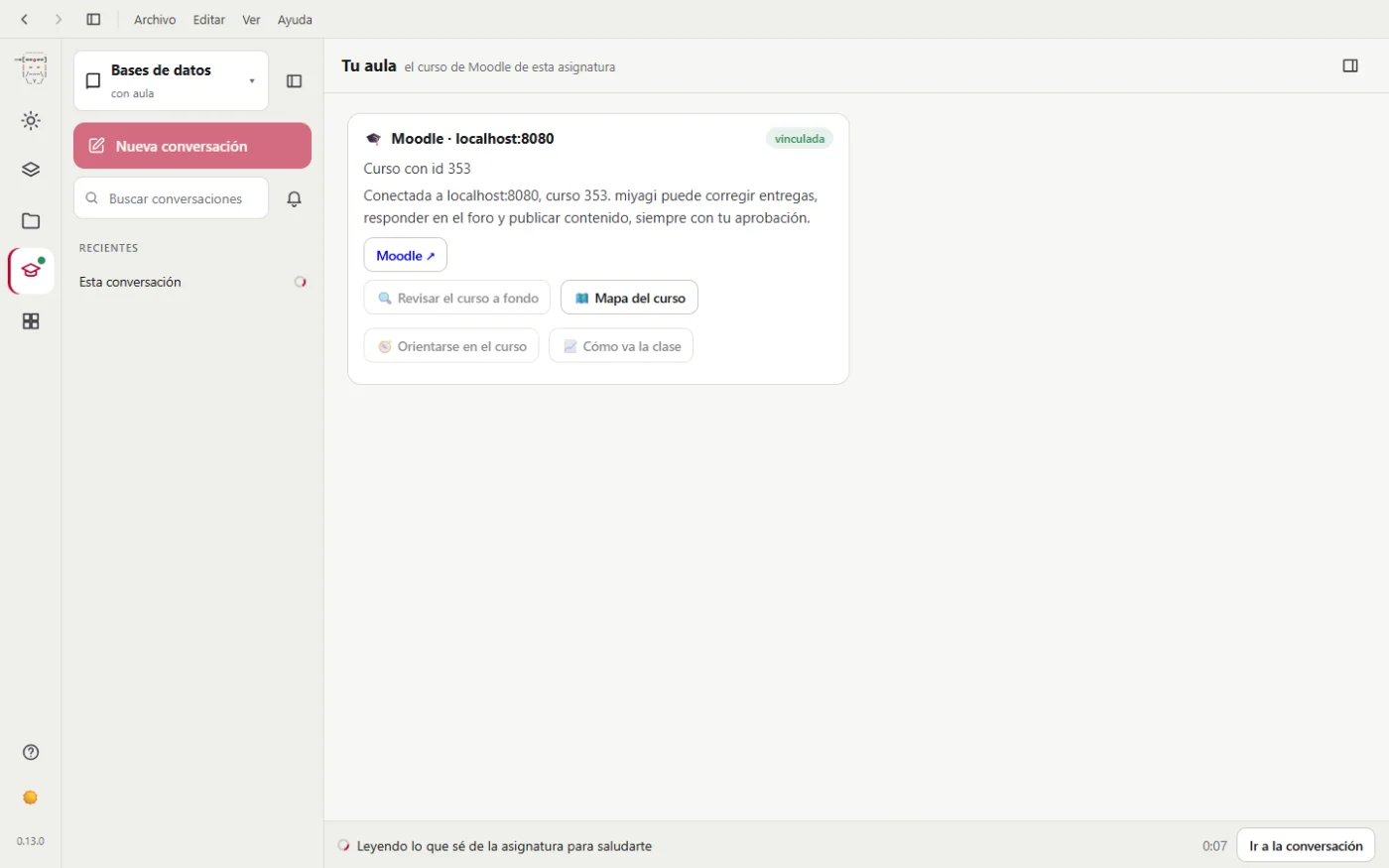
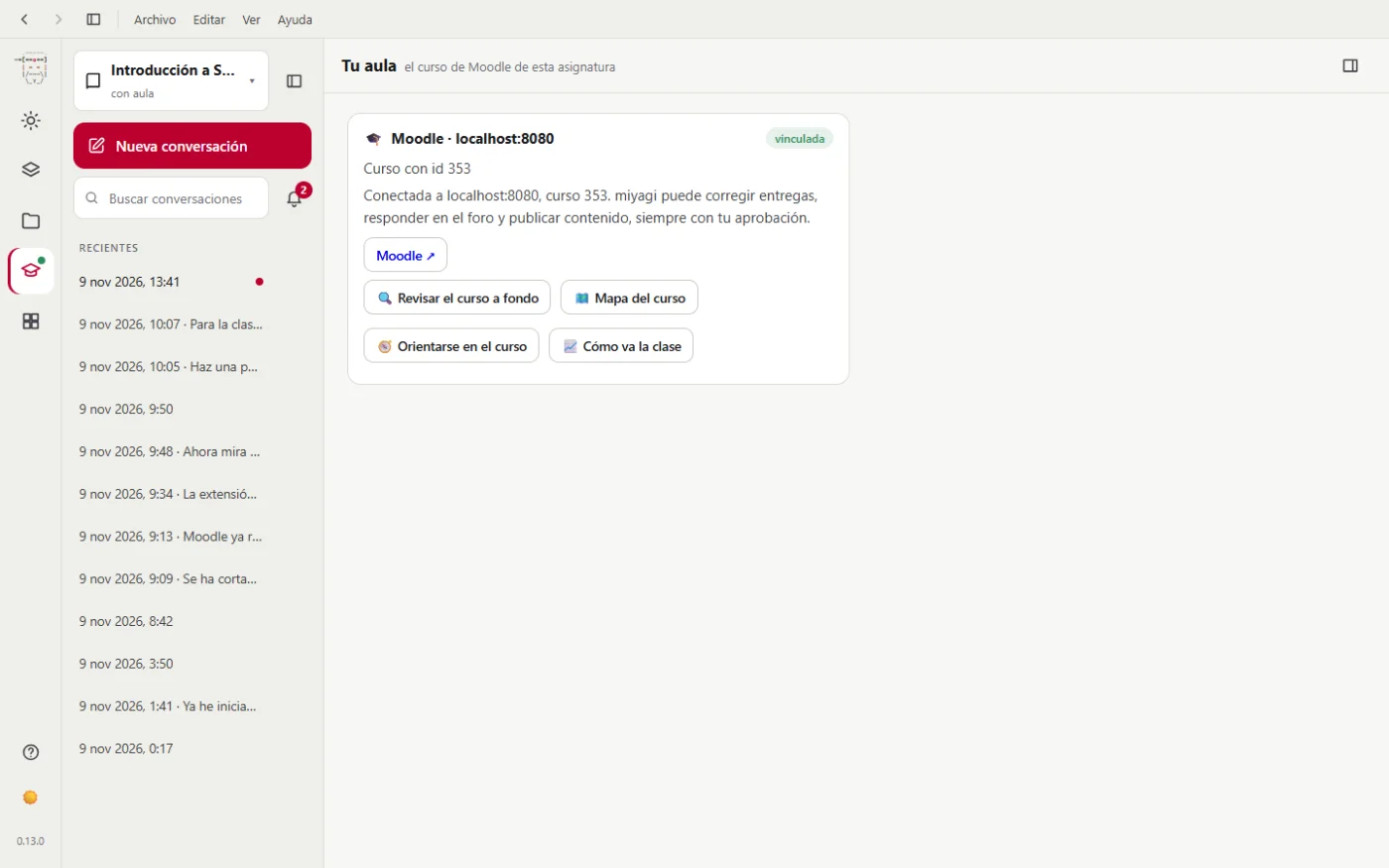
- Your classroom. This subject's Moodle course. A green dot means it's linked.
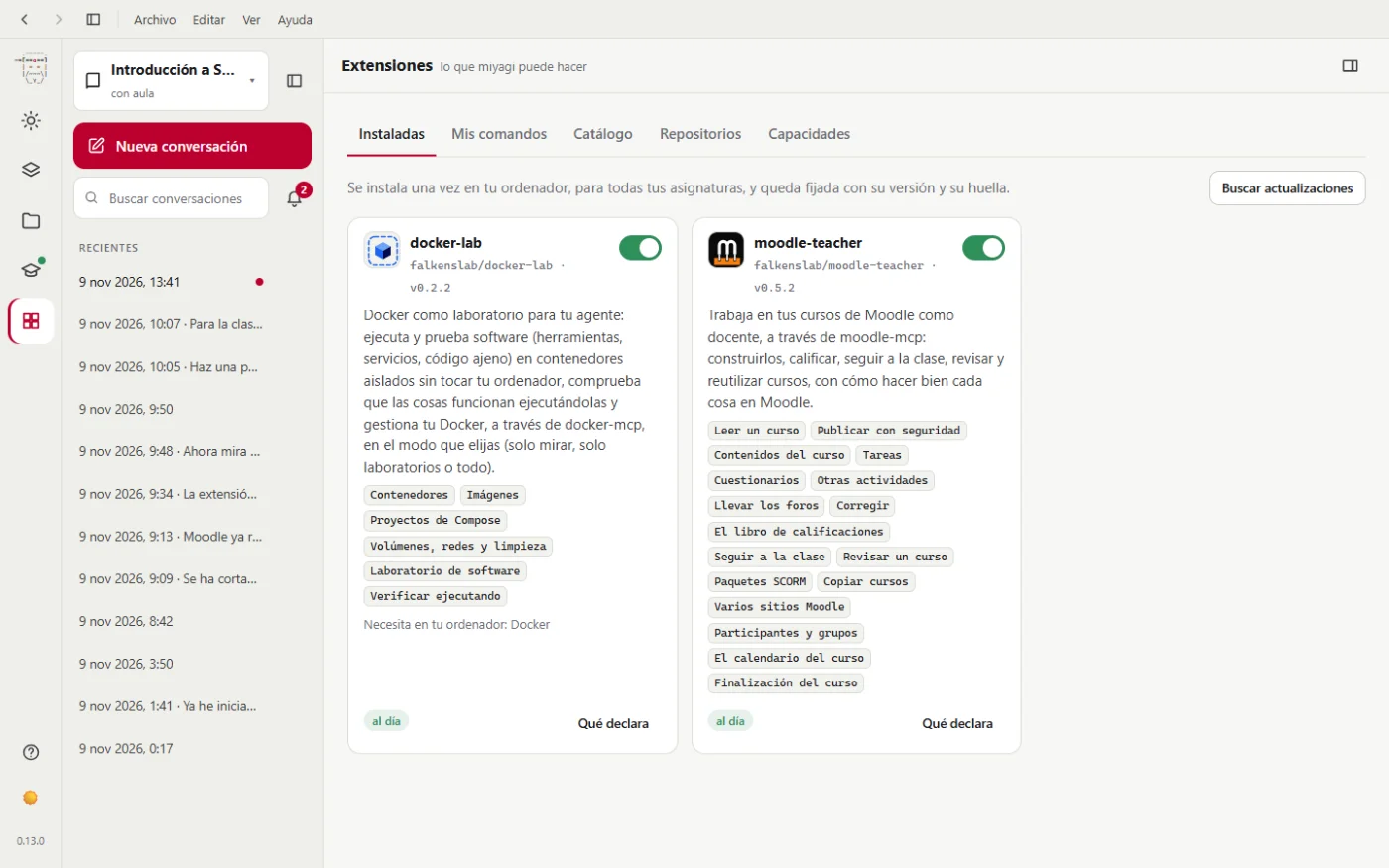
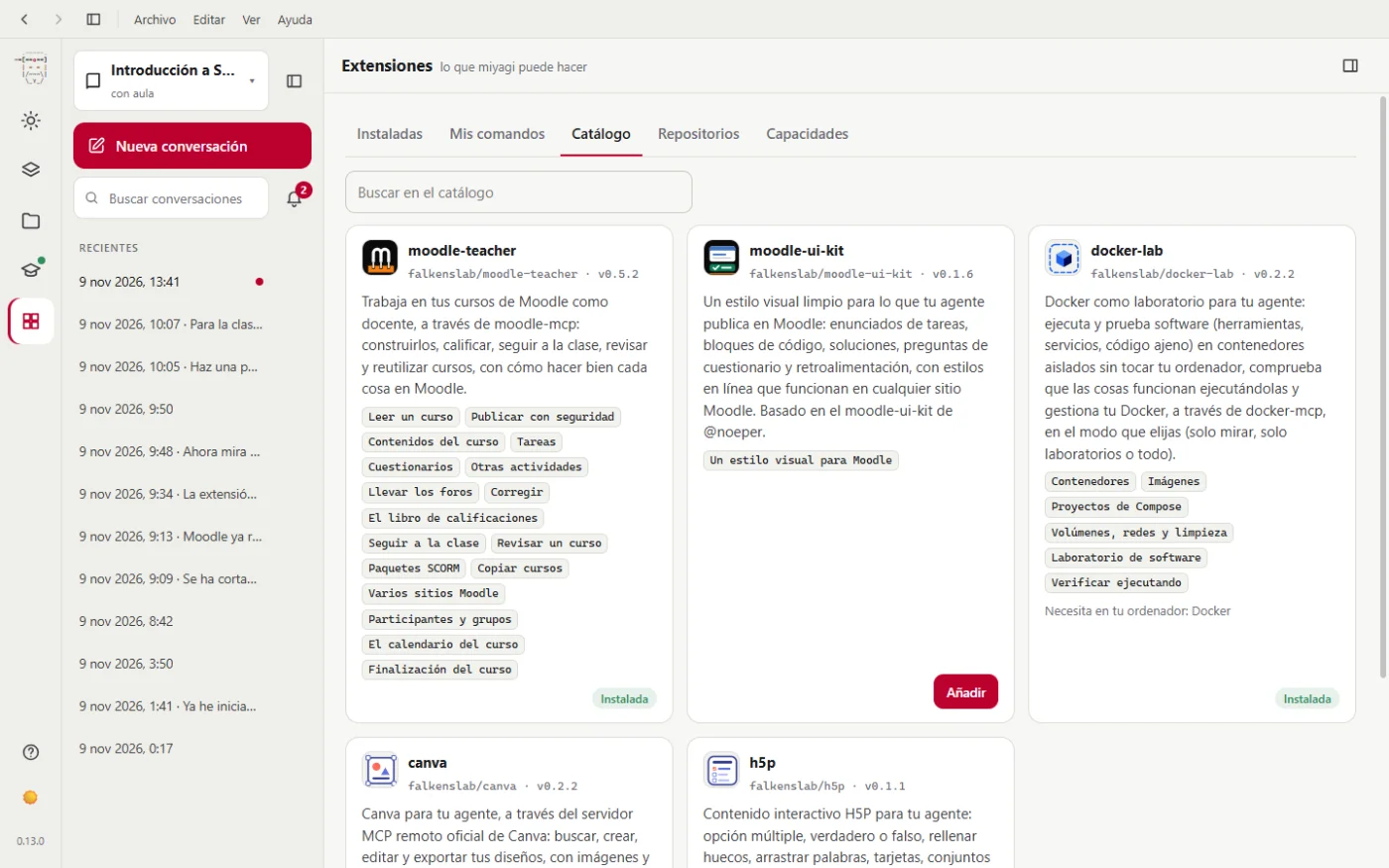
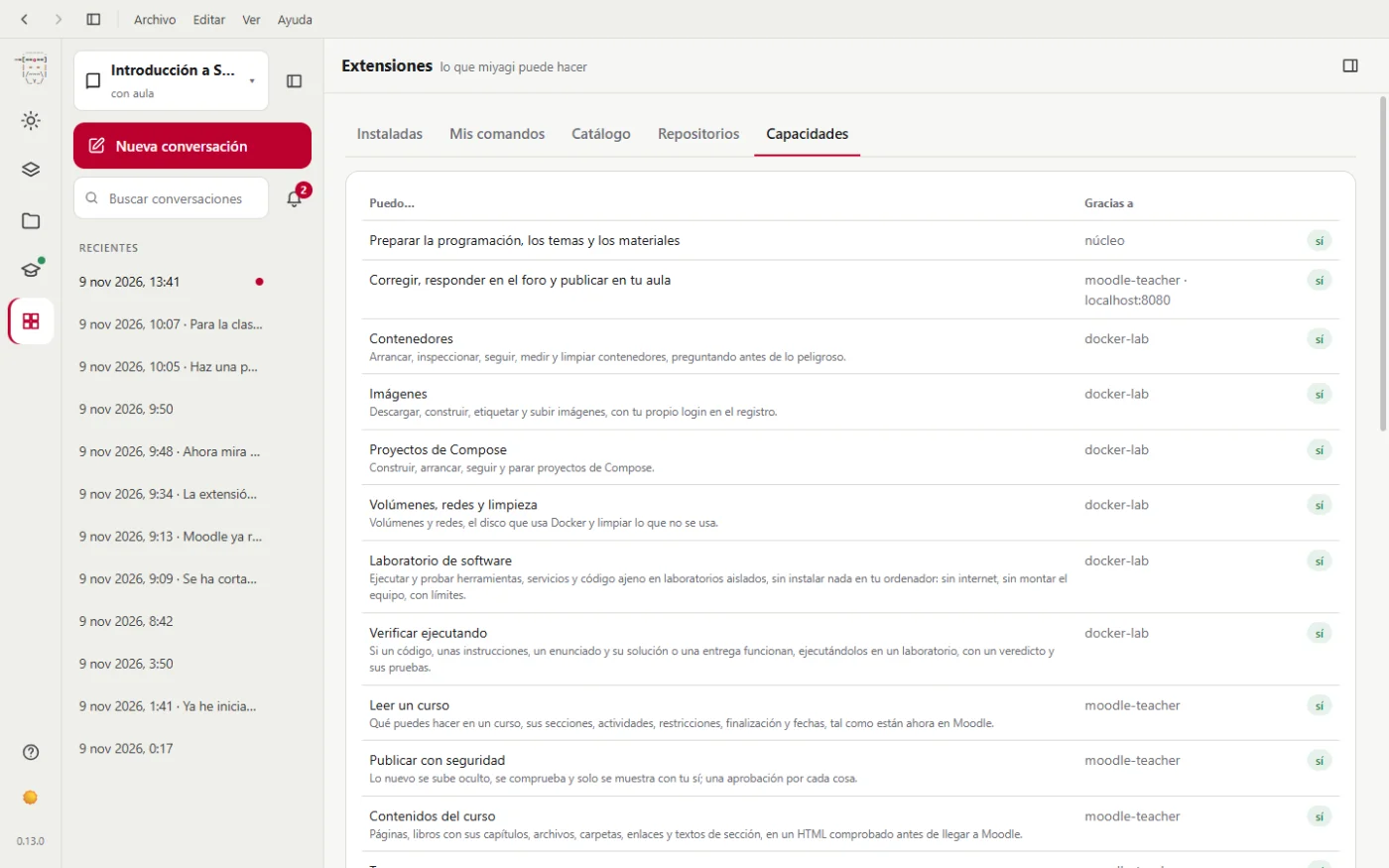
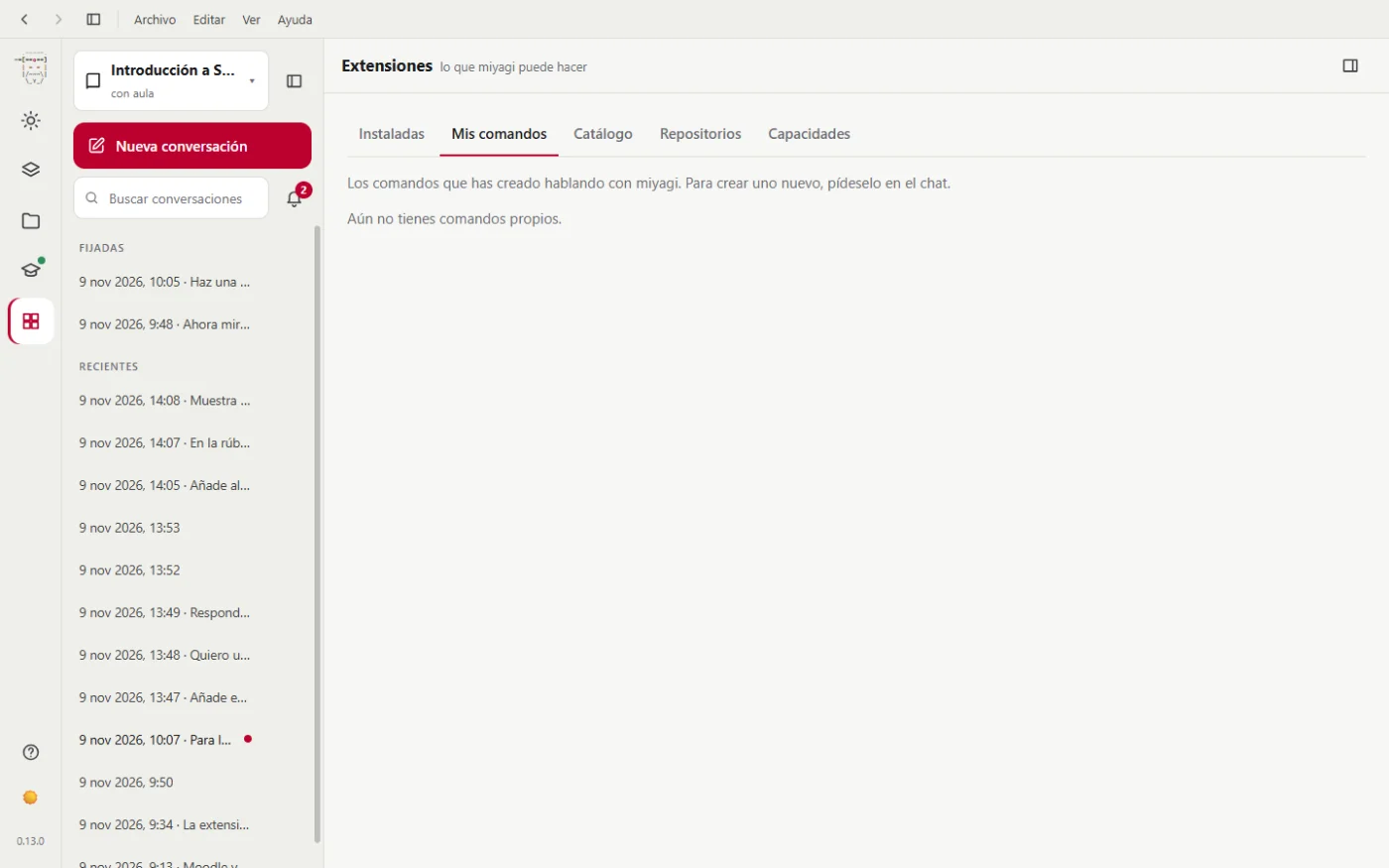
- Extensions. With tabs: Installed, My commands, Catalog, Repositories and Capabilities.
At the bottom, the ? (help and guided tour), the light or dark theme, and the version.
The conversations column
At the top, the subject selector and, below it, New conversation. The search finds a word in all of the subject's conversations.
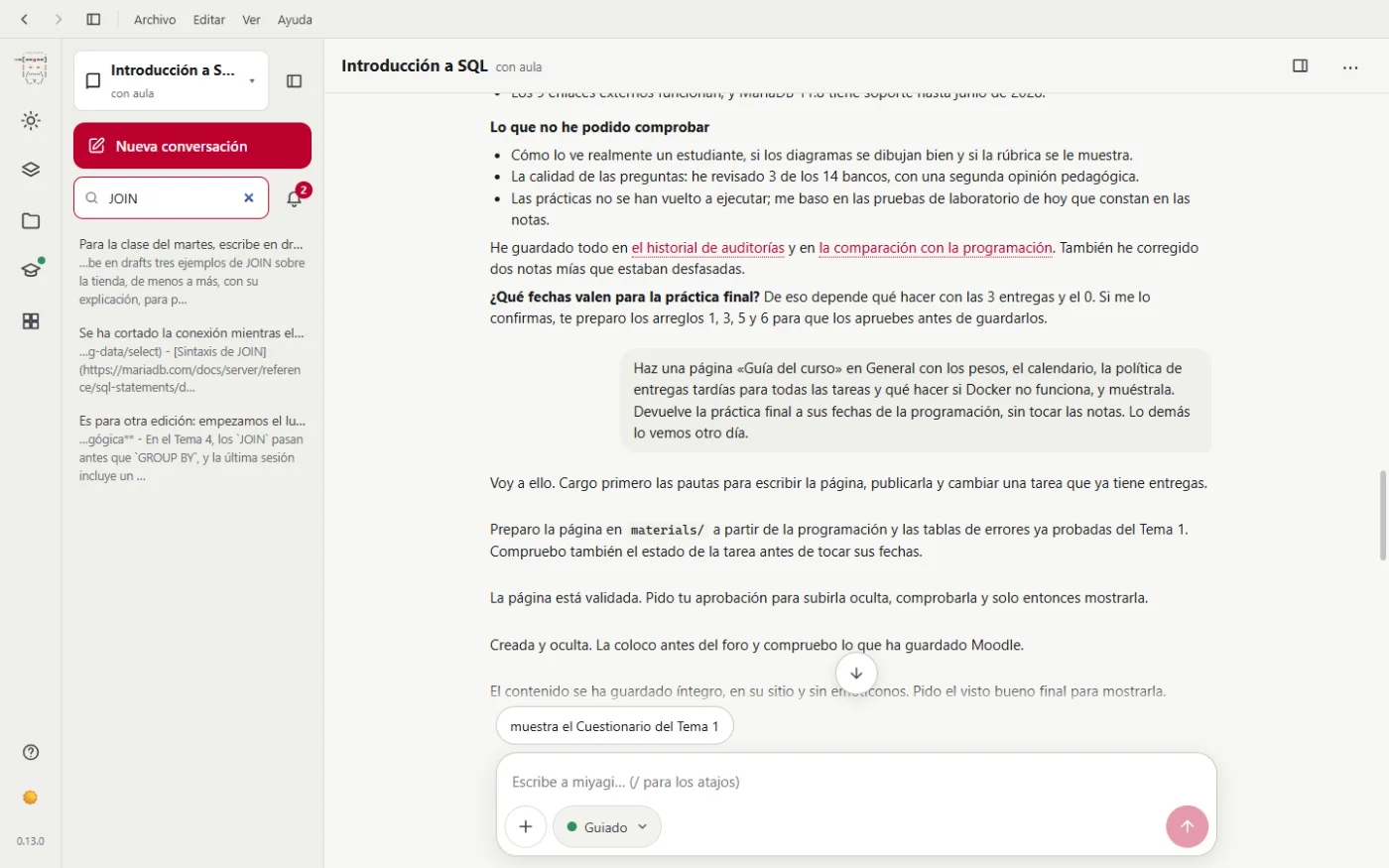
The bell counts what's waiting for you: an approval, a question, sources not taken in yet, activities in Drafts or extensions with a new version.
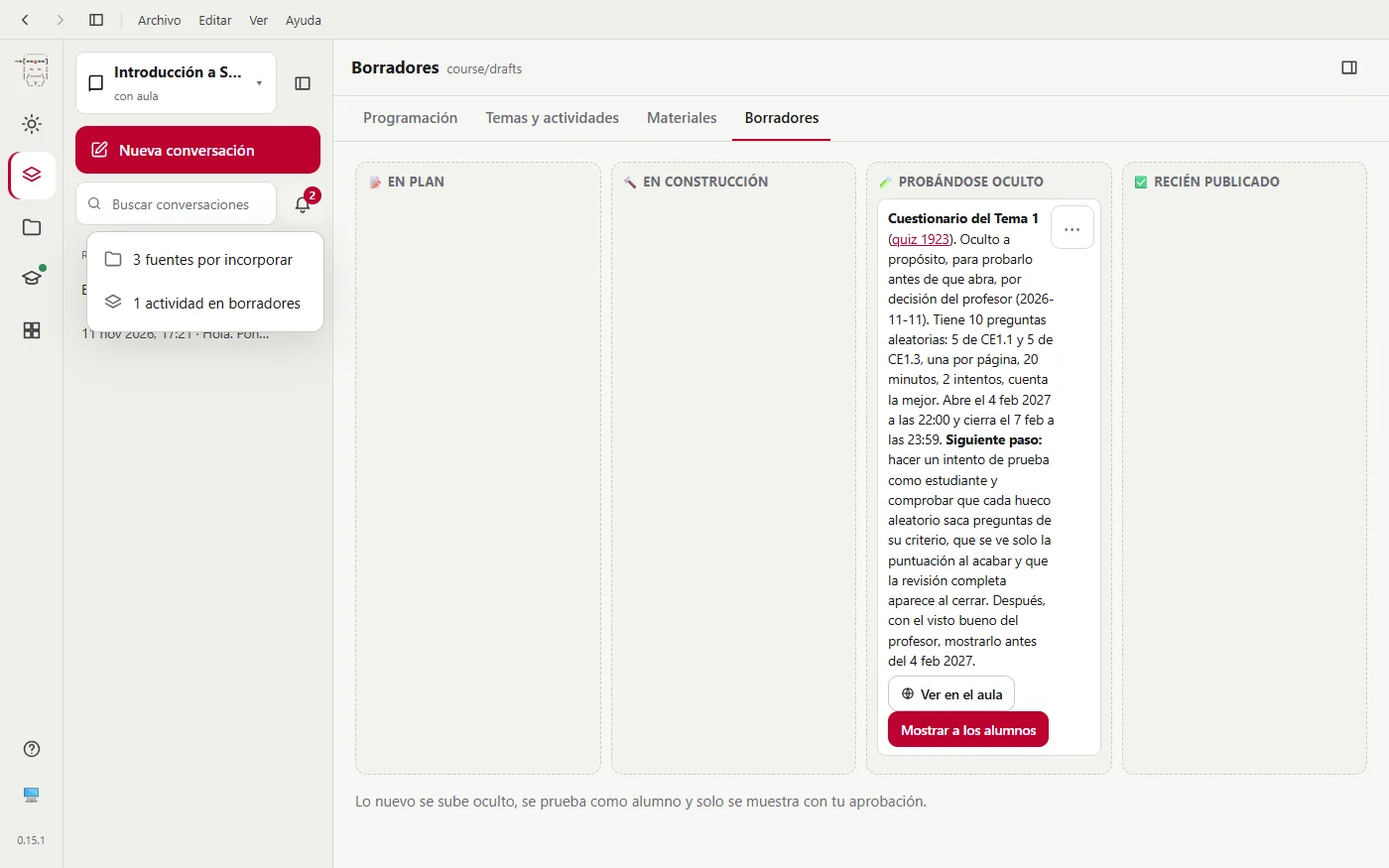
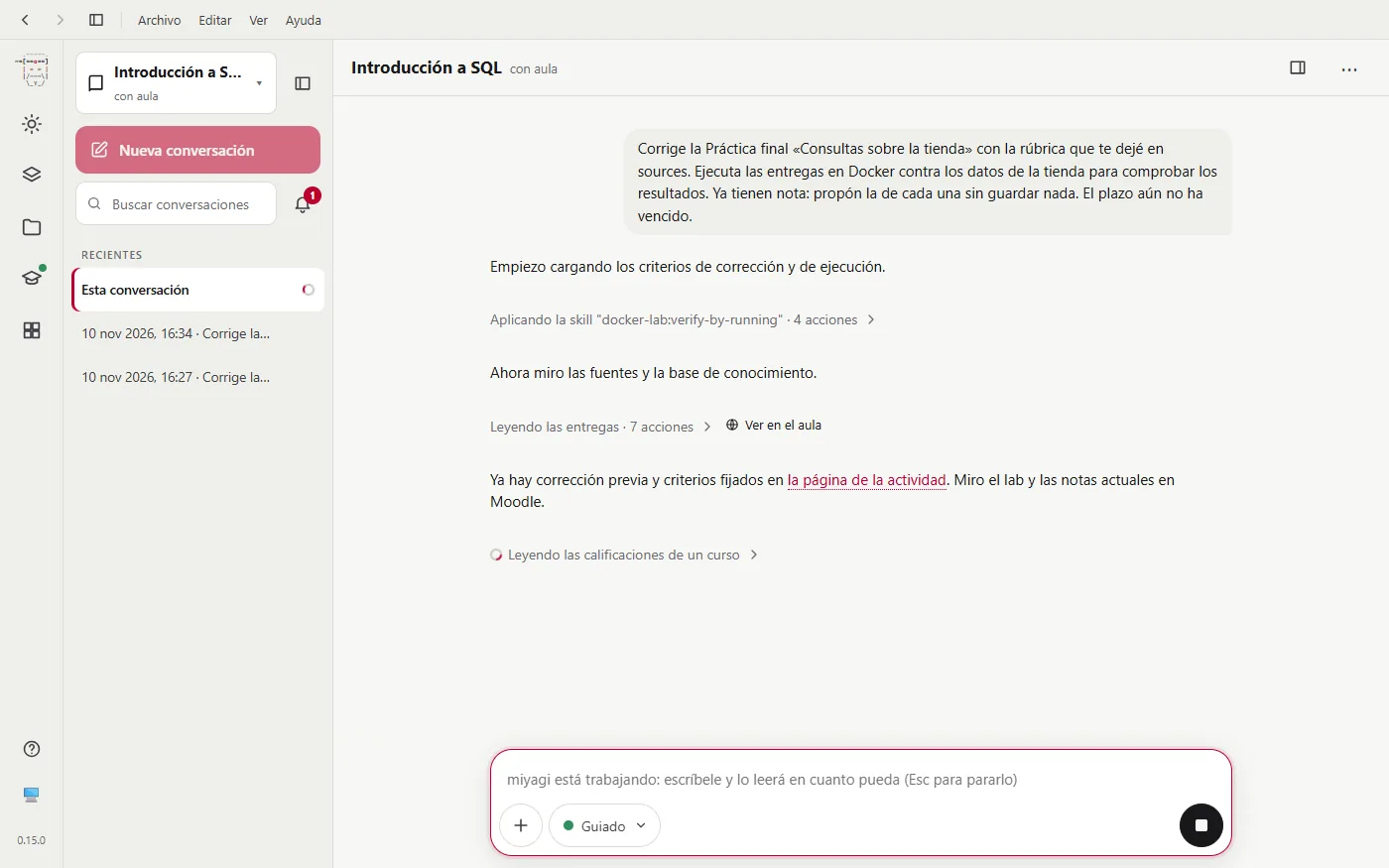
Your conversations appear by date and, above them, the ones you've pinned. You pin one with its ⋯. You can widen the column by dragging its edge or fold it with its button. At the foot, if there's work under way, you see the task in progress and which of how many it is.
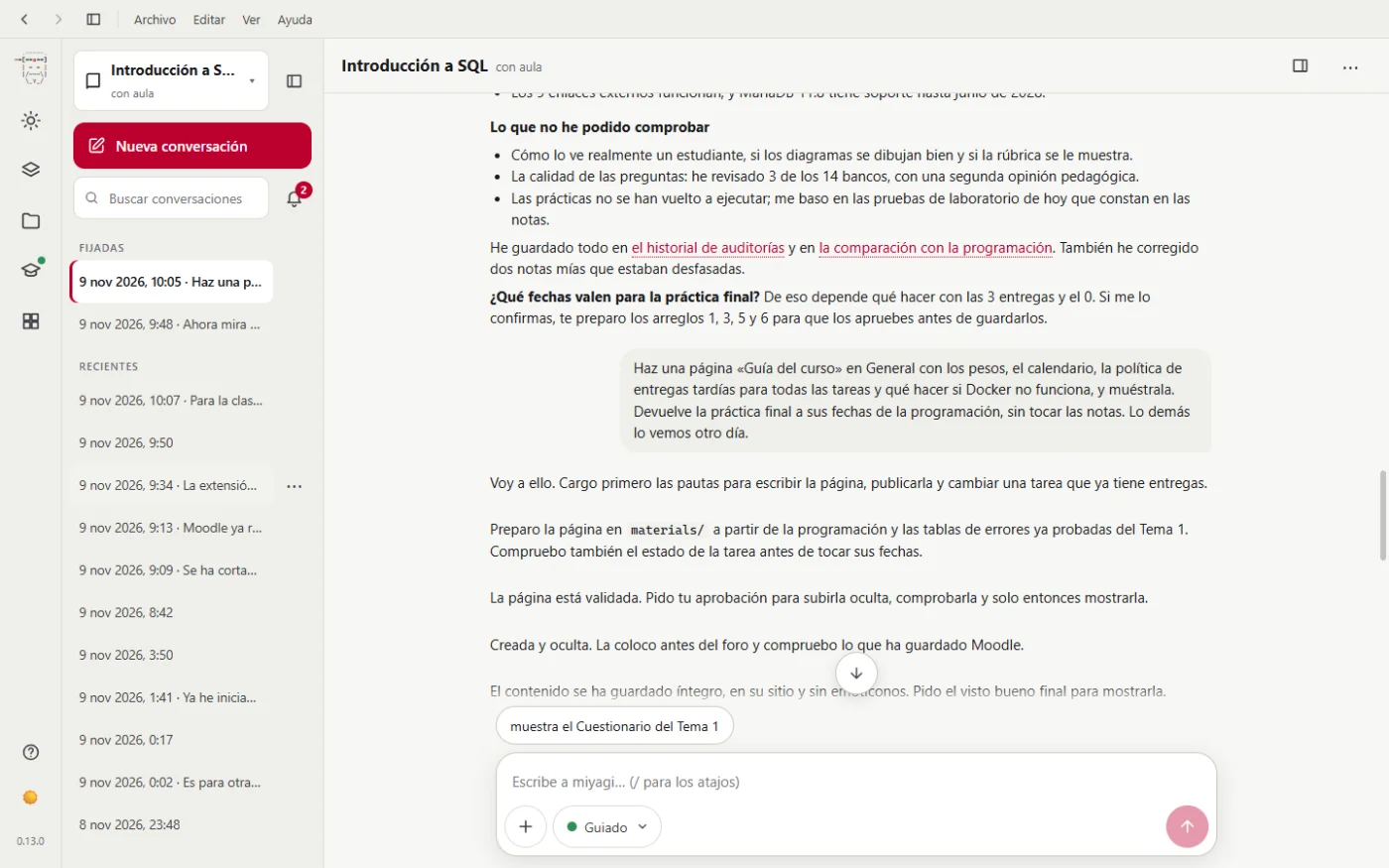
The chat
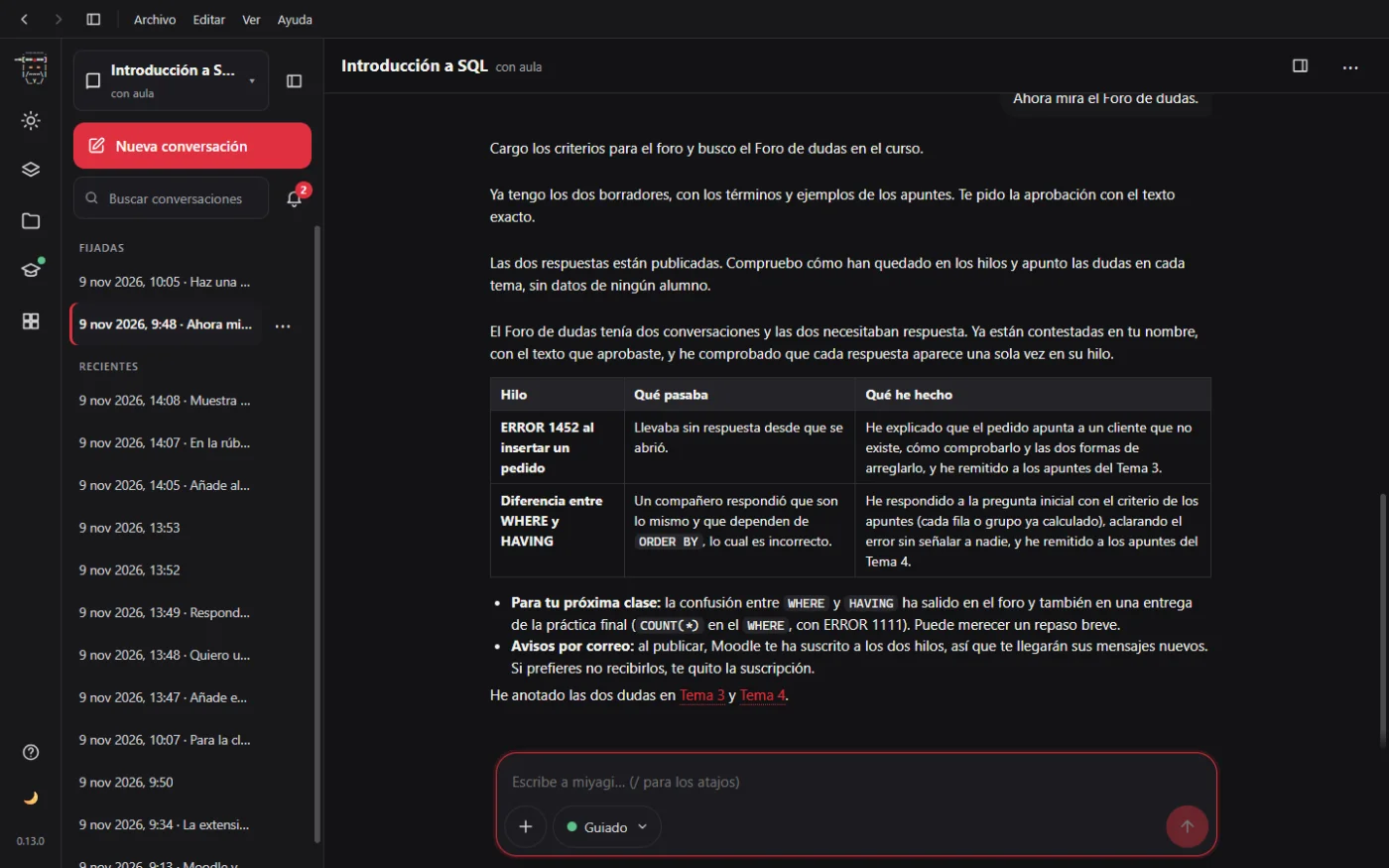
What you write goes on the right; what miyagi replies, at full width, with its actions folded into a line you can open. Whatever it names from your subject (a source, a material, a page of its memory) is a link that opens that view.
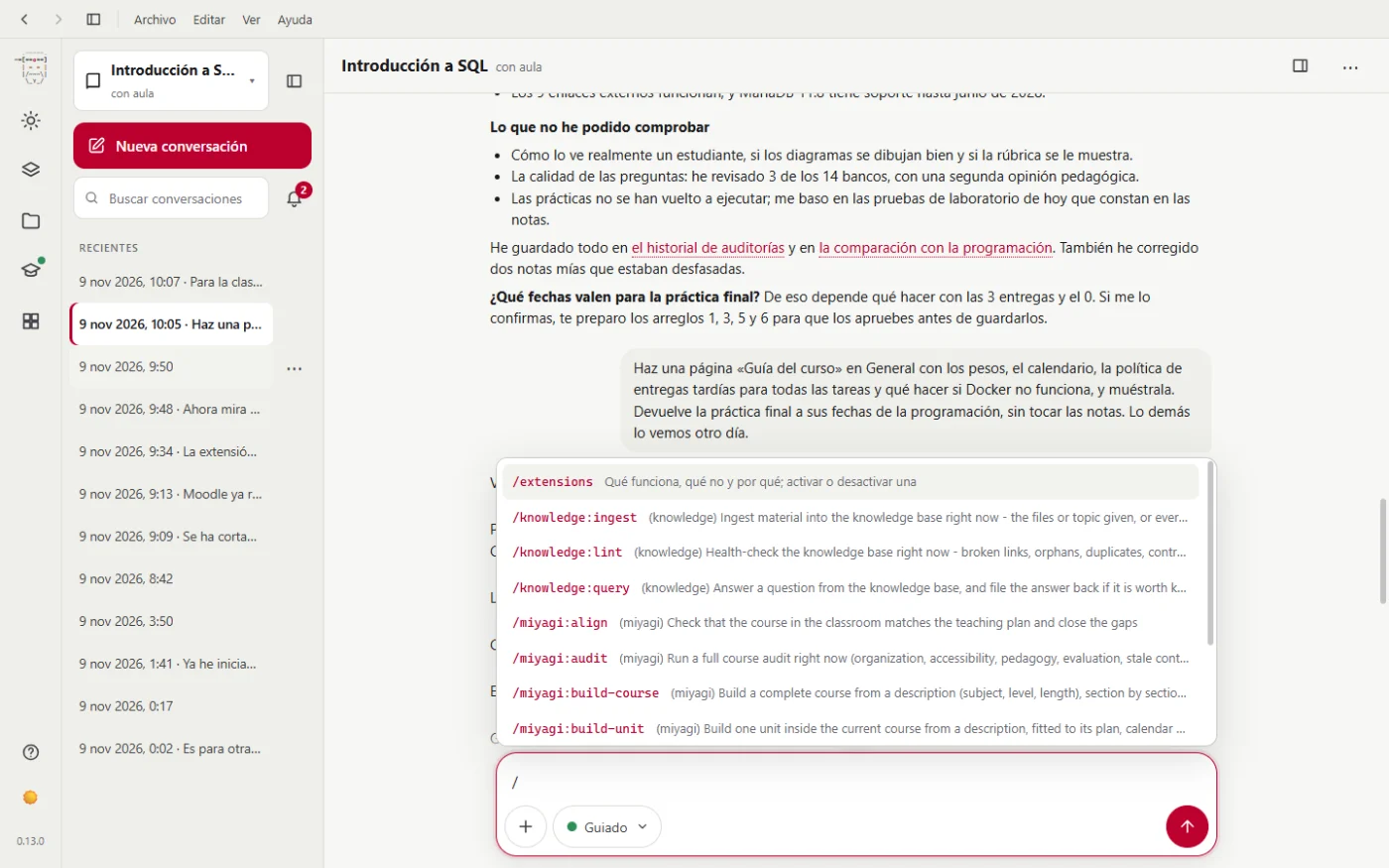
In the writing box, Enter sends and Shift+Enter starts a new line. The + adds a file to your sources, or chooses an action from the catalog. The / shows the shortcuts:
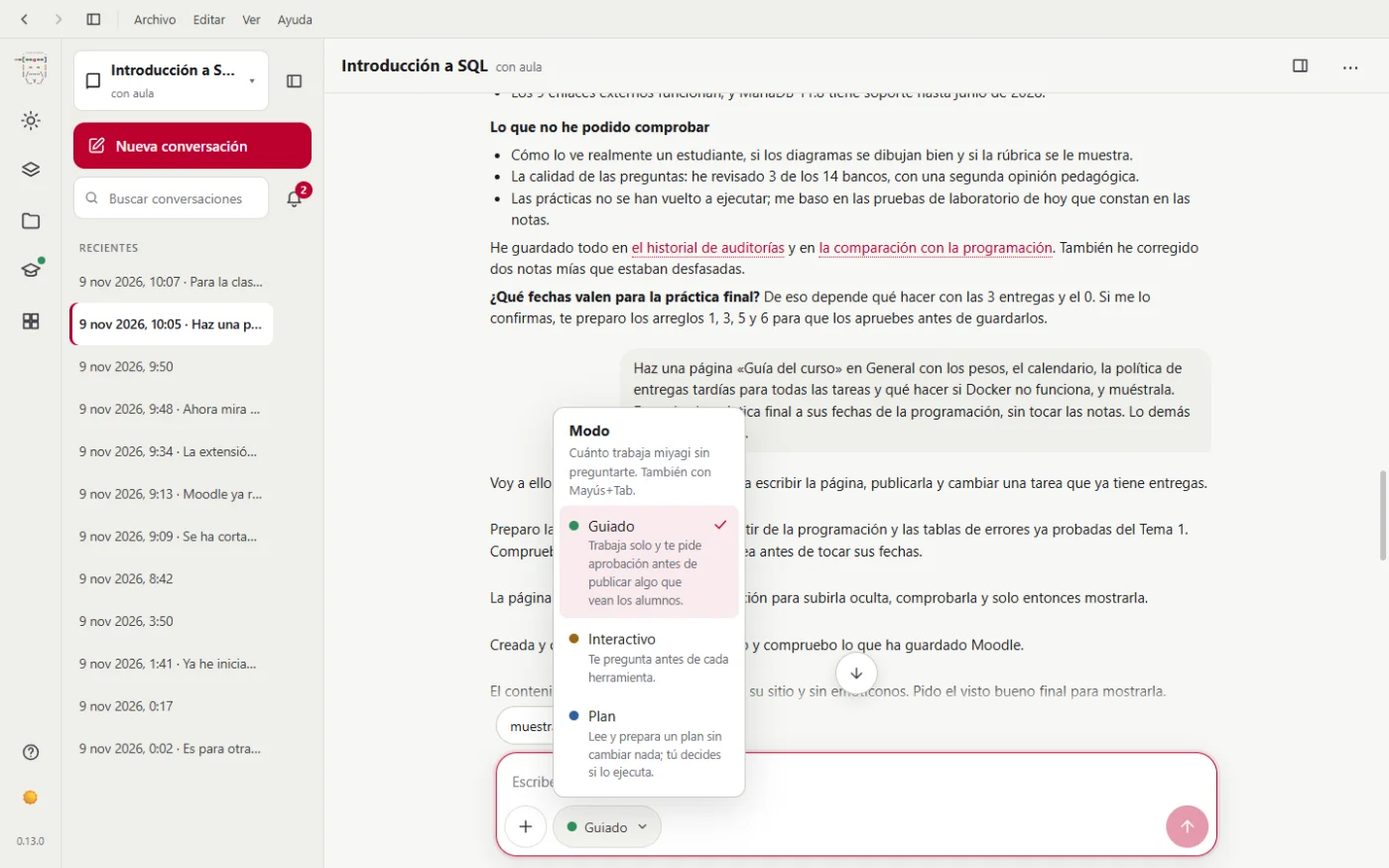
The mode says how much it works without asking you (you can also change it with Shift+Tab):
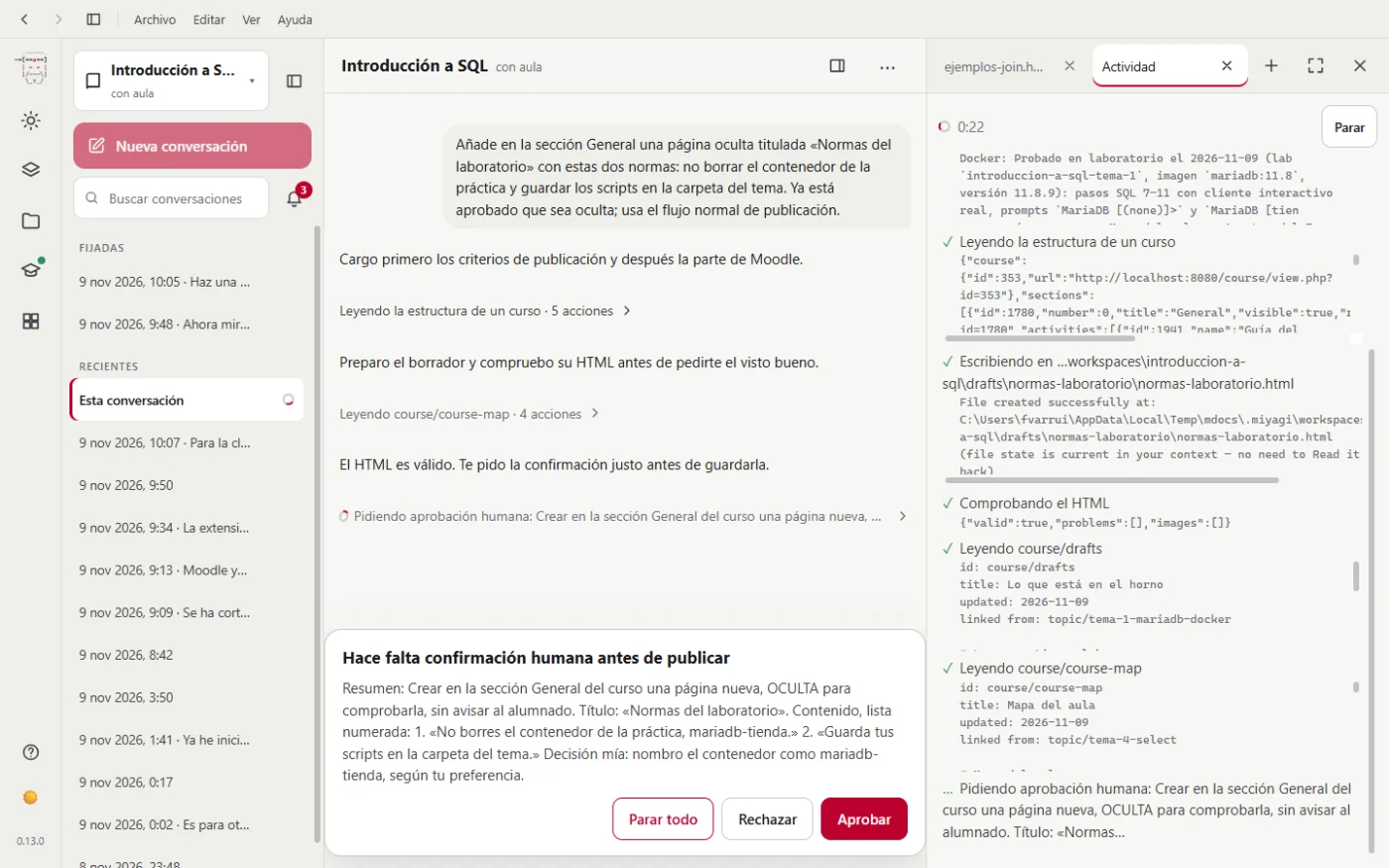
When miyagi is about to publish something, the approval takes the place of the writing box until you answer: Approve, Reject or Stop all. If you reject, explain why in your next message.
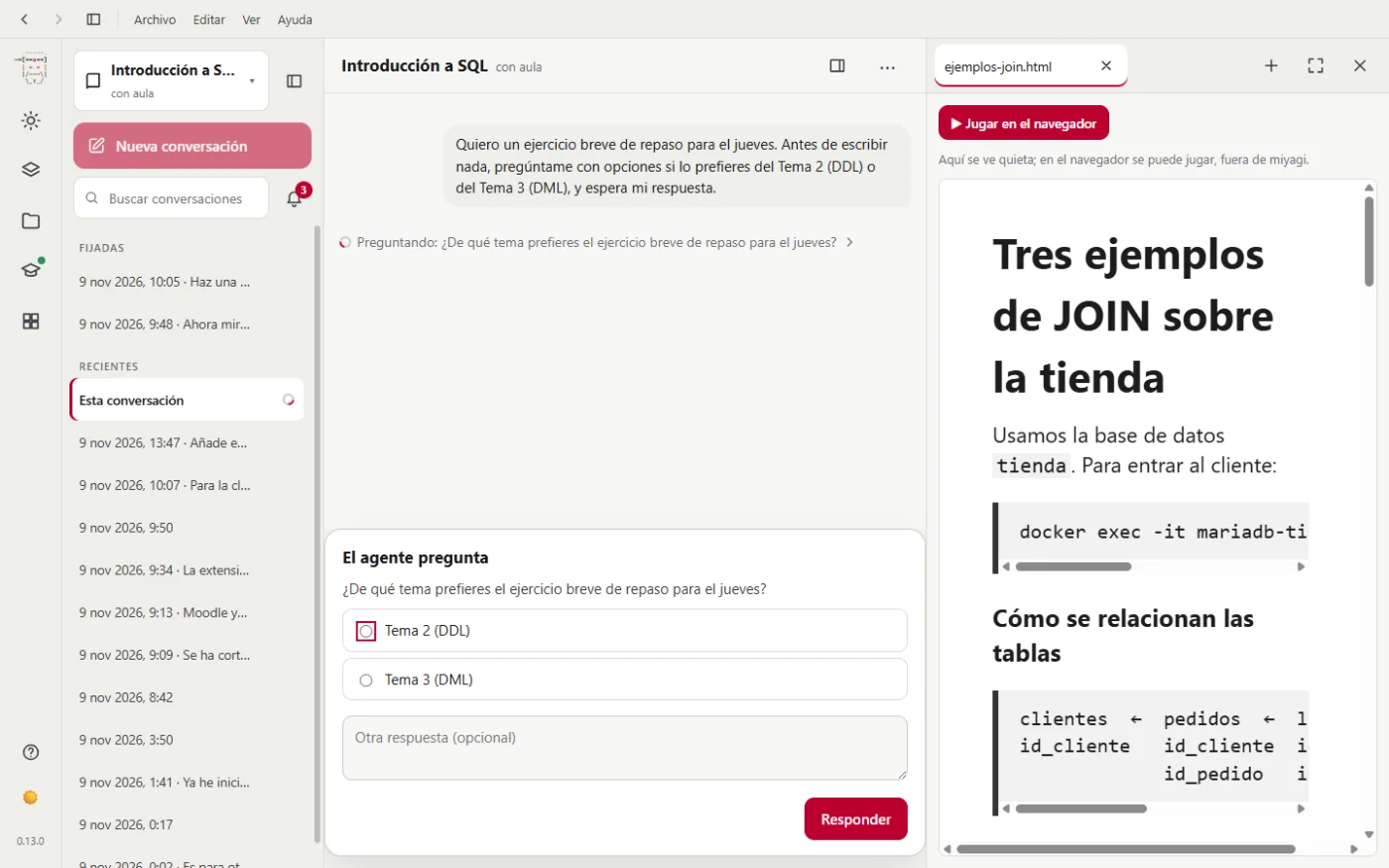
It also asks you when it needs a decision from you:
While it works you can keep writing to it: your message shows as queued and it reads it as soon as the action in progress ends. To stop it altogether, Esc or the ■ button.
The side panel
It opens on the right, in tabs, without leaving the conversation. The button to open it is at the top right. It shows three things:
- Drafts. A material or a file miyagi has prepared, for you to review while you talk.
- The turn's activity. What it's doing, step by step.
- Web pages, with the built-in browser (only in the desktop app).
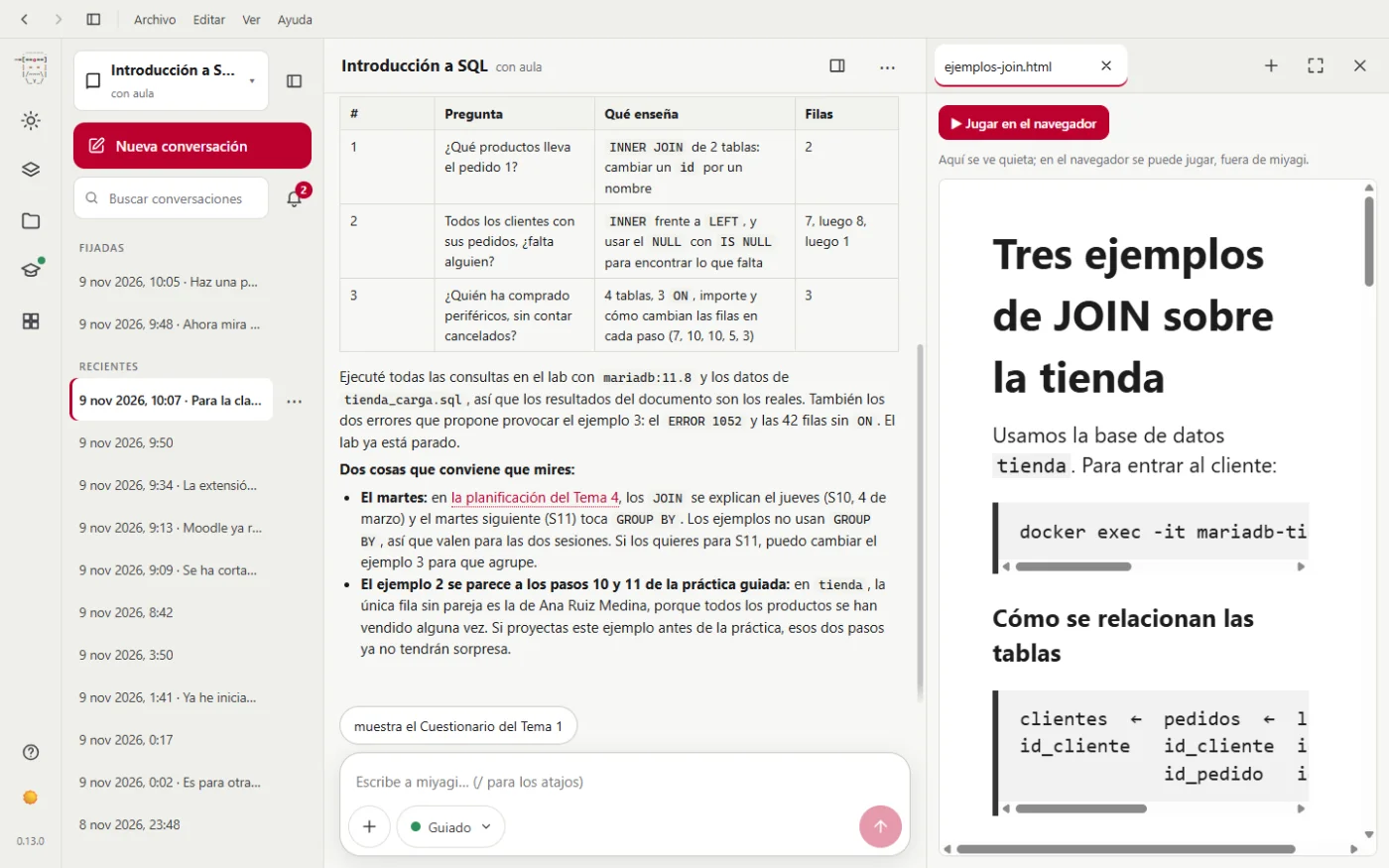
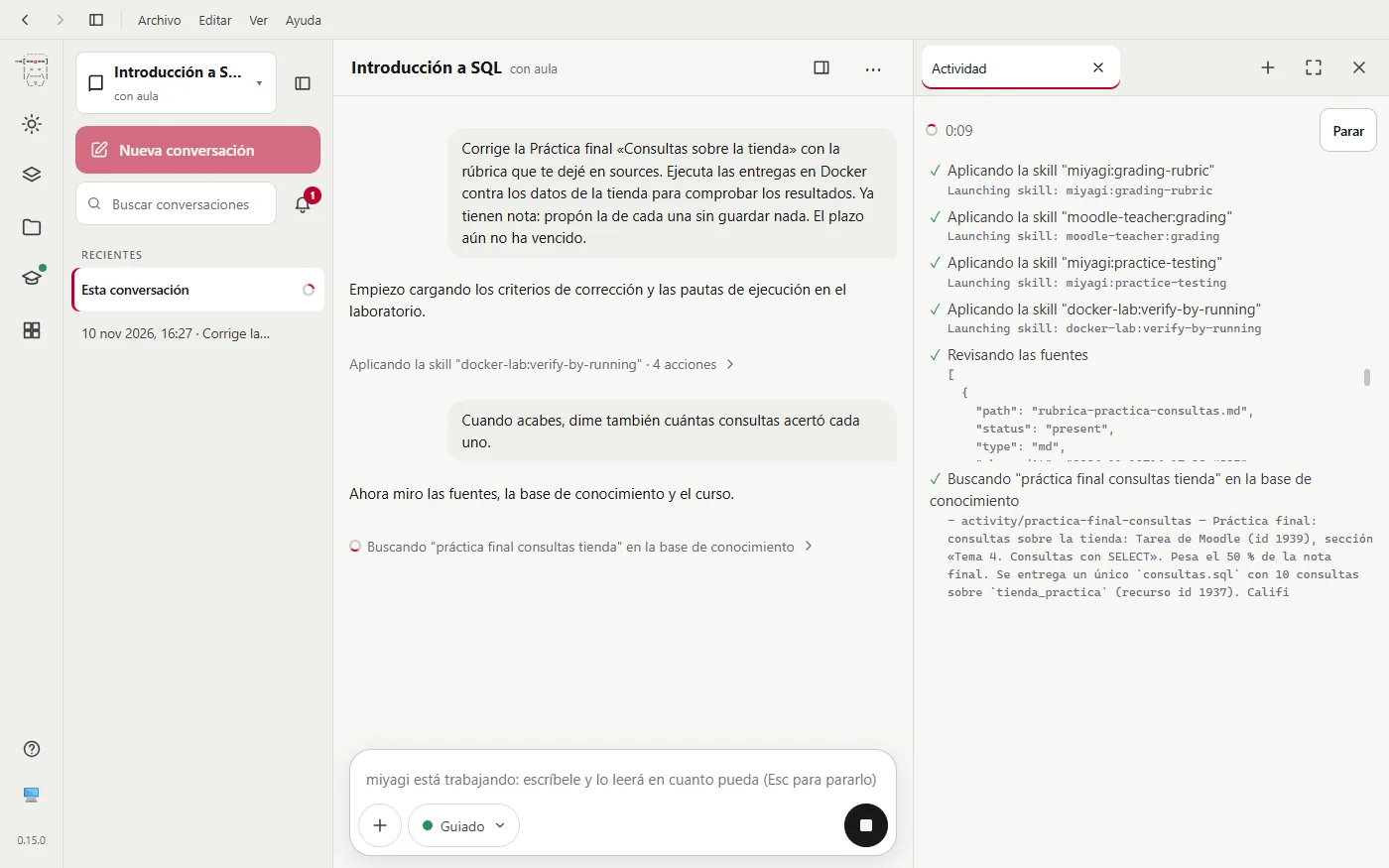
The built-in browser
With the button on the panel's bar you open a web tab. Links in the conversation open there, and so does View in the classroom, under each thing miyagi does in Moodle, which opens that same page. It's useful for having your Moodle course next to you: you log in once in a tab and you stay logged in even if you close the app.
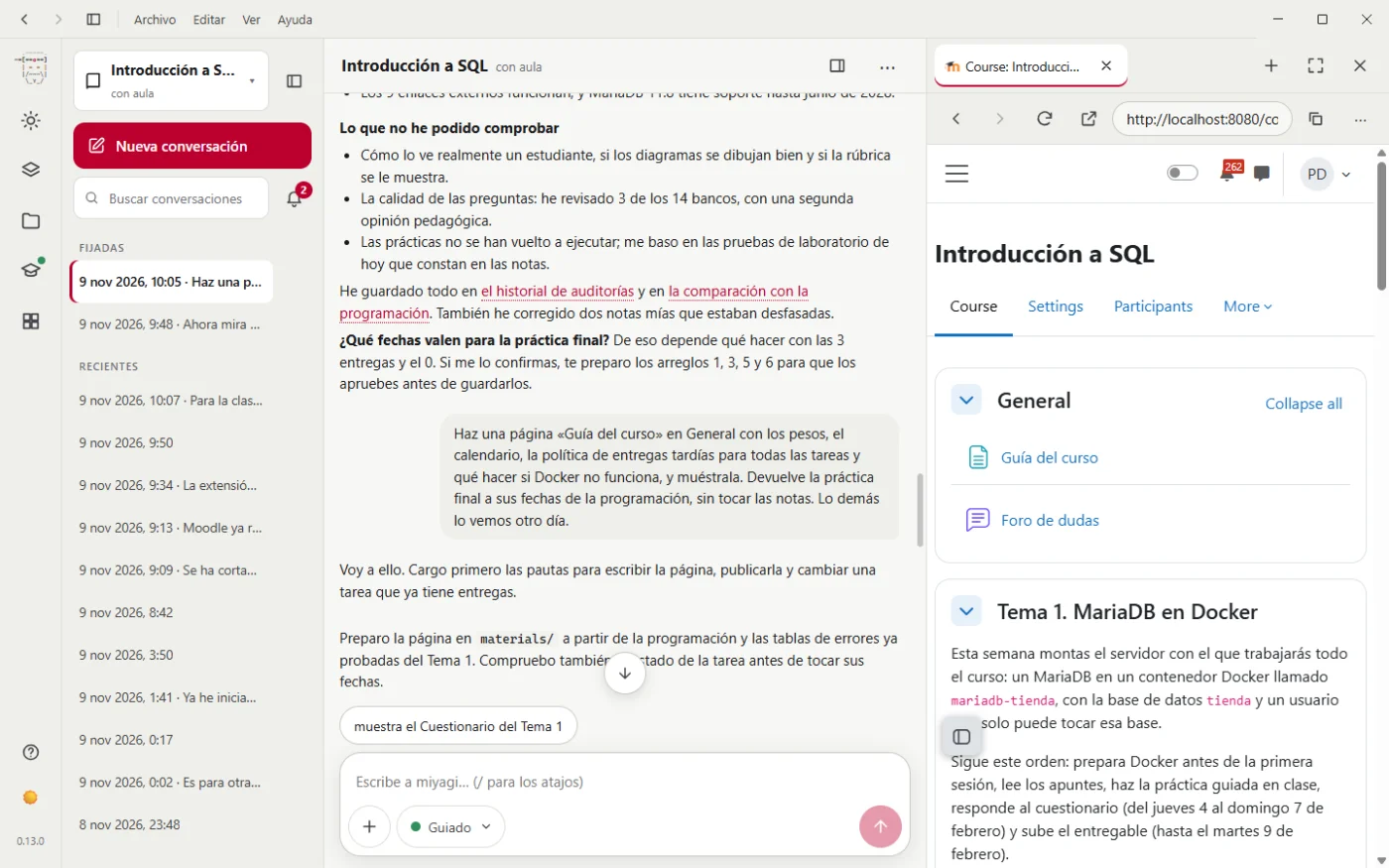
That session is yours alone: miyagi doesn't see it, nor what's in those tabs. miyagi goes into Moodle on its own with the moodle-teacher extension, with the login you did in its own window. They're two separate sessions, which is why you may have to log in to both.
Your subject's views
These views show what miyagi knows and has prepared. Their buttons send to the conversation what that action asks for, with the usual approvals. Each item has its ⋯, with what miyagi can do with it.
Today is described above. Teaching plan is your teaching plan as it stands in its memory:
Topics and activities shows each unit with its activities:
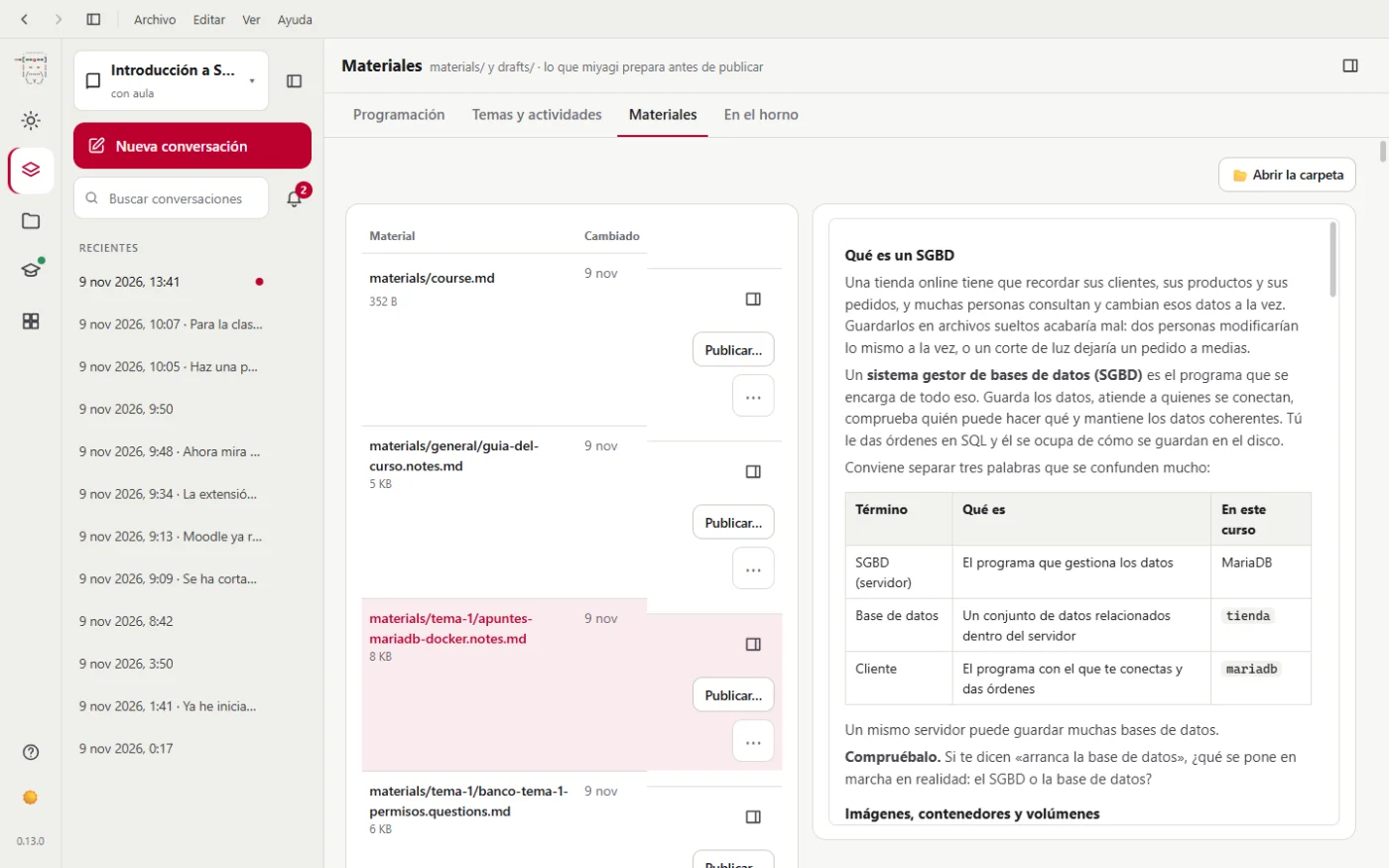
Materials is what miyagi prepares before publishing, with a preview:
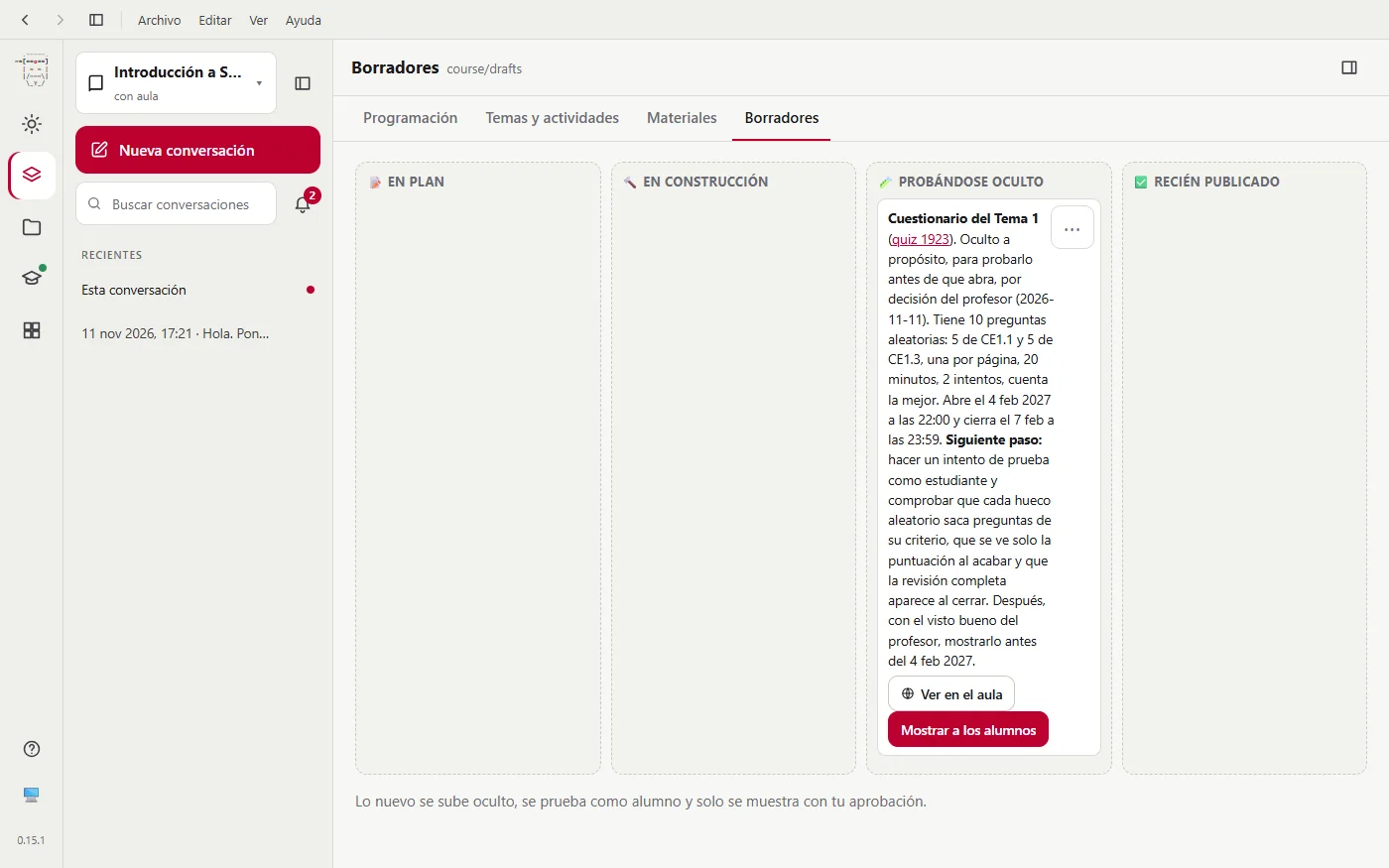
Drafts holds the activities that go through phases: planned, being built, tested hidden and just published. Those already in Moodle have View in the classroom, which opens their page.
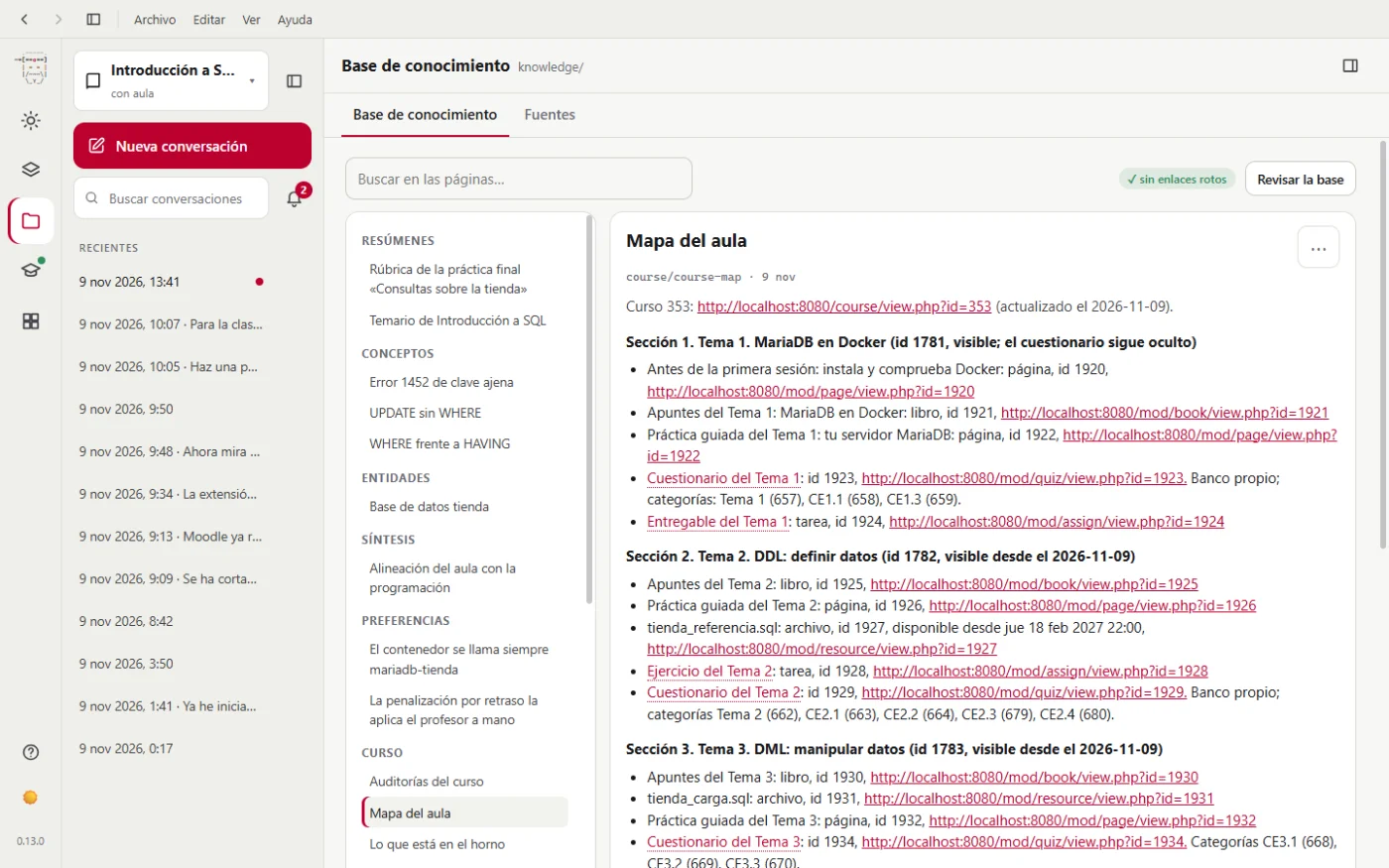
Knowledge base is the pages miyagi writes and consults about your course:
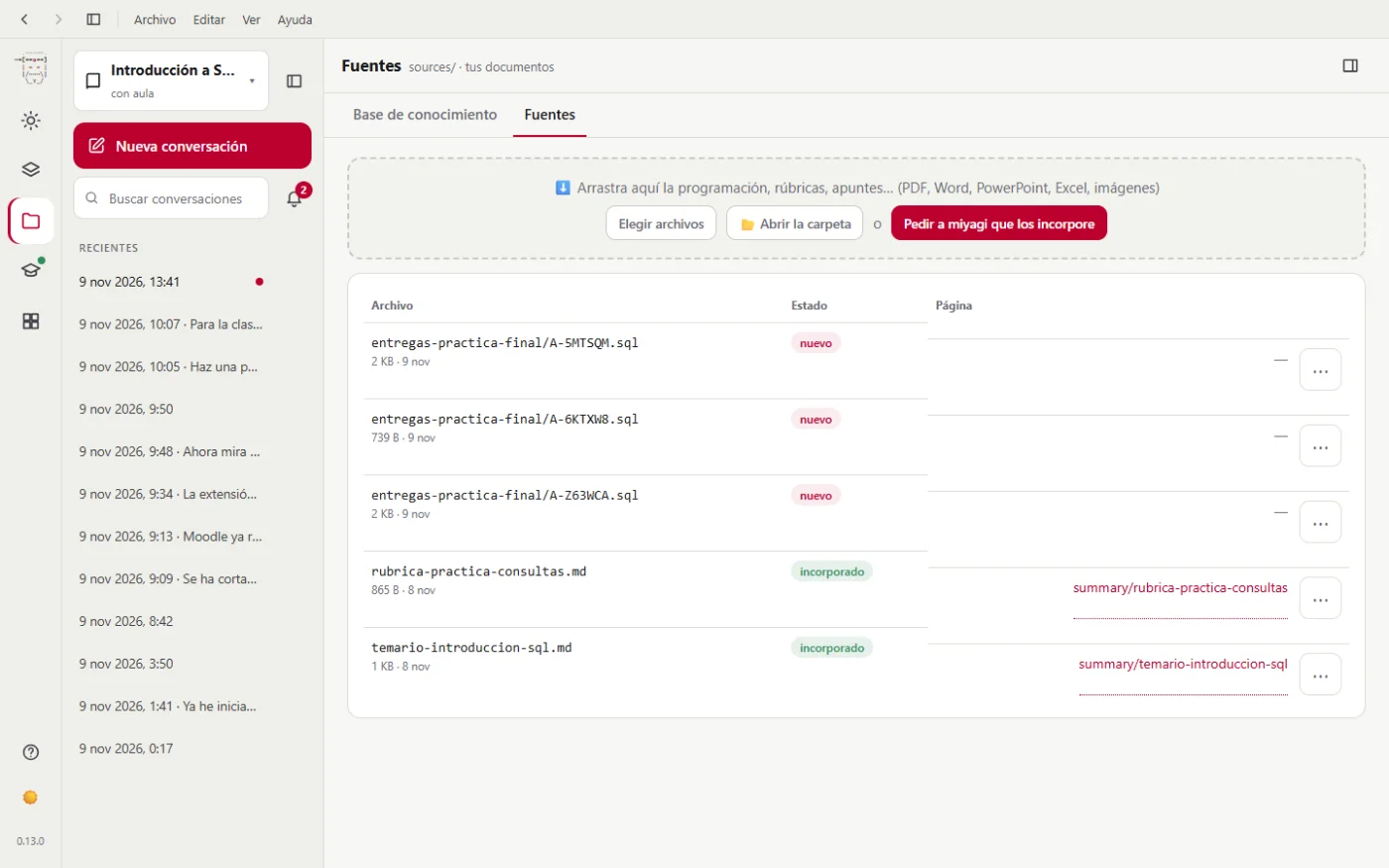
Sources is your documents. Drag new ones here and click Ask miyagi to take them in.
Your classroom
It shows the subject's Moodle course and whether miyagi can reach it, with shortcuts to what miyagi does with your course: getting its bearings, seeing how the class is going, reviewing it in depth and opening the course map.
Extensions
Extensions give miyagi new capabilities. Here you see the installed ones, add others from the catalog and create your own commands. miyagi checks once a day for new versions: one that has it says New version, with its Update button, and the bell tells you. Check for updates checks right away and updates them all.
When you add one, it shows you what it declares before installing it:
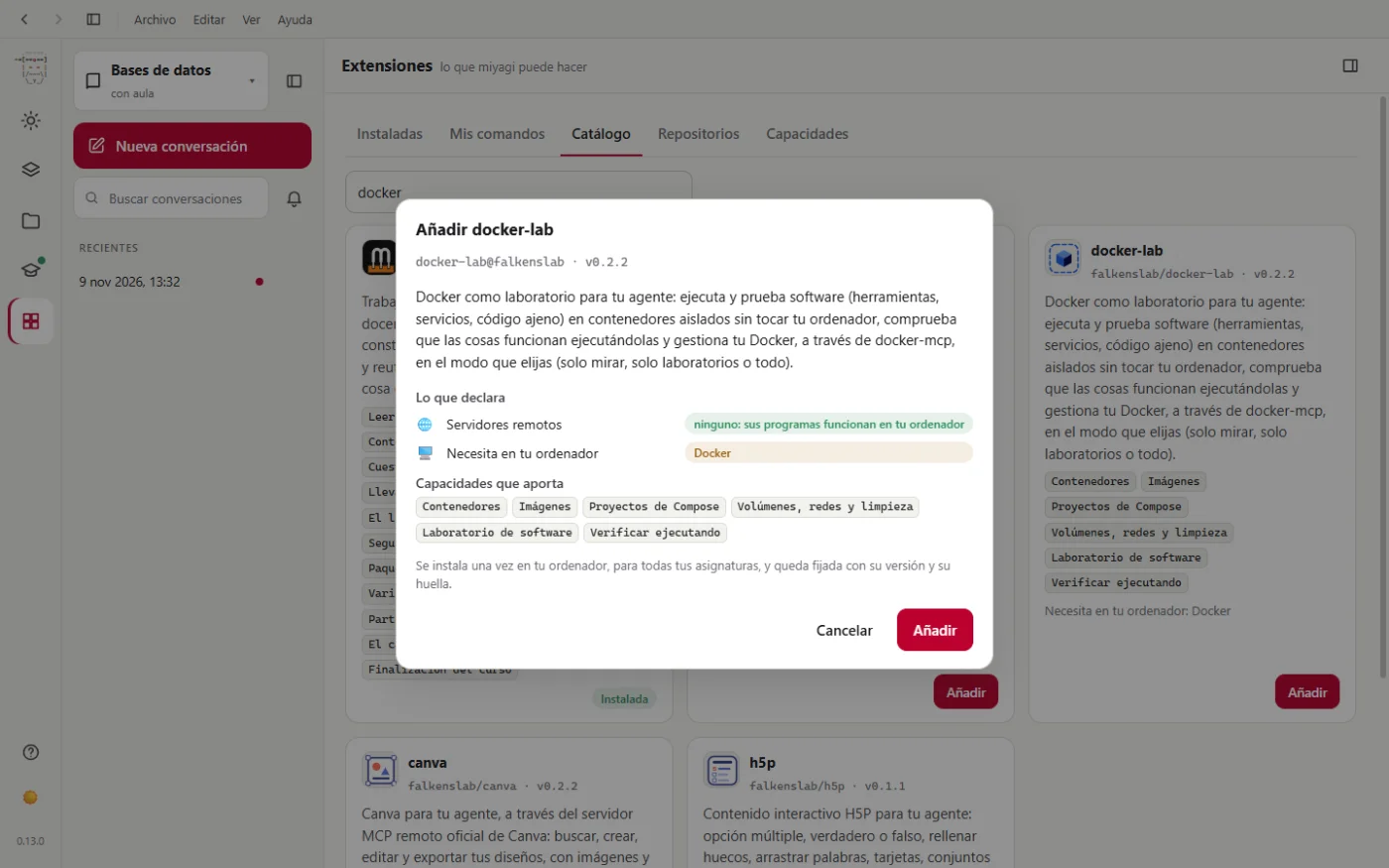
The details are in Extensions.
Light or dark theme
The sun icon, at the bottom of the icon column, switches between light, dark and the system's.
Closing and coming back
There's nothing to save: everything saves itself as it goes. The app remembers the size of its window and when you open it, it goes back to the last subject you used. There can only be one window open at a time.
If a conversation doesn't start within five minutes, it reopens by itself and lets you know.
If something isn't going as you expect, see Tips and troubleshooting.