The web version
miyagi web opens the same page as the desktop app in a tab of your browser. It works on Windows, Mac and Linux. Everything you see and do is explained in The desktop app: here you'll only see what changes and its main uses.
Opening it
You need to install miyagi from the terminal. Then:
$ miyagi web
miyagi opens the subject you used last (or the one you give it with -w <name> or --dir <folder>) and shows you an address like http://127.0.0.1:52341/?token=…. Open it in your browser. To close it, press Ctrl+C in the terminal.
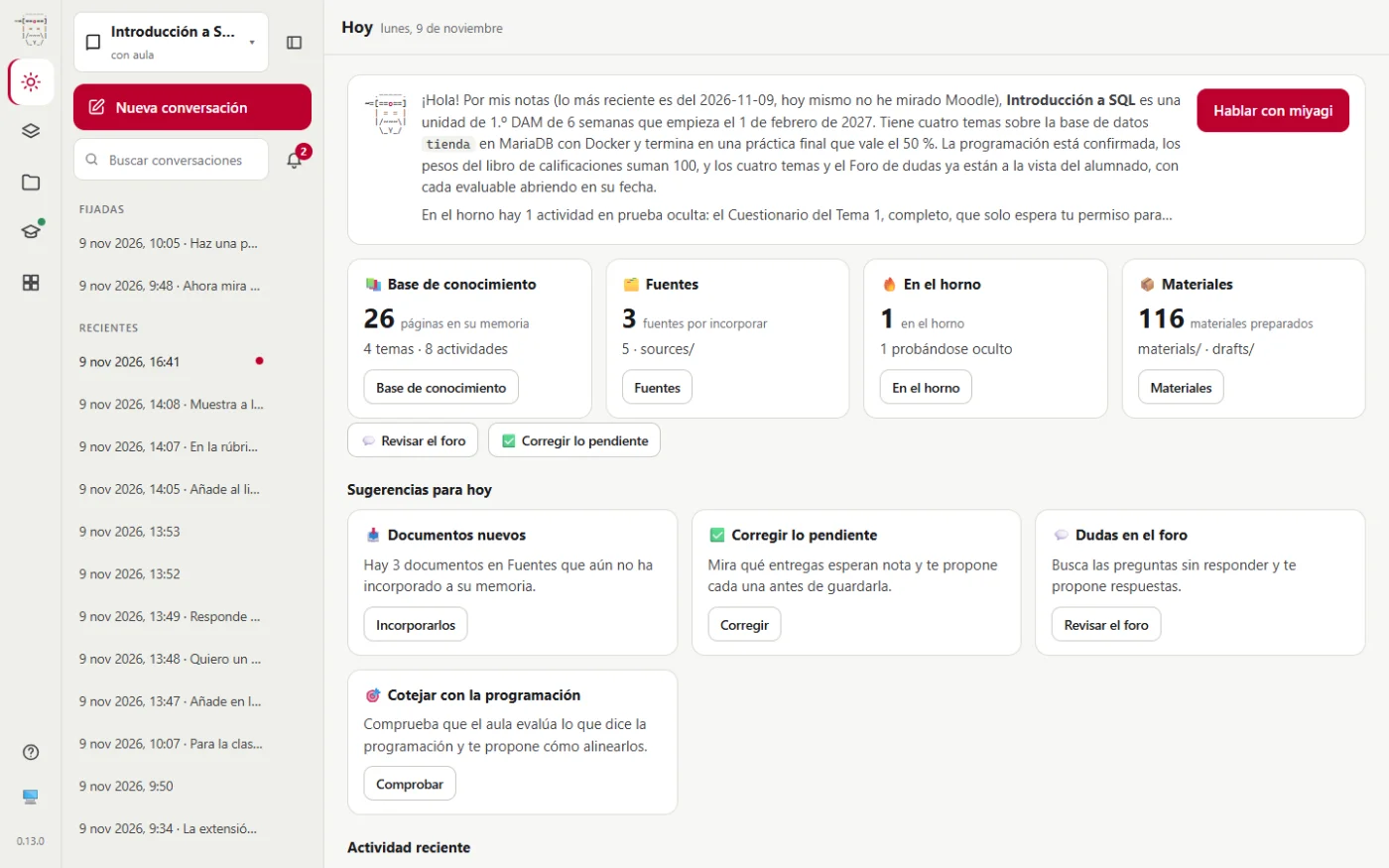
The page works only on your computer, and that address carries a random key that changes every time. Don't share it: what protects it and what doesn't.
What changes compared with the app
- There's no title bar with the File, Edit, View and Help menus: the window is your browser.
- There's no built-in browser: the side panel shows drafts and activity, and links (also View in the classroom, under each thing it does in Moodle) open in a new tab of your browser, where you're already signed in to Moodle.
- You have to keep it open from a terminal, and when you close the terminal it closes.
- Only one tab at a time: if you open it in another one, the previous one stops working.
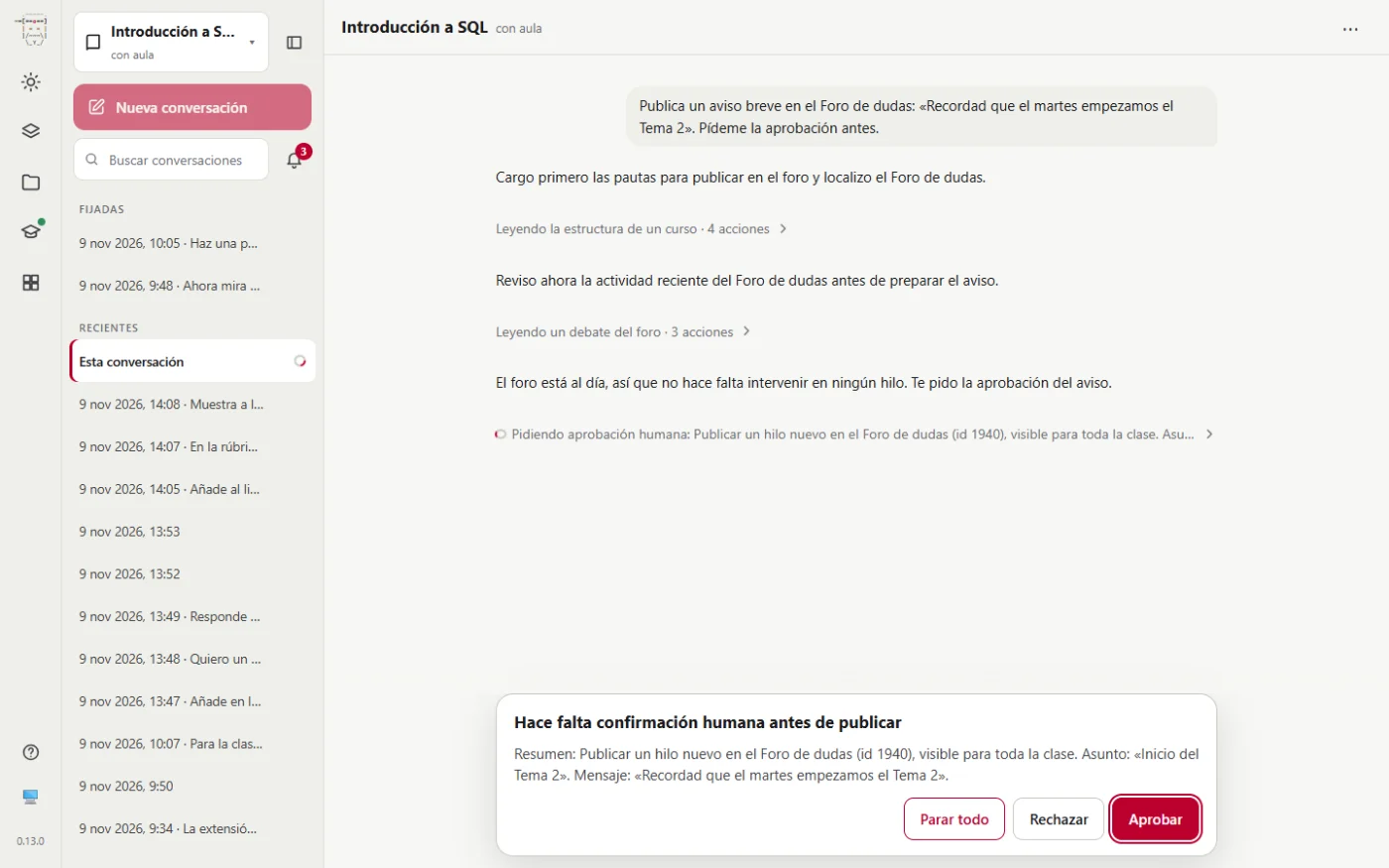
The guided tour, the tips, the approvals and the modes are the same.
Talking and approving
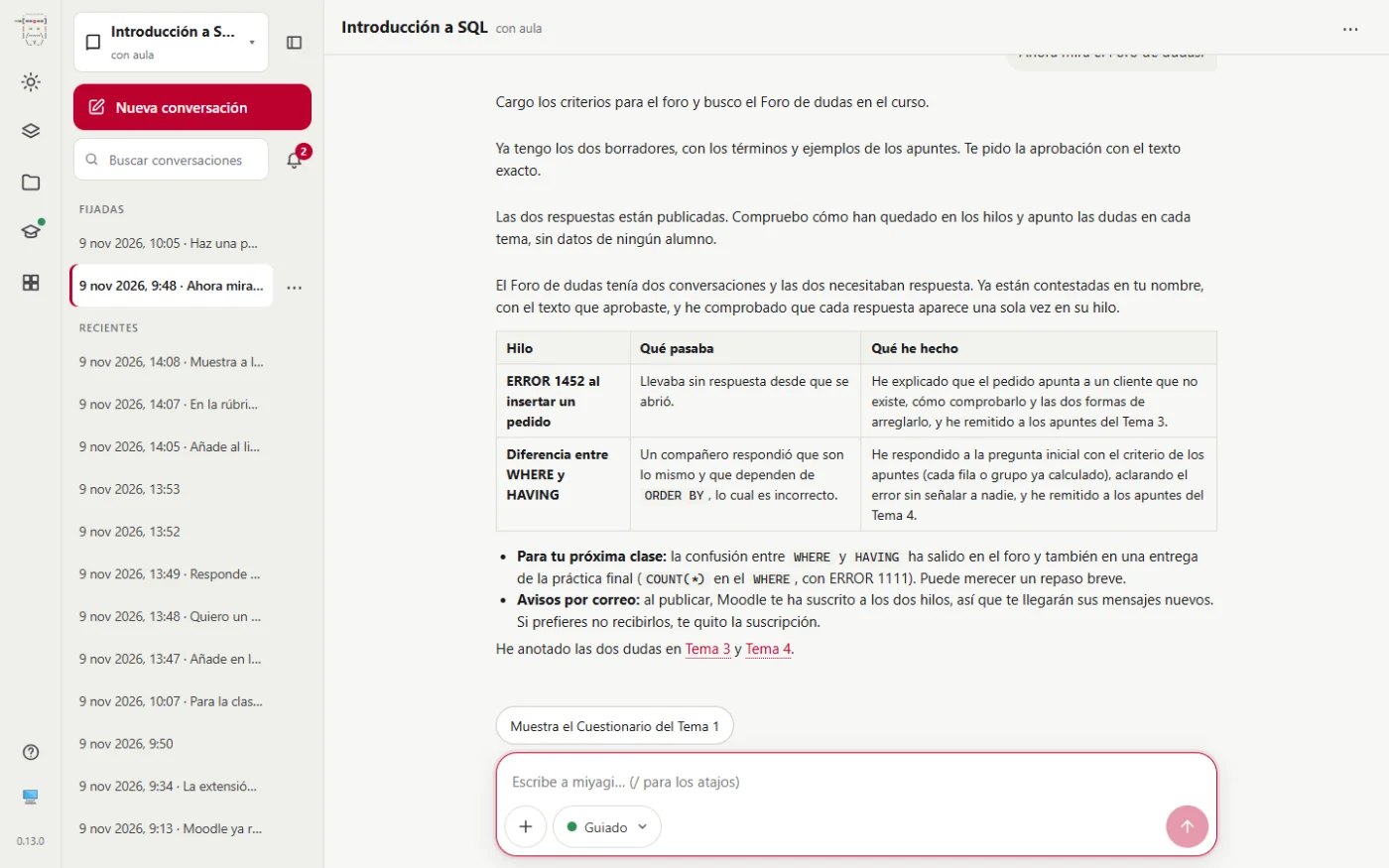
The conversation, the approvals and the views work the same as in the app.
On a small screen
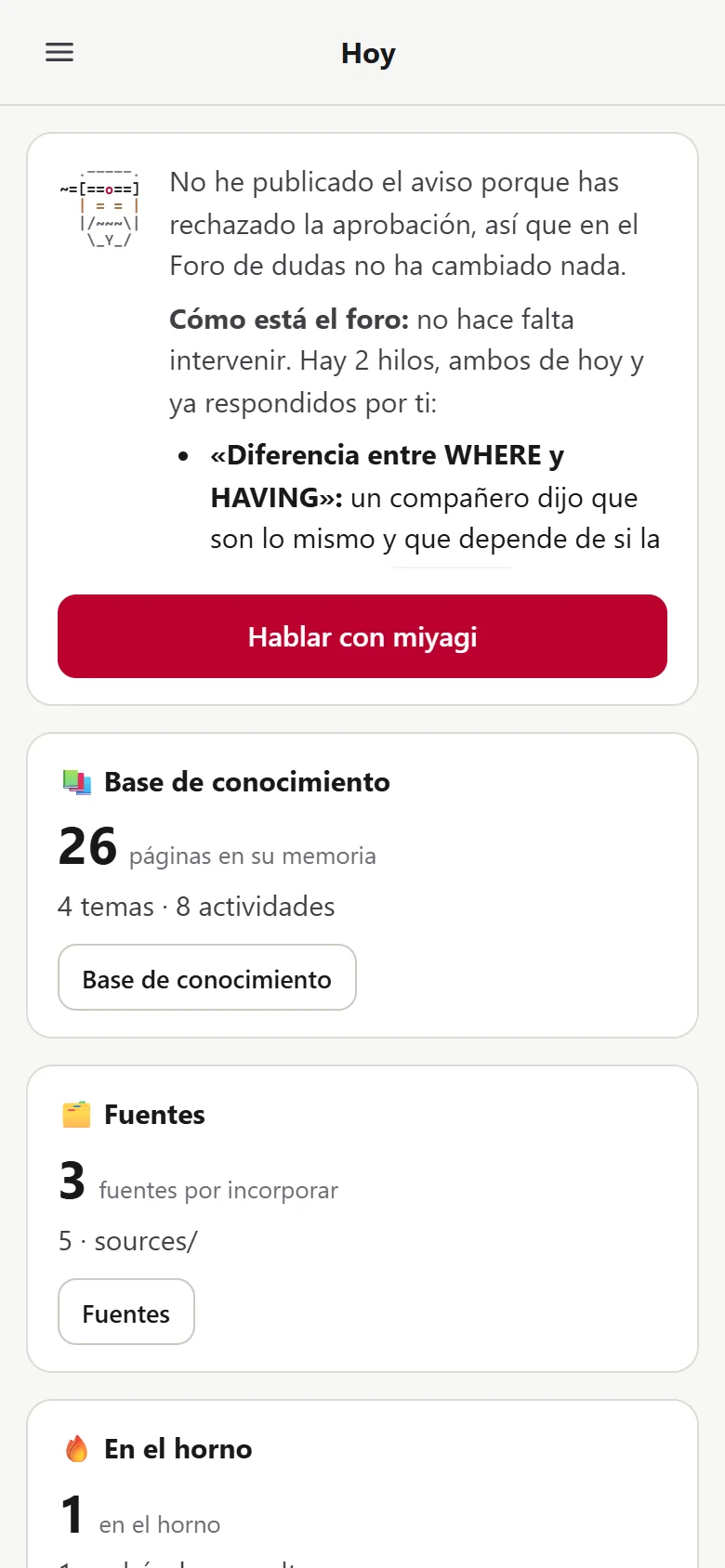
On a narrow screen, the icon column and the conversations open with the ☰ menu button, and the conversation takes up the whole screen.
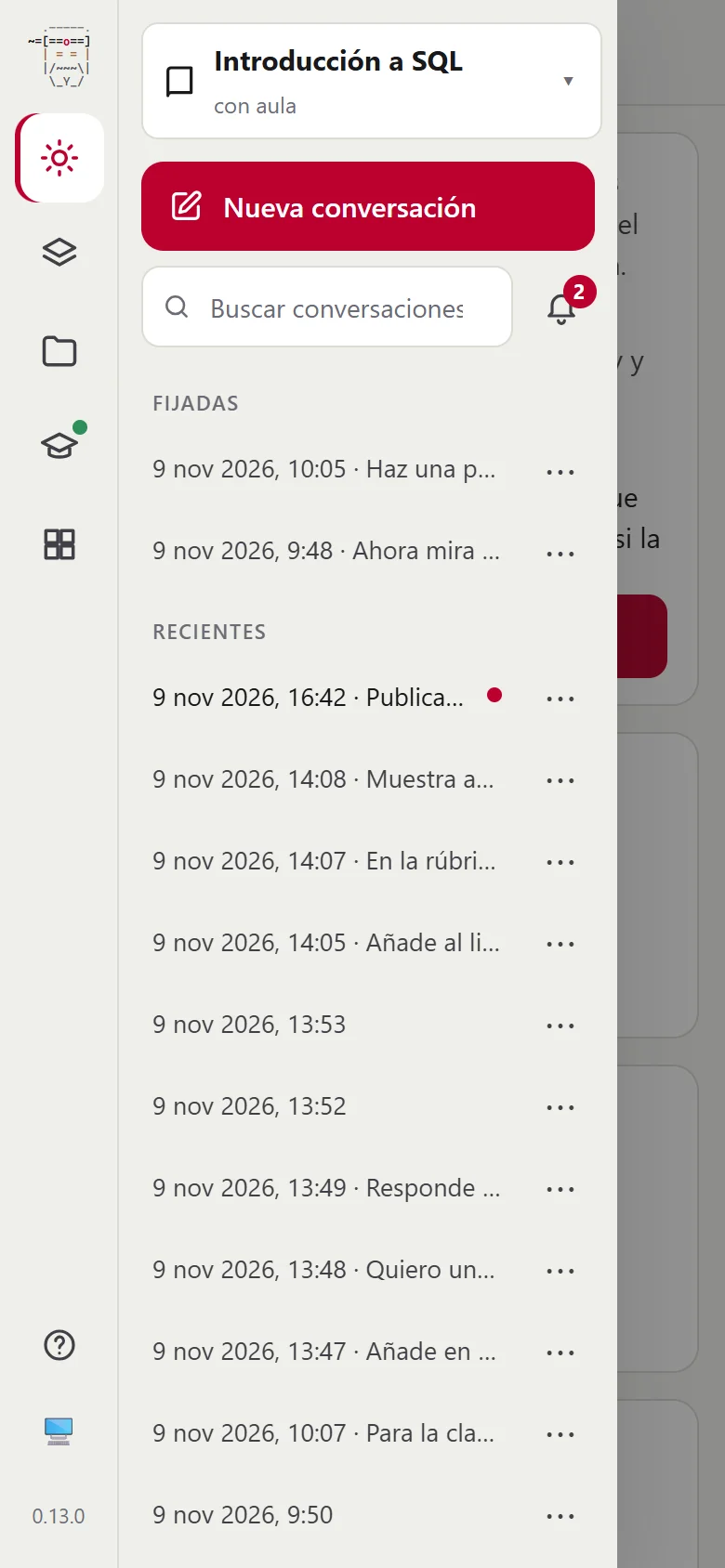
The page listens only on your computer, so using it from another device would need a tunnel, and we don't recommend that without additional protection: we explain it here.
Main uses
The same as in the app: create a subject, link the classroom, leave your documents in Sources and talk to it. And you can see it in specific tasks in Use cases in the web version.
On Windows, the desktop app is more comfortable: it has its own window and its built-in browser.